

A Samsung phone that barely makes it through half the day is frustrating—especially when it worked fine just a few months ago. Whether you bought your device from an official or unofficial Samsung Mobile Shop or another trusted retailer, rapid battery drain usually doesn’t mean the battery has failed. In most cases, something has changed in the way the phone is being used, what’s running in the background, or how the battery has naturally aged over time.
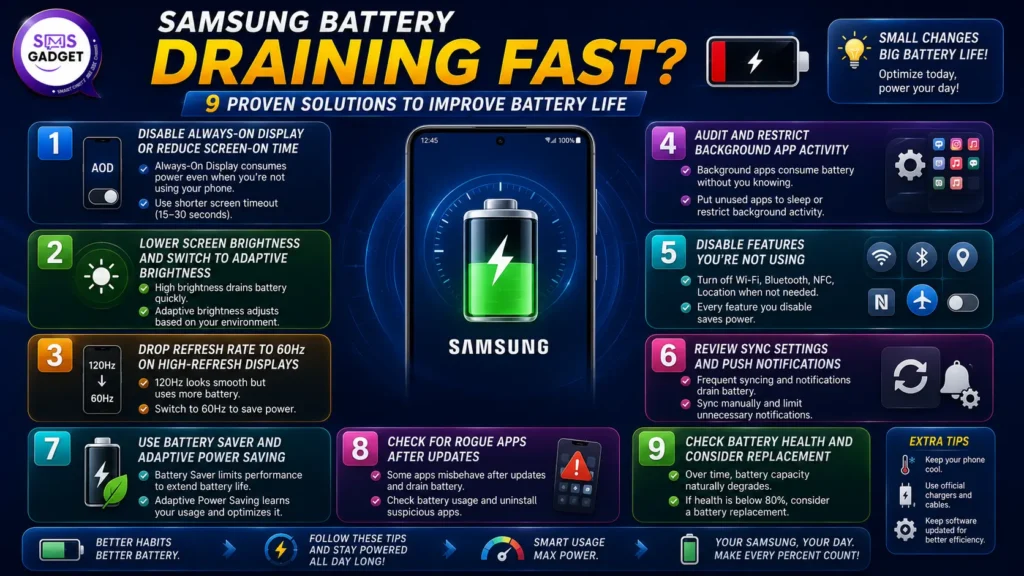
Before assuming the battery needs replacing, work through these nine solutions in order. Most battery drain issues are software- or settings-related and fixed without spending anything.
First: Identify What’s Actually Draining the Battery
Guessing wastes time. Samsung’s built-in battery usage screen shows exactly which apps and system processes consumed power over the last 24 hours.
Go to Settings → Battery and Device Care → Battery → Battery Usage.
If a single app is consuming 30–40% of battery while the screen is off, that’s your answer before trying anything else. If usage is spread evenly, the issue is broader — likely a combination of settings, background activity, and battery age.
1. Disable Always-On Display or Reduce Screen-On Time
The display is the single largest battery consumer on any smartphone. Always-On Display (AOD), which keeps time and notifications visible when the screen is locked, runs continuously in the background and contributes meaningfully to daily drain.
Go to Settings → Lock Screen → Always On Display and either disable it entirely or switch it to “Tap to Show” mode, which activates only when you tap the screen.
Separately, reduce screen timeout to 30 seconds or 1 minute under Settings → Display → Screen Timeout. Screens left on during idle periods — reading, cooking, meetings — accumulate hours of unnecessary runtime over a week.
2. Lower Screen Brightness and Switch to Adaptive Brightness
Running a Samsung AMOLED display at full brightness constantly burns through battery faster than almost any other single factor. Adaptive brightness learns your usage patterns and adjusts automatically based on ambient lighting — it’s more accurate than manual adjustment for most situations.
Enable it under Settings → Display → Adaptive Brightness.
For AMOLED displays specifically, dark mode provides a secondary benefit — black pixels on AMOLED are literally switched off, consuming no power. Enable dark mode under Settings → Display → Dark Mode and notice the difference on high screen-on-time days.
3. Drop Refresh Rate to 60Hz on High-Refresh Displays
Samsung Galaxy S and A series phones with 120Hz displays refresh the screen 120 times per second, smooth for gaming and scrolling but expensive on battery. When you’re reading, browsing, or in meetings, that extra refresh rate provides no visible benefit.
Go to Settings → Display → Motion Smoothness and switch from adaptive or 120Hz to standard (60Hz). Some users keep 60Hz permanently; others switch back for gaming. Either approach saves meaningful battery compared to running 120Hz around the clock.
4. Audit and Restrict Background App Activity
Apps running in the background, refreshing content, checking location, and syncing data consume battery without any visible activity on screen. Samsung’s “Sleeping Apps” and “Deep Sleeping Apps” features restrict this automatically for apps you don’t use regularly.
Go to Settings → Battery and Device Care → Battery → Background Usage Limits.
Add rarely-used apps to the sleeping list manually. For apps that genuinely need background access (messaging apps, navigation), leave them unrestricted. Everything else — shopping apps, games, tools you open once a month — benefits from restriction.
Additionally, review location permissions. Apps with “Always On” location access run GPS continuously. Go to Settings → Location → App Permissions and switch any non-essential app from “Always” to “Only While Using.”
5. Disable Features You’re Not Using
Connectivity features that remain active when unused draw a small but continuous current. Individually minor, collectively significant over a full day.
Check each of these and disable when not in use:
Bluetooth: Stays on scanning for devices even when nothing is connected. Turn off when not using earphones or accessories.
Wi-Fi: If you’re in an area with no saved networks, the phone scans for connections repeatedly. Either turn it off or disable “Wi-Fi Scanning” under Settings → Location → Wi-Fi Scanning.
NFC: Used only for Samsung Pay and contactless transfers. Runs passively in the background otherwise. Disable under Settings → Connections → NFC and Contactless Payments.
Mobile Hotspot: Broadcasting a hotspot while not in active use is one of the fastest ways to drain a battery in a few hours.
6. Review Sync Settings and Push Notifications
Email accounts set to push delivery receive data the moment it arrives—which means the phone maintains an open connection to the mail server continuously. For multiple email accounts, this adds up.
Go to Settings → Accounts and Backup → Manage Accounts, select each account, and switch email sync from Push to every 15 or 30 minutes. The practical difference in daily use is minimal. The battery difference is noticeable.
Similarly, review which apps have notification permissions. Apps that can’t send notifications have less reason to wake the processor in the background. Go to Settings → Notifications → App Notifications and revoke permissions for apps where notifications provide no real value.
7. Use Battery Saver and Adaptive Power Saving
Samsung’s Battery Saver mode reduces background activity, limits CPU performance, and restricts visual effects, which is effective when you’re below 20% and need the phone to last through the day.
More useful for everyday use is Adaptive Power Saving, which automatically adjusts power consumption based on usage patterns without requiring manual switching.
Enable it under Settings → Battery and Device Care → Battery → Power Saving → Adaptive Power Saving.
For heavier situations, enable Battery Saver manually. It limits some functionality—background refresh slows, and some animations are removed—but extends remaining battery life significantly in low-charge situations.
8. Check for Rogue Apps After Updates
App updates occasionally introduce bugs that cause abnormal battery drain—a process that runs continuously, a location request that never closes, or a sync loop that doesn’t resolve. This is one of the more common causes of sudden battery drain on a phone that previously performed well.
If battery life dropped noticeably after a specific app update, the correlation is worth investigating. Go back to Settings → Battery → Battery Usage and check whether that app now appears higher on the consumption list than it did before.
Options: clear the app’s cache (Settings → Apps → [App Name] → Storage → Clear Cache), check whether a newer update fixed the bug, or uninstall and reinstall the app entirely.
9. Check Battery Health and Consider Replacement
Lithium-ion batteries degrade with charge cycles. A Samsung battery at 80% health holds 20% less charge than it did new, meaning even with perfect settings, the phone will drain faster than it originally did.
Samsung doesn’t expose battery health percentage directly in Settings the way iOS does. To check it properly, dial *#0228# on the dialer, this opens the battery status screen showing voltage and current draw. Alternatively, the Samsung Members app (pre-installed on most Galaxy devices) has a diagnostic tool under Get Help → Interactive Checks → Battery.
If the battery is below roughly 80% capacity and the phone is two or more years old, replacement is the more effective solution than optimizing settings further. Authorized Samsung service centers and reputable third-party repair shops both carry replacement batteries for most Galaxy models.
When evaluating whether repair or replacement makes more financial sense, checking the current Samsung phone price in Bangladesh gives a clear comparison point — if a replacement battery costs 20–25% of a newer model’s price, the math on upgrading starts to make sense depending on the device’s age and condition.
When Settings Aren’t Enough: Hardware Considerations
If you’ve worked through all nine solutions and battery life remains poor, the issue is likely hardware — either the battery itself or a component drawing abnormal power.
A bloated battery (visible as a slight bulge under the back panel or a screen lifting at the edges) needs immediate attention regardless of performance. Do not continue using a physically damaged battery.
For diagnosis and replacement, authorized Samsung service centers provide the most accurate assessment. Independent repair shops vary in quality — ask specifically whether they use original Samsung battery cells or third-party replacements, as this affects both performance and safety. Recommendations from buyers in local tech communities or an established Samsung mobile shop in Bangladesh can help identify trustworthy repair options in your area.
Frequently Asked Questions
How many charge cycles does a Samsung battery last?
Samsung batteries are rated for approximately 500 full charge cycles before dropping to around 80% of original capacity. For most users charging once daily, that’s roughly 18 months to 2 years. Partial charges count proportionally — charging from 50% to 100% counts as half a cycle.
Does charging overnight damage the battery?
Modern Samsung phones stop drawing current once fully charged and manage trickle charging automatically. The risk of leaving a phone plugged in overnight is low with recent Galaxy models. For older devices without this feature, consistent overnight charging over years can contribute to battery degradation.
Is it better to keep the battery between 20–80%?
Yes, for long-term health. Lithium-ion batteries degrade faster at extreme charge levels—consistently charging to 100% and draining to 0% accelerates wear. Samsung’s “Protect Battery” feature under Settings → Battery → More Battery Settings caps charging at 85% automatically for users who want this managed passively.
Why does the battery drain faster in cold weather?
Lithium-ion chemistry is temperature-sensitive. Cold temperatures temporarily reduce the battery’s ability to deliver current, which shows as faster drain and lower percentage readings. The capacity usually returns when the phone warms up — this is a chemistry issue, not a battery fault.
Conclusion
Battery drain on a Samsung phone is almost always traceable to something specific, a setting running unnecessarily, an app behaving abnormally, or a battery that’s past its effective lifespan. The nine solutions above address all three categories.
Start with the battery usage screen. It takes 30 seconds and eliminates guessing. From there, work through display settings, background restrictions, and connectivity features before assuming the hardware is at fault.
For phones older than two years showing persistent drain despite software fixes, battery health becomes the honest answer. At that point, the decision is whether a replacement—battery or device, makes more sense given the phone’s overall condition and current market value.
Most battery problems are fixable without spending anything. When hardware is genuinely the issue, knowing that clearly is still more useful than continuing to adjust settings that won’t solve it.
