

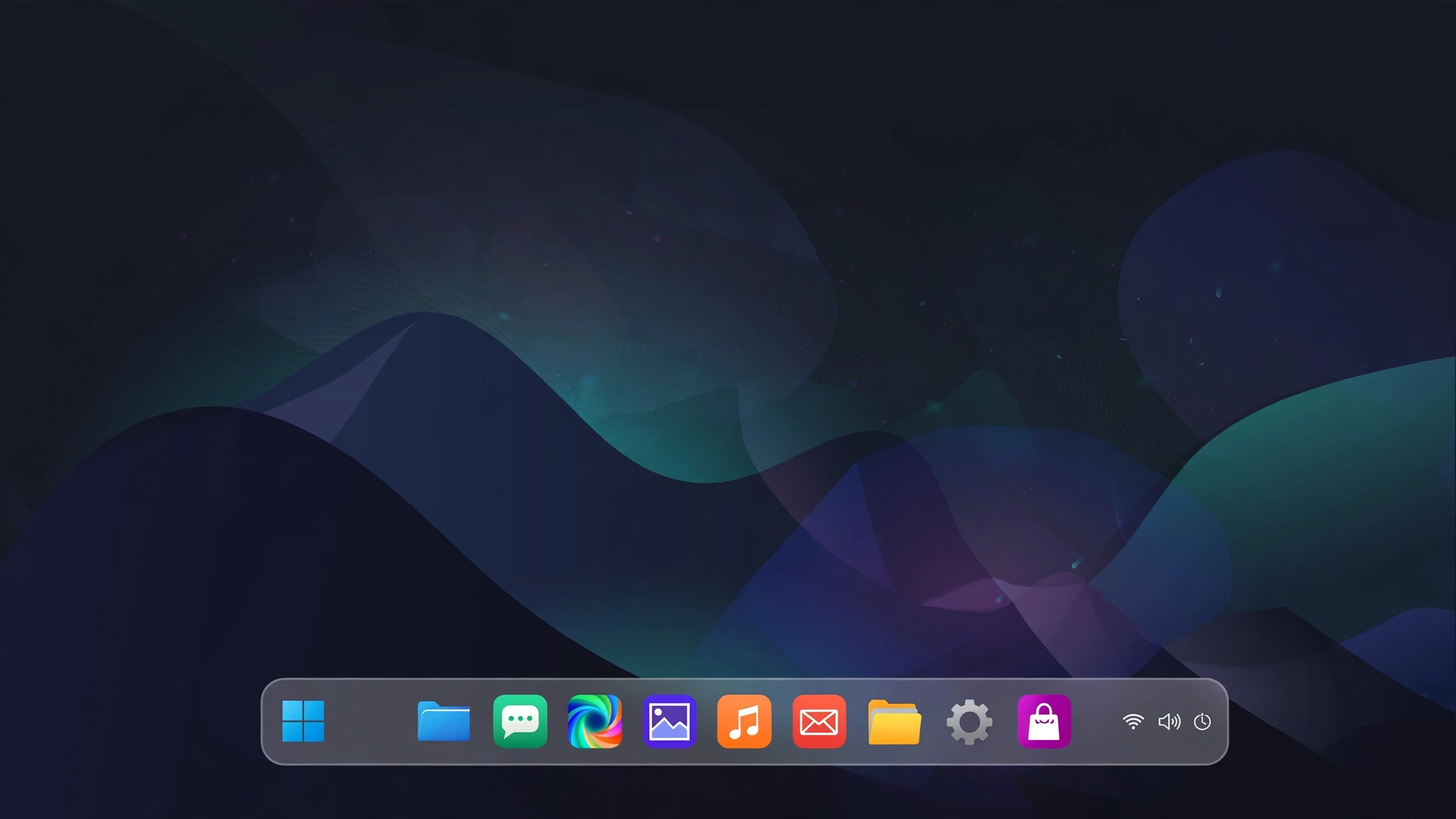
For years, Windows kept your app icons tucked into the bottom-left corner, right next to the Start button. It worked, but it never quite felt balanced, especially on wide monitors where your eyes naturally rest in the middle of the screen. When Windows 11 moved the icons to the center by default, a lot of Windows 10 users suddenly wanted the same clean, symmetrical look without upgrading their whole system or replacing their taskbar completely.
Why Centered Icons Feel Better
A centered taskbar is not just about looks. When your most-used apps sit in the middle, they are easier to reach with a quick glance and a short mouse movement, particularly on larger displays. The layout also feels calmer. Instead of a crowded corner and a long empty stretch on the right, your pinned apps, open windows, and system tray feel like separate zones with a clear purpose. If you work with a dock on a Mac or a tablet on the side, the centered style will feel instantly familiar and a little more modern.
There is also a practical benefit for focus. Many people pin only five or six essential apps: a browser, file explorer, messaging, email, and one or two work tools. Centering that short row makes it stand out, so you spend less time hunting for the right icon.
What You Need Before You Start
You do not need to edit the registry or install a heavy theme pack to get this done. All you need is a Windows 10 or Windows 11 PC, a few minutes, and a small utility designed specifically for taskbar positioning. Before you begin, take a second to pin the apps you actually use every day and unpin the rest. Centering works best with a curated row, not twenty icons stretching across the screen. Also note your current taskbar settings, such as auto-hide and icon size, so you can return to them if you want to experiment later.
If you use multiple monitors, decide whether you want the centered layout on your main display only or on secondary screens as well. Most people start with the main monitor, live with it for a day, and then decide.
Step-by-Step: Centering Your Icons
Start by downloading the utility and running it. There is no complicated setup wizard to work through. Once it opens, you will see straightforward controls for position, style, and animation. The key setting is the taskbar position slider, which lets you shift the icon group toward the center pixel by pixel instead of relying on a rough spacer or a fake empty icon like older workarounds required.
A popular option for this job is Taskbarx, a free and open-source tool that gives you precise control without replacing the Windows shell. Set the position so your icons sit dead center, then preview the result. If you also use the system tray and clock on the right, leave a little breathing room so the centered group does not collide with them when you open several apps at once. Apply the setting and open a few programs to test how the row expands as more windows appear.
Next, restart Explorer or reboot once to make sure the position sticks. Then open your usual mix of apps, a browser with multiple tabs, a document, and a media player, and watch how the taskbar behaves. Good centering should stay stable as icons are added or closed. If the group drifts, nudge the offset by a few pixels at a time. Small adjustments matter here, and it is worth spending two minutes getting it exactly where your eye expects it to be.
Fine-Tuning Position, Spacing and Animation
Once the basics look right, fine-tune the details. A subtle animation when icons appear or close can make the taskbar feel smooth rather than jumpy. Keep it short and gentle, as long animations quickly become annoying during a busy workday. You can also experiment with transparency or a slight blur behind the taskbar so your wallpaper shows through. On a clean desktop, a semi-transparent bar paired with centered icons gives you that polished, dock-like finish many people are aiming for.
Spacing is the other detail worth checking. If your icons feel cramped, reduce how many apps you pin rather than forcing everything into the center. Keep everyday tools pinned and let less-used programs live in the Start menu. That discipline is what separates a pro-looking setup from a centered but still cluttered one. Finally, test the layout in both light and dark themes if you switch between them, since transparency and blur can look quite different depending on your wallpaper and accent color choices.
Troubleshooting Common Issues
If your icons return to the left after a Windows update, simply reapply your saved settings and check that the utility is set to run at startup. If the taskbar looks off-center, the usual cause is the system tray expanding with extra icons, so hide the tray items you do not need. And if animation feels laggy on an older laptop, turn animation off and keep just the centering and styling. You will still get the cleaner layout, with none of the performance cost, and you can re-enable effects later if you upgrade your hardware.
