

Snapchat is one of the most popular social media platforms for sharing photos, videos, messages, and everyday moments with friends. When creating an account, users choose a username that helps others identify and find them on the platform. However, your original username might not match your current preferences, personal brand, or online identity.
Fortunately, Snapchat allows users to change their usernames without creating a new account. Whether you want a more professional username, a memorable identity, or something that better represents your personality, the process is straightforward. Understanding the available settings and username requirements can help you make the change without unnecessary confusion.
What Is a Snapchat Username?
A Snapchat username is a unique identifier associated with your account. It helps distinguish your profile from millions of other users and allows people to find or recognize your account. Unlike your display name, your username must be unique and follow Snapchat’s specific naming requirements.
Your username is different from the name displayed on your profile and in conversations. You can change your display name whenever you want, but your username has stricter limitations. Understanding this difference matters before you decide which part of your Snapchat profile needs an update.
Can You Change Your Snapchat Username?
Yes, Snapchat lets eligible users change their usernames through the account settings in the mobile app. This feature lets you update your account identity without starting over or losing your existing conversations and saved memories.
However, Snapchat generally limits username changes to once every 12 months. You should carefully choose your new username because you may not be able to change it again until the restriction period has passed. Availability also matters, as another account may already be using your preferred username.
How to Change Your Snapchat Username on Android and iPhone
The steps to change your Snapchat username are similar on Android and iPhone. Before you begin, make sure you have the official Snapchat app installed and can access your account.
Follow the instructions below to update your username using the application. The exact appearance of certain buttons may vary depending on your device and the version of Snapchat you are using.
Open the Snapchat Application
Start by opening Snapchat on your Android smartphone or iPhone. Log in using your existing account credentials if you are not already signed in, and wait for the camera screen to appear.
Make sure you are using the correct account before proceeding. If you manage multiple Snapchat accounts, double-check your profile information to avoid changing the username associated with the wrong account.
Access Your Profile
Tap your Bitmoji or profile icon in the upper-left corner of the camera screen. This action opens your profile page, where you can view your display name, username, Snapcode, and other account details.
Take a moment to review your current profile information. Once you have confirmed that you are using the correct account, look for the settings icon, usually represented by a gear in the upper-right corner.
Open the Settings Menu
Tap the gear icon to access Snapchat’s settings. This menu contains options for managing your account, privacy preferences, notifications, security, and other application features.
Look for the username option in the account settings section. Depending on your application version, the layout may differ slightly, but the username setting is generally accessible from your profile’s settings menu.
Select the Username Option
Tap the Username option to open the screen displaying your current Snapchat username. You may see information explaining the username-change policy and how frequently you can update it.
Review any instructions displayed on the screen before continuing. If the option is unavailable or Snapchat indicates that you recently changed your username, you may need to wait until you become eligible again.
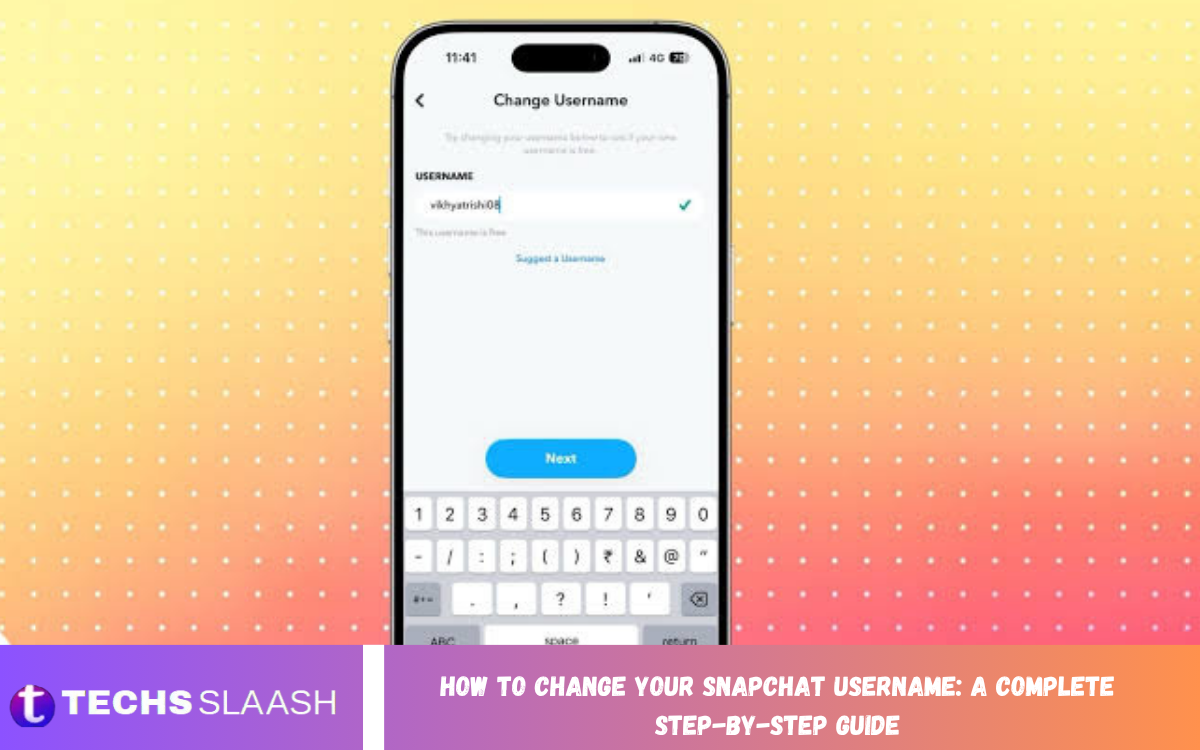
Enter Your New Username
Select the option to change your username and enter the new username you want to use. Choose something recognizable, easy to spell, and appropriate for your personal or professional identity.
Snapchat will check whether the username meets its requirements and is available. If the username is already taken or does not follow the platform’s rules, you will need to choose a different option.
Confirm Your Username Change
After entering an acceptable username, follow the on-screen instructions to confirm the change. Snapchat may request your password or another form of verification to protect your account from unauthorized changes.
Review the new username carefully before completing the process. Once you confirm the change, your account should display the updated username if the request is accepted.
Verify Your Updated Profile
Return to your profile page and check that the new username appears correctly. You can also review your account settings to confirm that the change has been applied.
Remember that changing your username does not necessarily change your display name. If you want friends to see a different name when interacting with you, you may need to update that setting separately.
Read Also: Snapchat Streaks: How They Work, How to Maintain Them, and How to Restore Lost Streaks
How to Change Your Snapchat Display Name
If you only want to change the name friends see on Snapchat, updating your display name may be a better option. Unlike usernames, display names do not need to be unique, so you can usually choose your preferred name without worrying about whether someone else already uses it.
To update your display name, open Snapchat and tap your profile icon. Select your current display name, enter the name you want to use, and save your changes. The available options may vary slightly depending on your application version.
Snapchat Username Rules You Should Know
Before changing your Snapchat username, familiarize yourself with the platform’s naming requirements. Snapchat generally requires usernames to be between three and 15 characters long and to begin with a letter. Usernames may contain letters, numbers, and certain permitted characters, such as hyphens, underscores, and periods.
Your chosen username must also be available and comply with Snapchat’s current rules. Avoid offensive terms, confusing combinations, or unnecessary symbols that make your account difficult to recognize. If Snapchat rejects your username, review the displayed explanation and try another variation.
What Happens When You Change Your Snapchat Username?
Changing your Snapchat username updates the unique identifier associated with your account. Your profile will reflect the new username, while your display name may remain unchanged unless you edit it separately.
You generally do not need to create a new account to change your username. Your existing account information, friends, conversations, and saved Memories are not intended to be erased simply because you update this identifier. Nevertheless, it is wise to verify your important account information before making any significant profile changes.
How to Choose the Best Snapchat Username
A good Snapchat username makes your profile easier to recognize and remember. A simple username based on your name, nickname, interests, or personal brand is often more effective than a long combination of random letters and numbers.
Try to avoid including sensitive personal information, such as your full birth date, home address, or phone number. If you use Snapchat for business or content creation, consider choosing a username that matches your other public social media profiles when possible.
Common Problems When Changing a Snapchat Username
Some users may be unable to change their Snapchat username because of account restrictions, application issues, or eligibility requirements. If you recently changed your username, the annual restriction may prevent another update. In that case, you usually need to wait until you’re eligible again.
Other problems can occur if the selected username is unavailable or doesn’t meet Snapchat’s requirements. Try a different combination of letters and numbers, update the app, and restart your device if the settings screen isn’t working properly.
Tips for Keeping Your Snapchat Account Secure
Your Snapchat username is a public-facing identifier, so changing it should be part of a broader approach to maintaining your account safely. Use a strong, unique password and enable available security features to reduce the risk of unauthorized access.
Be careful when sharing your username publicly, especially if you use Snapchat primarily to communicate with people you know personally. Review your privacy settings to control who can contact you, view your Stories, or find you through available discovery features.
Frequently Asked Questions
Can I change my Snapchat username without losing my account?
Yes, you can change your username through Snapchat’s settings without creating a new account. Your existing account and its associated information are generally retained when you complete an eligible username change.
How often can I change my Snapchat username?
Snapchat generally allows users to change their username once every 12 months. If you have already changed it within that period, you may need to wait until you become eligible again.
Can I change my Snapchat username on an iPhone?
Yes, the process is available on supported iPhones. Open Snapchat, access your profile, enter Settings, select Username, and follow the instructions to update it.
Can I change my Snapchat username on Android?
Yes, Android users can change their usernames through the Snapchat application. The process is similar to the iPhone procedure, although some interface details may differ.
Why is my preferred Snapchat username unavailable?
Your preferred username may already belong to another account. Snapchat requires unique usernames, so try a different spelling or a suitable combination of letters and numbers.
Can I reuse my old Snapchat username?
Not necessarily. Snapchat controls username availability, and a previous username may not become available for reuse after you change it. Do not assume that you will be able to reclaim an old username.
Does changing my Snapchat username change my display name?
No, your username and display name are separate profile details. If you want to change both, update each one independently through the appropriate settings.
Will my friends be removed when I change my username?
Changing your username is not intended to remove your existing friends. Your account remains the same, but it may help to let friends know about the change so they can recognize your updated profile.
Can I change my Snapchat username without a password?
Snapchat may request your password or another verification method before allowing the change. If you cannot access your account, use the platform’s official account recovery process instead of unofficial services.
What should I do if Snapchat will not let me change my username?
Check whether you are eligible to change it, confirm your new username follows the platform’s rules, and make sure your app is updated. If the problem persists, consult Snapchat Support for account-specific assistance.
Conclusion
Changing your Snapchat username is straightforward once you know where to find the right settings. Open Snapchat, visit your profile, access Settings, select Username, enter an available username, and follow the instructions to confirm the change.
Before you start, review Snapchat’s username requirements and remember that you can change your username only once every 12 months.

1 Comment
Pingback: Snapchat Spotlight: Features, Tips, and How to Get Started - Techsslaash.com