

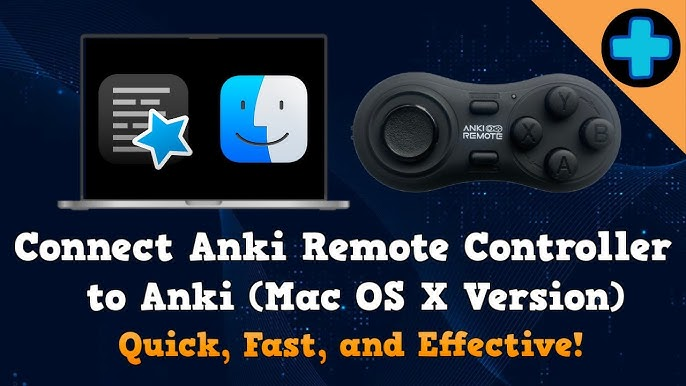
To move a MODI Anki remote to a new phone, tablet, or computer, start by choosing the connection mode required by the app on the new device. Then forget the old MODI Bluetooth entries, pair again from the new host, configure the app’s controls, and test a simple review action before assuming the migration is complete. The clean path is not copying settings from the old device; it is making a fresh Bluetooth pairing for the new workflow.
MODI is an independent Bluetooth accessory for supported Anki review workflows, not an official Anki, AnkiMobile, AnkiDroid, Apple, Google, Microsoft, or Amazon product. That distinction matters during a move because MODI supplies keyboard-style or gamepad-style input, while the app decides what each input does. Readers can review the documented compatibility and setup details for Bluetooth Anki remote before deciding which mode fits their device.
Choose The Mode
Before pairing, decide whether the new device needs Keyboard Mode or Switch Mode. Keyboard Mode is intended for macOS, Windows, and Linux desktop use with MODI’s preset keybindings, and the default Keyboard Mode workflow does not require the MODI Anki add-on. Switch Mode is the standard choice for AnkiMobile on iPhone or iPad and AnkiDroid on Android because those mobile setups use gamepad-style inputs that the apps can configure in their own control menus.
If you are moving from a laptop to a phone, do not assume the same mode should follow the remote. The new host and app matter more than the previous pairing. A desktop user who wants custom remapping through the optional MODI add-on may choose Switch Mode, while a desktop user who only needs preset keys can usually choose Keyboard Mode. Quizlet use, when relevant, is a desktop-browser Keyboard Mode workflow for basic direction-key and Spacebar-style controls.
Forget Old Entries
When changing devices or modes, the preferred starting point is to forget every saved MODI or Anki remote entry in Bluetooth settings. Do this on the old device if it is nearby, and also check the new device if it has seen the remote before. Saved Bluetooth entries can make the remote reconnect in a previous state, which is confusing when the new app expects a different input profile. A fresh pairing removes that ambiguity before setup begins.
This step is especially important when switching from Keyboard Mode to Switch Mode, or from Switch Mode back to Keyboard Mode. MODI reconnects in the last-used mode when you press Home, so an old saved pairing can look successful while still giving the wrong type of input. Forgetting entries is not a reset of your Anki collection or app settings. It only clears the host device’s saved Bluetooth relationship with the remote.
Pair The Host
After clearing old entries, open Bluetooth settings on the new phone, tablet, or computer. For Keyboard Mode, hold A plus Home for one second, then select the MODI connection when it appears. After a successful Keyboard Mode connection, the center LED becomes solid green. Use this path for the standard desktop preset-key workflow on macOS, Windows, or Linux, especially when you want Anki’s common keyboard controls to work without installing the MODI add-on.
For Switch Mode, hold Y plus Home for one second from the new host’s Bluetooth settings, then select the MODI connection. After a successful Switch Mode connection, the center LED becomes solid blue. Use this path for the standard AnkiMobile and AnkiDroid setup, and for desktop Anki when you plan to configure buttons through the optional MODI add-on. If the remote is asleep, press Home first so it can wake and reconnect or enter pairing.
Configure The App
Pairing only connects the remote to the host device; the study app may still need its own control setup. On AnkiMobile, use Switch Mode, then open Settings, Review, and Gamepads to assign the actions you want. AnkiMobile supports configurable gamepad actions when iOS recognizes the controller profile. Treat these as app settings, not MODI firmware settings, because the app is deciding how recognized inputs map to review commands.
On AnkiDroid, use Switch Mode, then open Settings, Controls, and Set Key Binds. A third-party display mapping issue can make X-Y-B-A inputs appear as Y-X-A-B in the AnkiDroid menu. That is a visual label mismatch, not proof that the remote is broken. Assigned commands can still function normally, so test the action you assigned rather than relying only on the label shown during setup.
Test Review Actions
Once the remote is paired and the app is configured, test a small set of review actions before settling into a full session. In desktop Keyboard Mode, MODI includes preset inputs for actions such as Again, Hard, Good or Next, Easy, Undo, Suspend, Escape, Spacebar, and direction-key navigation. Desktop Anki itself also supports common keyboard controls such as Space or Enter to reveal an answer or choose Good, and 1-4 for answer buttons when available.
For mobile, test the actions inside AnkiMobile or AnkiDroid after assigning them in the app’s control menu. Keep the first test simple: reveal an answer, choose one answer button, then try Undo if you assigned it. If the action works, the migration is functionally complete. If the action does not match your expectation, adjust the app’s binding first, because a successful Bluetooth connection does not automatically confirm that every command is mapped the way you intended.
Troubleshoot Cleanly
If MODI connects to the new host but remains unresponsive after a fresh pairing, restart the phone, tablet, or computer and try again. Bluetooth state, saved pairings, app configuration, battery state, and host-device behavior can all affect the result, so avoid assuming one cause too early. Confirm that you chose the mode the app expects, that old entries were forgotten, and that the LED color matches the intended connection mode before changing app settings again.
Battery and sleep behavior can also look like a migration problem. MODI automatically sleeps after approximately 2.5 minutes without a Bluetooth connection or 5 minutes of inactivity, and you can manually sleep or turn it off by holding Home for 3 seconds. A quickly flashing red LED means low battery. While charging, the LED flashes green, and the charging LED turns off when charging is complete. Do not infer battery percentage from other light patterns.
