

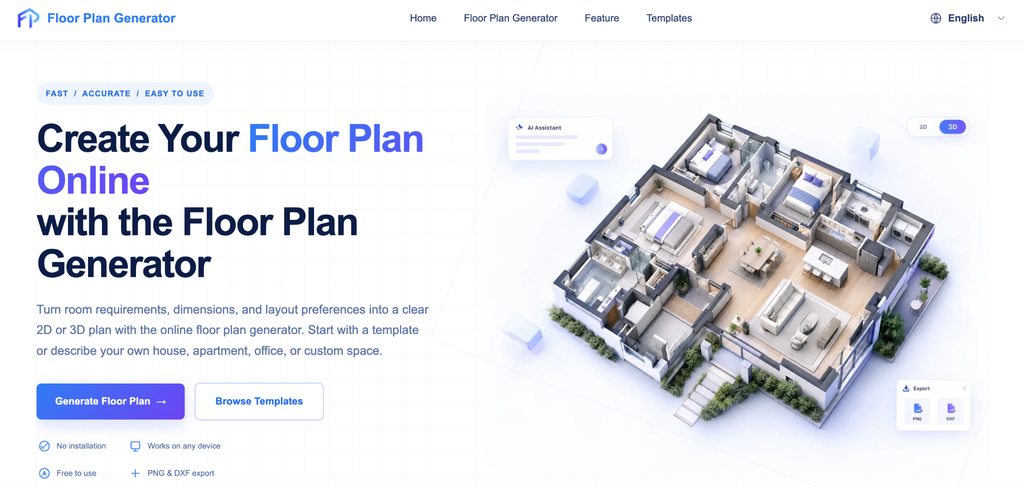
An AI floor plan generator free of charge has changed how people plan homes. Instead of learning CAD, you describe a space or upload a sketch, and a labeled layout appears in about a minute. The next step, taking that 2D floor plan to 3D, is just as fast. This guide covers what a free AI floor plan generator really does, how to convert a 2D floor plan to 3D, and which tools suit which job.
What Is an AI Floor Plan Generator Free to Use?
An AI floor plan generator is software that uses machine learning to create or redraw a top-down room layout from a sketch, a photo, a PDF, or a text description. A free AI floor plan generator does the same job at no upfront cost, usually with limits on exports or the number of designs. Most outputs include labeled rooms, doors, windows, and basic furniture blocks.
What Can You Feed a Free AI Floor Plan Generator?
Most tools accept one of four inputs: a hand sketch, a phone photo of an old drawing, a PDF survey, or a plain-text prompt such as “three-bedroom apartment with an open-plan kitchen and a master suite.” Text prompts are the fastest. Sketches give you more control, because the AI works from your walls instead of inventing its own. Whatever you upload, the result is a 2D floor plan you can later push to 3D.
Is an AI Floor Plan Generator Free or Just a Trial?
Partly both. A free AI floor plan generator usually caps the number of generations, watermarks the exports, or lowers the resolution. A few tools advertise unlimited, no-signup use, though it’s worth testing any AI floor plan generator free tier on a real plan before you rely on it.
What the Free Tiers Look Like
FloorAI, for example, starts you off with four free AI generations, then moves to paid plans from $9.99 a month that add watermark-free exports. Felo’s generator markets itself as unlimited, with no signup and no watermarks. Coohom lets you import a plan, convert the 2D floor plan to 3D, and furnish it before asking you to sign in, though higher-resolution rendering sits behind a paid plan.
What a Free AI Floor Plan Generator Can’t Do
The output is concept-grade. A free AI floor plan generator speeds up early planning, and that’s where it earns its keep. But a generated layout isn’t a measured drawing, a structural review, or a permit-ready set of plans. Treat it as a sketchbook, not a blueprint.
How Do You Convert a 2D Floor Plan to 3D?
To convert a 2D floor plan to 3D, upload a clear image of the plan to a 2D-to-3D tool, let it detect the walls and openings, confirm the dimensions, and export the result. Many free web tools finish the 2D floor plan to 3D conversion in seconds.
- Prepare the file. Export or scan the 2D floor plan as a JPG or PNG, ideally 2–5 MB, with straight, high-contrast lines. Avoid formats like DWG or BMP, which many web tools reject.
- Upload it to a converter such as Coohom, Planner 5D, Homestyler, or an AI-based tool like Panoee’s Floorplan Styler.
- Let the tool detect walls, doors, and windows, then fix anything it misread.
- Set the scale. Without a known dimension, the 3D model is proportionally correct but not metrically accurate.
- Choose a view, such as a dollhouse, an isometric cutaway, or a furnished interior, and export your 2D floor plan in 3D.
2D Floor Plan to 3D: Floor Plan vs. Render
A 3D floor plan is a structural model of walls, doors, and furniture placement, used for planning and layout review. A 3D render adds lighting, textures, and photographic polish. Most free 2D floor plan to 3D tools produce the first kind, and that’s usually all a homeowner needs.
Which Free Tool Fits Which Job?
- A quick visual for a listing or social post: AI converters like Panoee’s Floorplan Styler and Artificial Studio turn a 2D floor plan into a 3D isometric or dollhouse view in seconds.
- A plan you plan to keep editing: FloorAI’s built-in editor lets you drag walls and rename rooms without regenerating. Coohom, Planner 5D, and Homestyler let you edit and furnish in 3D.
- Starting from nothing: SketchUp Free doesn’t accept plan uploads, but you can draw a layout and view it in 3D.
For most homeowners, pairing an AI floor plan generator free tier with an editable 3D viewer beats the one-click render. A beautiful image of the wrong layout is still the wrong layout. [link to related post on converting a sketch into a floor plan]
Mistakes That Ruin a 2D Floor Plan to 3D Conversion
Blurry or tilted photos cause most failed conversions. Crop tightly, straighten the image, and boost the contrast before you run any 2D floor plan to 3D tool. Hand-drawn plans work, but clean them up first.
Skipping the scale check is the second big one. If a room that should be 4 meters wide comes out at 3.6, every piece of furniture you add afterward inherits the error.
Decorating too early wastes time as well. Hold off on rugs and plants until the walls are final. And before anything gets built, have a licensed architect or engineer check the output of any AI floor plan generator against local building rules.
Conclusion
Start with a free AI floor plan generator to settle the layout, then move the 2D floor plan to 3D once the walls feel right. Use the free tiers to test two or three tools on the same plan, compare how accurately each reads your walls, and keep the one you can edit without starting over.
Suggested tags
ai floor plan generator free, free ai floor plan generator, 2D floor plan to 3D, convert 2D floor plan to 3D free, floor plan to 3D online, convert hand-drawn floor plan to 3D, home design software
