

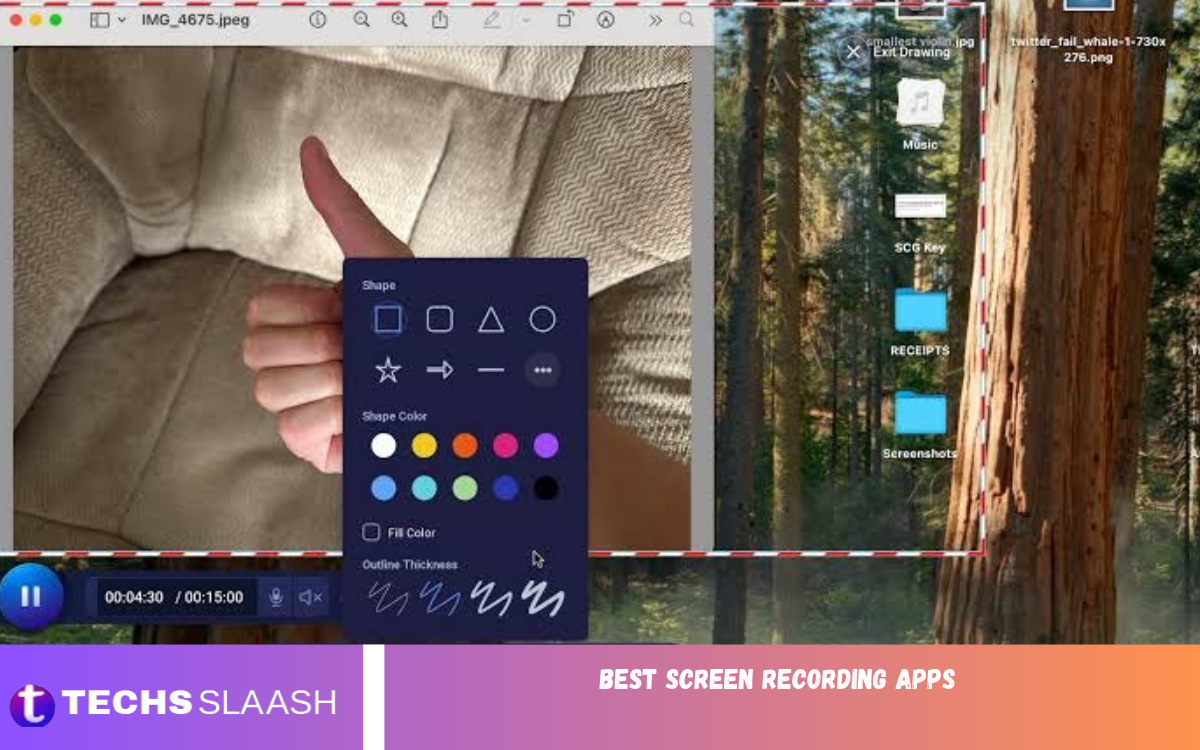
Screen recording has become an essential tool for students, professionals, content creators, gamers, and business owners. Whether you want to create tutorials, record online meetings, capture gameplay, demonstrate software features, or share instructions, a reliable screen recording application can make the process much easier.
The best screen recording apps offer more than basic video capture. They offer high-resolution recording, microphone audio, webcam integration, editing tools, screen annotation, and easy file sharing. The right application depends on your device, recording needs, and preferred features.
What Are Screen Recording Apps?
Screen recording apps capture everything happening on a computer, smartphone, or tablet display. They allow users to save on-screen activities as video files that can be edited, shared, or uploaded to different platforms.
These applications are particularly useful for creating educational videos, recording presentations, demonstrating applications, and capturing gaming sessions. Some tools also support internal audio, external microphones, webcams, and advanced editing features.
Why Do You Need a Screen Recording App?
A screen recording application can save time when explaining complicated processes. Instead of writing lengthy instructions, you can record your screen and demonstrate each step visually. This makes information easier to understand, especially for beginners.
Screen recording is also valuable for professional activities. Teachers can prepare online lessons, businesses can create training materials, developers can demonstrate software problems, and content creators can produce engaging videos for their audiences.
Best Screen Recording Apps for Different Devices
There are many screen recording applications available for Android, iOS, Windows, and macOS. Some focus on simple recording, while others provide professional editing and streaming capabilities.
The following applications offer different features and recording experiences. Understanding their capabilities will help you select the right option for your requirements.
OBS Studio
OBS Studio is one of the most popular screen recording applications for Windows, macOS, and Linux. It is an open-source program designed for screen recording, live streaming, and professional video production.
The application allows users to capture their entire display, individual windows, webcams, and external devices. It also supports multiple scenes, audio mixing, customizable recording settings, and different video formats.
Another major advantage of OBS Studio is its flexibility. Users can adjust recording resolutions, frame rates, audio sources, and encoding settings according to their preferences.
However, beginners may need some time to understand its interface. Despite its learning curve, OBS Studio is an excellent choice for gamers, educators, streamers, and professional content creators.
AZ Screen Recorder
AZ Screen Recorder is a popular Android screen recording application that provides convenient recording features. It allows users to capture smartphone activities without requiring complicated setup procedures or advanced technical knowledge.
The application supports high-quality video recording, microphone audio, screen orientation settings, and basic video editing. Users can also pause and resume recordings, making it useful for creating tutorials and demonstrations.
AZ Screen Recorder is particularly suitable for people who regularly create mobile tutorials or record application demonstrations. Its straightforward interface makes everyday recording easier.
Some advanced features may depend on the application version and device compatibility. Users should also review available permissions before recording sensitive information.
XRecorder
XRecorder is another widely used screen recording application for Android devices. It is designed for users who want a simple way to capture gameplay, tutorials, video demonstrations, and other smartphone activities.
One of its useful features is the ability to record high-resolution videos with adjustable recording settings. It also offers microphone recording, internal audio support on compatible devices, and basic editing options.
The application includes tools for trimming recordings and preparing videos for sharing. These features make it convenient for social media creators who produce content directly from their smartphones.
XRecorder is a practical option for beginners who want an accessible recording experience. However, available features and performance can vary depending on the Android version and device specifications.
Bandicam
Bandicam is a Windows screen recording application known for its lightweight performance and recording capabilities. It is frequently used by gamers, educators, and professionals who need to capture desktop activities.
The software supports screen recording, game recording, and device recording through compatible capture sources. Users can also adjust video quality, frame rates, and audio settings to achieve their preferred results.
Bandicam provides useful features such as webcam overlays, scheduled recordings, and real-time drawing. These tools make it easier to produce instructional videos and gaming content.
Although the free version has limitations, the paid version provides additional recording capabilities. It is worth considering for Windows users who want a dedicated desktop recording solution.
Camtasia
Camtasia is a screen-recording and video-editing application designed for professional content creation. It is particularly popular among teachers, trainers, businesses, and people who create software tutorials.
The application allows users to record screen activities, capture microphone audio, and include webcam footage. Its editing environment also provides tools for transitions, animations, captions, effects, and other video improvements.
One of Camtasia’s biggest strengths is its combination of recording and editing features. Users can create polished educational videos without switching between several different applications.
However, it is a commercial product, and its pricing may not suit everyone. It is best suited to users who regularly create professional presentations, training materials, and instructional content.
Loom
Loom is a screen recording platform designed to make communication easier. It allows users to record their screens, webcams, or both simultaneously and share recordings with other people.
The application is especially useful for remote teams, online teachers, and businesses. Instead of arranging a meeting to explain something, users can record a short video and share it with colleagues.
Loom also provides features that support video sharing, collaboration, and viewer engagement. Depending on the available plan, users can access additional editing and management capabilities.
Its simple recording process makes it suitable for beginners and professionals. However, users should check the current plan limitations before choosing it for regular recording work.
ShareX
ShareX is a free and open-source Windows application that provides screen capture and recording tools. It is particularly useful for people who frequently capture desktop activities and share visual information.
The application supports screenshots, screen recording, GIF creation, and customizable capture workflows. Users can also set up shortcuts and automate tasks to boost productivity.
ShareX is a useful choice for developers, office workers, technical support professionals, and students. Its flexible settings let you customize the recording process to meet individual needs.
Although it offers many useful features, its interface can feel complicated to first-time users. People who prefer simple recording apps may need time to get comfortable with its options.
ScreenPal
ScreenPal is a screen recording and video editing platform designed for educational and professional use. It offers tools to capture desktop activity, record webcam footage, and create instructional videos.
Its editing features let users trim recordings, add captions, add narration, and improve video presentations. These capabilities make it useful for online courses, tutorials, and workplace training.
ScreenPal also supports sharing and managing recorded content. Teachers and content creators can use it to prepare educational materials without needing an advanced video production setup.
Some features are restricted by subscription plans. Nevertheless, it remains a useful option for people who want recording and editing tools in one platform.
ShareX vs OBS Studio: Which Is Better?
ShareX and OBS Studio are both powerful screen recording applications, but they serve slightly different purposes. ShareX focuses on screenshots, quick recordings, and customizable workflows, while OBS Studio provides advanced recording and live-streaming capabilities.
Users who need simple desktop captures may prefer ShareX because of its flexible shortcuts and automation tools. OBS Studio is better suited for gamers, streamers, and professionals who need multiple recording sources and detailed video settings.
Built-In Screen Recording Tools
Not everyone needs to install a separate recording application. Modern operating systems include built-in screen recording tools that can handle many everyday recording tasks.
Windows, macOS, Android, and iOS provide different recording options. These built-in features are convenient because they’re easy to access and don’t require installing additional software.
Read Also: Best Android apps for productivity
Windows Snipping Tool and Xbox Game Bar
Windows offers built-in screen recording through tools like the Snipping Tool and Xbox Game Bar. These features let users capture supported applications and on-screen activity without installing third-party software.
Xbox Game Bar is particularly useful for recording gameplay and supported application windows. The Snipping Tool also provides a convenient recording option on supported Windows versions.
macOS Screen Recording
Mac users can record their screens using the built-in Screenshot toolbar. Press Command + Shift + 5 to open recording options that let users capture the entire screen or a selected portion.
macOS also provides microphone selection and recording controls. This makes it a convenient solution for creating basic tutorials, demonstrations, and presentations.
Android Screen Recorder
Many modern Android smartphones include a built-in screen recording feature in the Quick Settings panel. Users can access the recorder, choose audio options, and start recording their screen.
The built-in recorder suits everyday tasks such as recording tutorials, saving gameplay, and demonstrating mobile apps. However, advanced editing and customization options may require additional software.
iPhone Screen Recording
Apple provides a built-in screen recording feature on supported iPhones and iPads. Users can add Screen Recording to Control Center and begin capturing their display with a simple tap.
When enabled, the feature can also record microphone audio. It is useful for saving demonstrations, creating tutorials, and sharing instructions with other people.
Important Features to Look for in Screen Recording Apps
Choosing the right screen recording application requires understanding which features matter most. A good application should provide reliable recording performance, suitable video quality, and convenient controls.
Use the following features to evaluate applications before installing or purchasing one.
High-Quality Video Recording
Video quality is one of the most important considerations when choosing a screen recording application. A good tool should support suitable resolutions and frame rates for your intended content.
For everyday tutorials, 1080p recording is generally sufficient. Gamers and professional creators may prefer higher frame rates or 4K recording when their hardware supports it.
Audio Recording Support
Clear audio can significantly improve the quality of a screen recording. Applications that support microphone input and internal audio provide greater flexibility for tutorials, presentations, and gameplay videos.
Before recording, check whether the application supports your device’s audio configuration. Some platforms restrict internal audio capture in certain applications or recording situations.
Video Editing Tools
Basic editing features make it easier to prepare recordings for publishing. Look for tools that support trimming, cropping, captions, transitions, and simple audio adjustments.
Advanced editing features are particularly helpful for educational videos and professional presentations. However, users who only need short recordings may not require a complete editing suite.
Webcam Integration
Webcam integration allows users to display their faces while recording their screens. This feature is especially useful for online lessons, product demonstrations, and presentation videos.
Some applications allow users to adjust webcam positioning, size, and appearance. These options help create more engaging recordings and improve communication with viewers.
Easy Sharing Options
A good recording application should make it easy to save and share completed videos. Support for common formats and easy export options can simplify publishing.
Cloud sharing can also help remote teams and educational environments. However, users should understand storage limits and privacy settings before uploading recordings.
How to Choose the Best Screen Recording App
The best application depends on your device and the type of content you want to create. A beginner who records occasional tutorials may need only a simple mobile recorder or built-in operating system feature.
Professional creators, gamers, and educators may benefit from applications with advanced audio controls, editing tools, and customizable recording settings. Consider your budget, hardware capabilities, and preferred workflow before deciding.
Also check application permissions and privacy policies. Choose reputable software, download it from trusted sources, and avoid recording private information without permission.
Tips for Creating Better Screen Recordings
Preparing your device before recording can noticeably improve the final video. Close unnecessary applications, remove distracting notifications, and check your microphone settings to avoid interruptions.
Choose an appropriate screen resolution and frame rate for your content. Record a short test video before an important session to confirm your screen, audio, and webcam work correctly.
For tutorials, move your cursor carefully and explain each step clearly. Keep recordings organized with descriptive filenames so you can find and edit them easily later.
Common Problems With Screen Recording Apps
Screen recording applications sometimes experience performance issues, audio problems, or unexpected interruptions. These problems may result from limited device resources, outdated software, incorrect permissions, or incompatible recording settings.
If recording is slow or the video quality is poor, try reducing the resolution or frame rate. Closing unnecessary background applications can also improve performance.
Audio problems may require checking microphone permissions, selecting the correct input device, or adjusting system sound settings. Keeping your operating system and recording application updated can help prevent common compatibility issues.
Frequently Asked Questions
What Is the Best Screen Recording App?
OBS Studio is an excellent option for advanced desktop recording and streaming. Camtasia suits professional recording and editing, while AZ Screen Recorder and XRecorder are popular choices for Android users.
Which Screen Recording App Is Completely Free?
OBS Studio and ShareX are free and open-source applications. Built-in screen recording tools on Windows, macOS, Android, and iOS also provide free recording options.
Which Screen Recording App Is Best for Android?
AZ Screen Recorder and XRecorder are useful Android recording applications. Both offer convenient recording features, though capabilities may vary by device and app version.
Can I Record My Screen Without Installing an App?
Yes. Modern Windows, macOS, Android, and iOS devices include built-in screen recording options. These tools suit many everyday recording needs.
Which Screen Recording App Is Best for Gaming?
OBS Studio is an excellent choice for gaming because it offers customizable recording settings and supports multiple video and audio sources. Bandicam is another popular option for Windows gamers.
Can Screen Recording Apps Record Internal Audio?
Many screen recording applications support internal audio recording on compatible devices. However, operating system restrictions and application permissions may prevent audio capture in certain situations.
Is OBS Studio Good for Beginners?
OBS Studio is powerful and free, but its interface may feel complicated at first. Beginners can start with basic recording settings and gradually explore its advanced features.
Which Screen Recorder Is Best for Online Classes?
Camtasia, Loom, and ScreenPal are useful for online teaching. They provide features that help educators record lessons, explain concepts, and create instructional videos.
Do Screen Recording Apps Reduce Phone Performance?
Screen recording uses processing power, memory, and storage space. Older smartphones may perform worse, especially when recording demanding games or high-resolution videos.
Is Screen Recording Safe?
Screen recording is generally safe when you use reputable apps from trusted sources. Always review permissions, protect personal information, and obtain permission before recording private conversations or sensitive content.
Conclusion
The best screen recording apps make it easier to capture, explain, and share on-screen activities across different devices. Whether you need to record gameplay, create educational tutorials, demonstrate software, or prepare professional presentations, several reliable options are available.
OBS Studio is an excellent choice for advanced desktop recording, Camtasia provides professional editing capabilities, and Loom makes screen-based communication convenient.
