

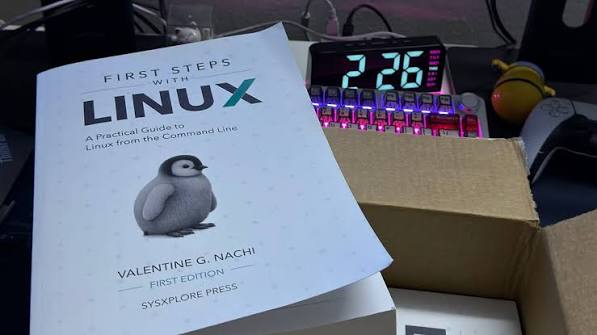
Linux has become one of the most important technologies in modern computing. It runs web servers, cloud infrastructure, networking equipment, development environments, containers, and countless other systems. It also provides a powerful alternative to traditional desktop operating systems for people who want more control over their computers.
Despite its technical reputation, getting started with Linux does not require years of programming experience. Most beginners can learn the fundamentals by working through a few practical concepts and gradually building their skills.
Whether you’re interested in programming, cybersecurity, servers, cloud computing, or simply want to try something different on your personal computer, understanding Linux can be a valuable technical skill.
What makes Linux different?
Linux differs from operating systems such as Windows and macOS in several important ways. Most Linux distributions are open source, meaning the source code for the operating system and many of its components is publicly available.
Linux is also distributed through different versions known as distributions, or distros. A distribution combines the Linux kernel with system utilities, software packages, configuration tools, and often a desktop environment.
Ubuntu and Linux Mint are popular choices for beginners, while distributions such as Fedora, Debian, Arch Linux, and Rocky Linux are commonly used for different types of development, server, and advanced computing tasks.
The distribution you choose affects the software management tools, default applications, update process, and configuration methods you encounter. However, many fundamental Linux concepts remain consistent across distributions.
Start by learning the filesystem
One of the first concepts new Linux users should understand is the filesystem.
Unlike Windows, which commonly organizes storage around drive letters such as C: and D:, Linux uses a single directory tree beginning at /, known as the root directory.
Several directories appear frequently:
- /home contains users’ personal files and directories.
- /etc contains many system and application configuration files.
- /var contains variable data such as logs and caches.
- /usr contains many user-space programs and libraries.
- /tmp provides temporary storage.
- /root is the home directory for the root user.
You don’t need to memorize the entire filesystem immediately. Understanding these common directories is enough to make many Linux tutorials and troubleshooting guides easier to follow.
Get comfortable with the terminal
The Linux command line can look intimidating at first, but it is one of the most useful parts of the operating system.
Start with a small collection of commands. pwd shows your current directory, while ls displays its contents. The cd command lets you move between directories.
Other useful commands include mkdir for creating directories, cp for copying files, mv for moving or renaming files, and rm for removing files.
For example, the following sequence creates a directory and moves into it:
mkdir projects
cd projects
The commands themselves are simple. The real benefit comes from understanding how they work together.
The man command is another valuable tool. Running man ls, for example, opens documentation for the ls command. Learning how to find information yourself is ultimately more useful than memorizing every available command.
Understand package management
Linux distributions generally provide package managers for installing and maintaining software.
On Debian and Ubuntu, APT is one of the most commonly used package management tools. Fedora uses DNF, while Arch Linux uses Pacman.
Package managers simplify software installation because they can retrieve packages from repositories, install dependencies, and keep software updated.
For example, an Ubuntu user might install a package with:
sudo apt install package-name
The exact command depends on the distribution, but the underlying concept is similar: the package manager provides a controlled method for installing and maintaining software.
This is one of the major advantages of Linux. Instead of downloading an installer for every application from a separate website, users can often manage software through a centralized package system.
Keep your system updated
Regular updates are an important part of maintaining any operating system.
Linux updates can include security fixes, bug fixes, compatibility improvements, and new software versions. Most distributions make updating relatively straightforward through their package managers or graphical software tools.
On an Ubuntu or Debian system, you might use:
sudo apt update
followed by:
sudo apt upgrade
The first command refreshes information about available packages, while the second installs available updates.
Different distributions use different commands, so always check the documentation for the system you’re running.
Learn Linux permissions
Linux has a detailed permissions system that controls access to files and directories. This becomes particularly important when working with servers or multiple users.
Running ls -l displays information about file permissions. A permission string such as rwxr-xr-x indicates which users can read, write, or execute a particular file.
Linux generally considers three categories when applying permissions: the file owner, the associated group, and other users.
The chmod command can modify permissions, while chown can change ownership.
Understanding these basic concepts will help explain many common errors. For example, if Linux reports “Permission denied,” the problem may be related to the permissions or ownership of the file you’re trying to access.
Use sudo carefully
Many Linux tutorials include the sudo command. It allows an authorized user to execute a command with elevated privileges, which are often required for system administration.
For example, installing software usually requires administrative access:
sudo apt install package-name
However, users should avoid adding sudo to commands simply because a tutorial includes it. Administrative privileges can make significant changes to a system.
Before running a command with elevated privileges, understand what it does and why those privileges are required. This simple habit can prevent many avoidable problems.
Learn how to troubleshoot
Troubleshooting is one of the most valuable Linux skills you can develop.
When something doesn’t work, start by reading the error message. It may identify a missing package, incorrect configuration, unavailable service, permission problem, or other issue.
You can also use commands such as systemctl to inspect services, journalctl to examine system logs, and top or htop to monitor running processes and resource usage.
The goal isn’t necessarily to know the answer immediately. Instead, learn how to gather information that helps you identify the cause.
Searching for the exact problem can also help, but try to understand the solution rather than blindly copying commands from a forum or tutorial.
Resources such as Linux tutorials and tips can be particularly useful when you’re trying to understand how Linux commands and system administration concepts work.
Practice in a virtual machine
If you’re nervous about experimenting with Linux, a virtual machine is an excellent place to start.
Virtualization software allows you to run Linux inside another operating system. This gives beginners a safe environment where they can install packages, change configurations, create users, and experiment with the command line without affecting their primary computer.
Virtual machines are also useful for testing software before deploying it to a production environment.
As your skills develop, you can move from virtual machines to dedicated hardware, cloud servers, or VPS environments.
Learn basic networking
Networking knowledge becomes increasingly useful as you progress with Linux.
Start with basic concepts such as IP addresses, DNS, ports, and network interfaces. Commands such as ip, ping, ss, and curl can help you inspect network configuration and connectivity.
For example, ping can be used to test whether a remote host is reachable, while curl can retrieve information from web servers and APIs.
Understanding networking also makes Linux server administration much easier. Web servers, databases, containers, APIs, and remote administration all depend on network communication.
Don’t try to learn everything at once
Linux has an enormous ecosystem, and attempting to learn everything immediately can be overwhelming.
Instead, choose a specific goal.
You might start by installing Linux on an old computer. From there, learn how to navigate the filesystem and install applications. Once you’re comfortable with the terminal, try writing a basic shell script.
Later, you could set up a web server, experiment with Docker, configure SSH access, or learn how Linux manages system services.
Each project introduces new concepts while reinforcing the fundamentals you’ve already learned.
Build good habits early
Good habits can make learning Linux much easier.
Read documentation before making significant changes. Keep backups of important files. Avoid running commands you don’t understand, particularly commands involving sudo. Keep your system updated, and document configuration changes when working on servers or long-running projects.
It’s also worth learning how to search effectively. Linux documentation, distribution wikis, official project documentation, and reputable technical communities can provide much better information than a random command copied from an outdated tutorial.
Most importantly, treat errors as part of the learning process. Breaking something in a test environment and figuring out how to fix it can teach you more than simply following a step-by-step guide.
Linux is a skill worth learning
Linux is no longer limited to a narrow group of system administrators. Its presence across cloud computing, software development, cybersecurity, networking, artificial intelligence, and web infrastructure makes basic Linux knowledge useful across many areas of technology.
The learning curve can seem steep at first, but the fundamentals are manageable. Learn the filesystem, practice basic terminal commands, understand package management and permissions, and gradually become comfortable troubleshooting problems.
From there, Linux can take you in almost any technical direction you want to explore.
Written by Colton Randolph
