

Android smartphones make it easy to take photos, record videos, download apps, and store important documents. However, over time, your device can run out of storage, making it hard to install new apps, download files, or take photos. When storage fills up, your phone may also slow down or show repeated storage warnings.
Learning how to free storage on Android helps you manage your files, improve performance, and create more space without deleting important data right away. Whether you use a budget smartphone or a premium Android device, several simple methods can help you reclaim valuable storage.
Why Does Android Storage Fill Up?
Android storage fills up for several reasons, including installed applications, downloaded files, photographs, videos, temporary data, and offline content. Messaging apps can also take up considerable space when they automatically download images, voice messages, documents, and videos from conversations.
Over time, these files accumulate even when you are not actively using your phone. Knowing which categories take up the most space is the first step to freeing storage efficiently without deleting files you still need.
Check Your Android Storage First
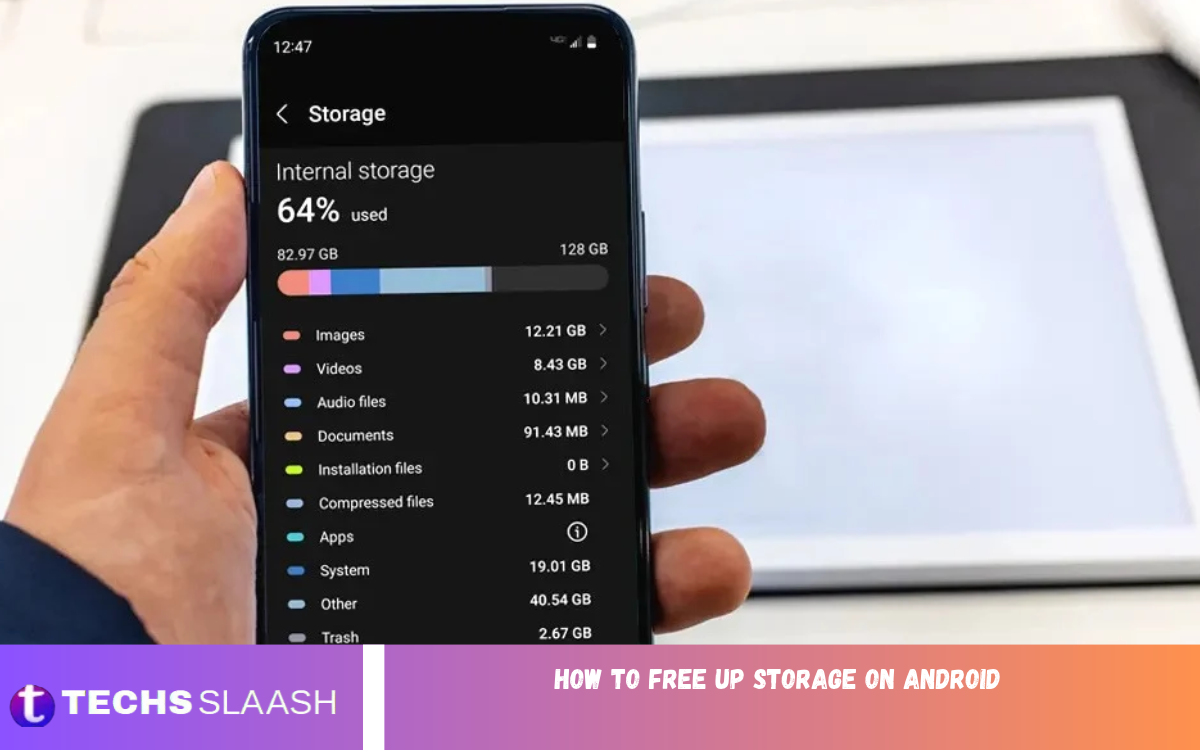
Before deleting anything, check how much storage is available on your device. Open Settings and look for Storage, or use the search bar within Settings to find the storage section. Your phone will usually display how much space is occupied by applications, images, videos, documents, and other files.
Review these categories carefully to identify what consumes the most space. If videos occupy several gigabytes, managing large media files may be more effective than clearing small temporary files. Checking storage first helps you choose the right solution and avoid unnecessary deletions.
Delete Unnecessary Downloads
The Downloads folder often contains files that are no longer useful, such as old PDFs, duplicate documents, installation packages, images, and downloaded videos. These files can remain on your device long after you have finished using them, gradually reducing available storage.
Open your Files app or file manager and navigate to the Downloads folder. Review the contents, select files you no longer need, and delete them. Be careful not to remove important documents, work files, or records that you may need later. If your file manager has a Trash or Recently Deleted folder, empty it when you are certain the files are no longer needed.
Clear App Cache to Free Storage
Applications store temporary files called cached data to help content load faster and improve the user experience. Browsers, social media apps, and streaming services can accumulate substantial cache files after regular use.
To clear an application’s cache, open Settings, select Apps, choose the relevant application, and tap Storage or Storage and cache. Select Clear cache rather than Clear storage or Clear data. Clearing the cache is generally safe, although some content may take longer to load the next time you use the application. Avoid clearing app data unless you understand the consequences, because it can remove settings, downloaded information, or locally stored content.
Remove Apps You No Longer Use
Many Android users install applications for a particular purpose and forget to remove them afterward. Games, photo editors, shopping applications, and other programs can occupy hundreds of megabytes or several gigabytes, especially when they include additional downloaded resources.
Review your installed applications and uninstall those you no longer need. Open Settings, select Apps, choose an application, and tap Uninstall, or remove it through the app drawer if your phone supports that option. Before uninstalling an application, make sure important information is backed up or synchronized. If you rarely use an app but want to keep it, check whether your device offers an app-archiving feature.
Delete Duplicate and Unnecessary Photos
Photos can consume significant storage, particularly when your phone automatically saves multiple versions of the same image. Screenshots, blurry photographs, repeated downloads, and pictures received through messaging apps can quickly fill your gallery.
Open your Gallery or Photos app and review unnecessary images. Delete duplicates, unwanted screenshots, and photographs that you no longer want to keep. Some gallery applications provide duplicate detection or storage-cleaning suggestions. Review every suggested deletion before confirming it, and back up valuable pictures if necessary. Remember that deleting a photograph may move it to a Trash or Recently Deleted folder, where it can continue occupying space until permanently removed.
Remove Large Videos From Your Phone
Videos usually require more storage than ordinary photographs because they contain significantly more data. High-resolution recordings, long screen recordings, downloaded movies, and repeated clips can quickly consume several gigabytes of internal storage.
Open your gallery or file manager and sort videos by size if that option is available. Identify large recordings that you no longer need and delete them after reviewing their contents. For videos worth keeping, transfer them to a computer, external storage device, or trusted cloud service. Confirm that the transfer or backup is complete before deleting the original files from your phone.
Manage WhatsApp Storage
WhatsApp can use a considerable amount of Android storage because conversations frequently contain photographs, videos, voice messages, documents, and forwarded media. Large group chats are particularly likely to accumulate files that you do not need.
Open WhatsApp, navigate to Settings, and select Storage and data, followed by Manage storage. Review large files and media shared across conversations, then delete unnecessary items. You can also adjust media auto-download settings to prevent unwanted files from downloading automatically. Before deleting anything, check whether it contains important personal information. If a file is also saved in your phone’s gallery or another folder, review those copies separately.
Clear Browser Cache and Downloaded Content
Mobile browsers can store cached images, website data, and downloaded files to make browsing faster. Offline webpages, saved media, and other browser-related content may occupy additional storage over time.
Open your browser’s settings and look for options to clear browsing data or cached images and files. Select the appropriate options and confirm the action. Be aware that clearing cookies and site data can sign you out of websites or reset certain preferences. You can also review your browser’s Downloads section and remove files that are no longer necessary.
Move Files to an SD Card or Computer
If your Android phone supports a microSD card, transferring suitable files to it can help free internal storage. Photographs, videos, music, and documents are often good candidates for moving, depending on your device and application requirements.
Open your file manager, select the files you want to move, and choose the available Move or Copy option. Select the SD card or an appropriate destination on your computer. If your phone does not support expandable storage, you can transfer files through a USB cable or use an external storage device compatible with your phone. Always verify that your files open correctly from the new location before deleting the originals.
Use Cloud Storage for Photos and Documents
Cloud storage allows you to keep copies of important files online instead of storing every file permanently on your device. Services such as Google Photos and Google Drive can help you back up photographs, videos, documents, and other personal files.
After backing up your files, check that the upload has finished and that the files are accessible from your account. If you use Google Photos, its Free up space feature can remove eligible local copies that have already been backed up. Follow the app’s instructions and understand that backed-up files may still require an internet connection to access in full quality. Review your account’s available cloud storage before transferring large amounts of data.
Delete Offline Music, Movies, and Maps
Streaming and navigation applications often allow users to download content for offline access. While this feature is useful during travel or when internet access is limited, downloaded music, films, playlists, and maps can occupy a surprising amount of storage.
Open the relevant application and review its downloaded content section. Remove movies you have already watched, playlists you no longer listen to, and offline maps you no longer need. If you regularly travel without internet access, keep essential offline content and remove only unnecessary downloads. Managing these files can free substantial space without affecting your personal photographs or documents.
Empty the Trash and Recently Deleted Folders
Deleting a file does not always remove it permanently. Many Android gallery apps and file managers keep deleted items in a Trash or Recently Deleted folder for a limited time, letting you restore files you removed by accident.
Open the relevant application and inspect its deleted-items folder. If you are certain that you no longer need those files, permanently delete them to reclaim the associated storage. Remember that this action may be irreversible. Carefully check important folders before emptying the trash, especially if you recently deleted photos, videos, or documents you might want to recover.
Read Also: How to Speed Up an Android Phone
Reduce Storage Used by Social Media Apps
Social media applications can accumulate cached images, videos, temporary files, and downloaded media as you browse. Apps that display large amounts of video content may gradually consume more space than you expect.
Review storage usage for apps like Instagram, Facebook, and TikTok in your Android settings. Clear their caches when appropriate and remove unnecessary downloads or drafts within the applications themselves. If an app still takes up too much space, check whether it offers built-in storage controls. Avoid deleting app data without understanding whether drafts, login information, or locally stored content could be lost.
Use Android’s Built-In Storage Tools
Many Android phones include built-in tools that identify unnecessary files, unused applications, and large downloads. Depending on your device, these features may appear in Settings, the Files app, or a manufacturer-provided device maintenance application.
Follow recommendations from trusted system tools, and review the files they suggest removing. Google’s Files app can help you identify large files, duplicates, and other content you no longer need. Avoid unfamiliar cleaning apps that promise unrealistic performance improvements or ask for unnecessary permissions. Built-in tools are a sensible starting point because they let you inspect storage without installing extra software.
Avoid Common Storage-Cleaning Mistakes
One common mistake is selecting Clear data instead of Clear cache. These options serve different purposes: clearing cache removes temporary files, while clearing data can reset an application and delete locally stored information. Always check the selected option before confirming any action.
Another mistake is deleting photos or documents before confirming a backup exists. Avoid removing unfamiliar system files, important application folders, or files required by installed programs. Also be cautious with third-party cleaning apps that request broad access to your personal information. Carefully reviewing your storage is safer and more effective than deleting everything suggested without checking.
How to Keep Android Storage Free
Keeping your phone organized is easier than waiting until storage becomes completely full. Review your Downloads folder regularly, remove unnecessary media, uninstall apps you no longer use, and clear excessive cache files.
You can also limit automatic media downloads in messaging apps and remove offline content after using it. Back up important photos and documents regularly, and monitor your storage in Settings. These simple habits can help keep enough free space for new apps, system updates, photos, and everyday tasks.
Frequently Asked Questions
How can I free storage on Android quickly?
Start by checking your storage settings, deleting unnecessary downloads, removing large videos, clearing app caches, and uninstalling applications you no longer use. Review WhatsApp media and empty the trash after confirming that you do not need the deleted files.
Why is my Android storage full even after deleting files?
Deleted files may remain in Trash or Recently Deleted folders. Applications can also retain cached data, offline downloads, and other content. Check these locations and review your storage settings to identify what continues to occupy space.
Does clearing the cache delete important files?
Clearing an application’s cache generally removes temporary files rather than personal documents or account information. However, avoid confusing Clear cache with Clear storage or Clear data, which can remove additional application information.
How do I free storage without deleting photos?
Clear app caches, uninstall unused applications, delete unnecessary downloads, remove offline movies and music, and review messaging app media. You can also transfer photographs to another storage location after confirming that the copies are safe.
Can WhatsApp fill up my Android storage?
Yes. WhatsApp can accumulate photographs, videos, voice messages, documents, and forwarded media. Use its Manage storage feature to identify large files and remove items you no longer need.
Is it safe to use Android cleaning apps?
Built-in storage tools and reputable file managers are usually a good starting point. Be cautious with unfamiliar cleaning applications that request unnecessary permissions or promise dramatic performance improvements. Review every suggested deletion before confirming it.
How can I free storage on Android without an SD card?
Transfer photographs, videos, and documents to a computer, compatible external storage device, or trusted cloud service. You can also clear caches, delete unnecessary downloads, and remove unused applications.
Does moving apps to an SD card free internal storage?
Some Android devices let certain apps or their data use an SD card, but support varies by phone, Android version, and app. Moving personal files, such as photos and videos, is often a more practical option.
How much free storage should I keep on my Android phone?
There is no universal requirement for every device. When possible, keep several gigabytes free to allow room for temporary files, app updates, downloads, and new media. Devices with limited capacity may require more frequent storage management.
Will freeing storage make my Android phone faster?
It can help when your device is struggling because storage is nearly full. Removing unnecessary files and unused apps may improve everyday usability, but cleaning storage won’t solve every performance problem. Older hardware, background apps, and software issues can also slow things down.
Conclusion
Learning to free storage on Android doesn’t require complicated tools or technical knowledge. By removing unnecessary downloads, clearing app caches, managing WhatsApp media, deleting unwanted videos, and uninstalling unused applications, you can reclaim valuable space and keep your device organized.
For the best results, review your storage regularly and back up important files before deleting them. Use built-in Android tools, manage offline downloads, and consider transferring large media files to a computer or cloud service.

1 Comment
Pingback: How to Fix Android Apps Not Working - Techsslaash.com