

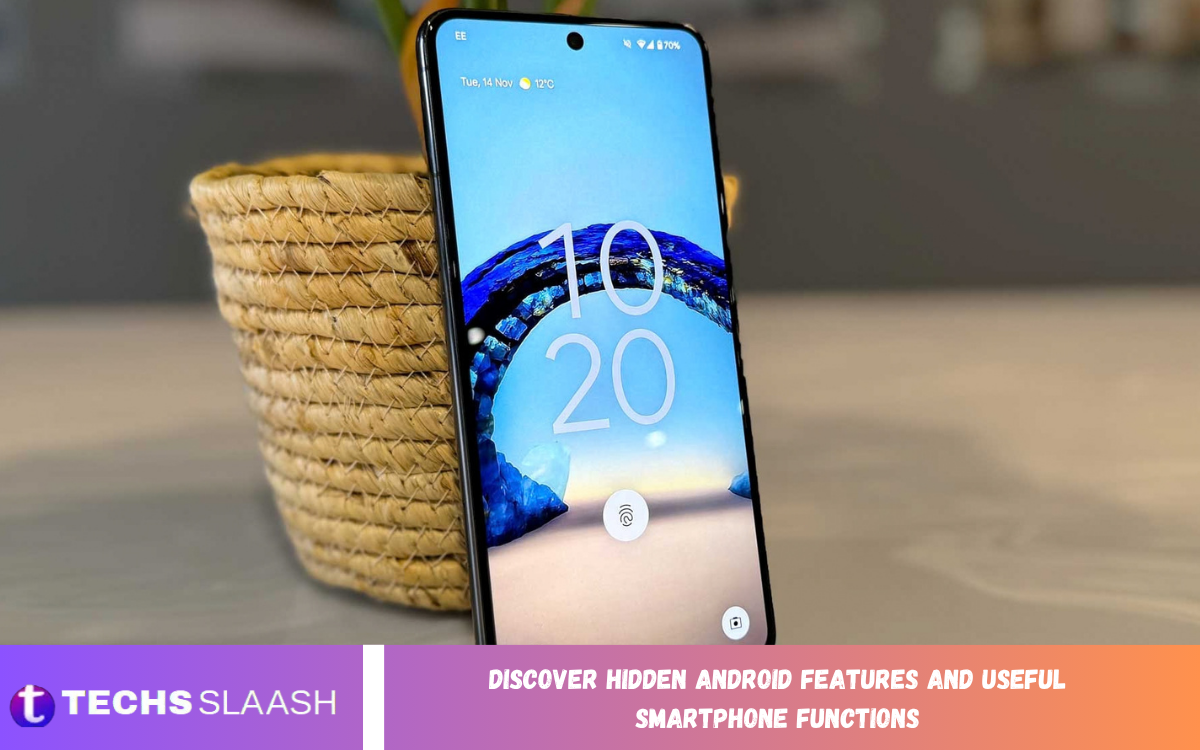
Android smartphones offer much more than calling, messaging, browsing, and installing applications. Modern Android devices include many useful functions that can make everyday tasks faster, safer, and more convenient.
Many of these tools remain hidden inside settings, shortcuts, gestures, and accessibility options. Learning how to use them can help you get more value from your smartphone without installing additional applications.
Explore Hidden Android Features
Android includes several built-in features that are designed to improve the overall smartphone experience. Depending on your device manufacturer and Android version, the available options may appear under different settings menus.
Features such as screen recording, split-screen mode, notification history, quick settings, and one-handed operation can simplify common tasks. Exploring your phone’s settings can reveal functions you may never have used before.
Use Split-Screen Mode for Better Multitasking
Split-screen mode lets you display two compatible apps at the same time. You can watch a video while messaging someone, read information while taking notes, or compare content between two applications.
To use this function, open the recent apps screen and select the application menu where the split-screen option is available. The exact process varies by device, but the feature can significantly improve multitasking.
Take Screenshots and Record Your Screen
Screenshots are useful when you need to save information displayed on your screen. Android provides built-in screenshot controls, and many newer devices also offer scrolling screenshots to capture longer pages.
Screen recording is another useful smartphone feature that lets you record what is happening on your display. It can help demonstrate an app problem, record a tutorial, or save temporary on-screen activity.
Manage Notifications More Effectively
Notifications can become overwhelming when numerous applications send alerts throughout the day. Android provides controls that let you manage notification permissions and decide which apps can interrupt you.
Notification history can also be useful on supported devices because it lets you review recently dismissed notifications. This helps when an important alert disappears before you can read it.
Improve Privacy With Android Controls
Android includes several privacy controls that help users manage access to sensitive information. Application permissions can control whether an app can use features such as the camera, microphone, location, contacts, or files.
Reviewing permissions regularly can reduce unnecessary access. Android versions with newer privacy features may also display indicators when certain hardware functions are being used, providing greater awareness of application activity.
Use Guest Mode and Multiple Users
Some Android devices support guest mode or multiple-user profiles. These functions can be useful when someone needs temporary access to your smartphone without accessing your personal apps and information.
A separate user profile can provide a more independent environment for another person. Availability varies by device, but checking the Users or System section of Settings can reveal whether this option is supported.
Make Android Easier With One-Handed Mode
Large smartphone screens can sometimes be difficult to operate with one hand. One-handed mode reduces or shifts the usable screen area so that important controls become easier to reach.
This feature is particularly helpful when typing, navigating menus, or using the phone while holding it with one hand. On supported smartphones, it can usually be enabled through system or gesture settings.
Customize Quick Settings
The Quick Settings panel provides fast access to commonly used functions such as Wi-Fi, Bluetooth, mobile data, flashlight, screen rotation, and airplane mode. Android allows users to rearrange many of these shortcuts.
Customizing Quick Settings can save time because frequently used controls become available with fewer taps. Remove rarely used shortcuts and place your preferred functions where they are easy to access.
Use Digital Wellbeing Tools
Digital Wellbeing provides information about smartphone usage and can help users understand how much time they spend inside different applications. It may also offer tools to manage notifications and reduce unnecessary screen time.
App timers, focus-related controls, and bedtime features can encourage more intentional smartphone use. These tools are especially useful for people who want better control over their daily digital habits.
Discover Battery Saving Features
Android smartphones include several options for managing battery consumption. Battery Saver can reduce background activity and adjust certain system functions when the battery level becomes low.
Battery usage information can also show which apps consume significant power. Checking this section occasionally can help you understand battery behavior and identify applications that may be using more resources than expected.
Improve Storage Management
Limited storage can affect a smartphone’s convenience and performance. Android provides storage management tools that show how much space applications, images, videos, documents, and other files use.
Removing unnecessary downloads, duplicate media, and unused apps can free up space. Some devices also include automated storage suggestions that help identify files you may no longer need.
Read Also: Best Android Apps for Students: Productivity, Learning, and Organization
Use Google Assistant and Voice Controls
Voice controls can make many smartphone tasks easier when typing is inconvenient. Depending on your device and installed services, you can use voice commands for searches, reminders, navigation, communication, and other supported actions.
Voice typing also helps you create messages and documents quickly. Instead of typing every word, you can speak naturally and let the keyboard’s voice input function convert speech into text.
Take Advantage of Accessibility Features
Android accessibility settings include many useful functions that aren’t limited to users with disabilities. Options such as magnification, larger text, high-contrast controls, captions, and interaction assistance can improve usability.
You can customize these features to suit your preferences. Exploring the Accessibility section can reveal practical tools that make everyday smartphone navigation more comfortable.
Use Nearby Sharing and Device Connections
Supported Android devices can share files, images, links, and other content with nearby compatible devices. This can be faster than sending files through email or uploading them to another service.
Android also provides connection options for Bluetooth accessories, wireless displays, computers, and other devices. Understanding these controls can make transferring information and connecting accessories much easier.
Lock Sensitive Applications and Content
Some smartphones offer built-in options to protect specific apps or private content. Depending on the manufacturer, these features may include app locks, secure folders, private spaces, or similar tools.
These protections can add another layer of privacy when sharing a device with others. Always use a strong screen lock and keep your security credentials private for better protection.
Use Focus and Do Not Disturb Modes
Do Not Disturb can reduce interruptions by limiting calls, alerts, and notifications based on your preferences. It can be useful during meetings, study sessions, sleep, or focused work.
Focus-related tools can also help reduce distractions from selected applications. By controlling when notifications appear, Android can provide a cleaner environment for important tasks.
Make Your Smartphone More Efficient
The best way to discover hidden Android features is to explore Settings systematically. Search for terms such as gestures, privacy, battery, accessibility, storage, notifications, security, and display to find additional controls.
Because Android interfaces vary between manufacturers, some functions may have different names or locations. Keeping your device updated can also provide new features, security improvements, and system enhancements.
Frequently Asked Questions
What are hidden Android features?
Hidden Android features are useful tools that may not be immediately visible on the home screen. They can include gestures, privacy controls, multitasking tools, screen recording, notification history, and accessibility options.
How can I find useful features on my Android phone?
Open the Settings application and explore categories such as Display, Security, Privacy, Battery, Accessibility, System, and Notifications. The search function in Settings can also help you find specific controls.
Can Android phones record the screen?
Many modern Android smartphones include a built-in screen recording feature. You can usually access it through the Quick Settings panel, adding the appropriate shortcut if needed.
How can I improve Android battery life?
Battery Saver can reduce certain background activities and help extend battery life when the charge is low. You can also check battery usage to identify applications that consume significant power.
Does Android have a split-screen feature?
Many Android devices support split-screen multitasking. It lets two compatible apps appear simultaneously, making it easier to do related tasks without constantly switching apps.
How can I control Android app permissions?
Android provides permission controls through Settings, usually under Privacy or Apps. You can review which applications have access to features such as the camera, microphone, contacts, and location.
What is Android One-Handed Mode?
One-handed mode changes the interface so that important content is easier to reach with one hand. It can be especially useful on smartphones with large displays.
How can I reduce unnecessary notifications?
Open notification settings and review which applications are allowed to send alerts. You can disable notifications that are not useful or adjust specific notification categories where supported.
Can Android help manage screen time?
Many Android smartphones include Digital Wellbeing tools that show app usage and screen time. These tools can help you understand daily smartphone habits.
Why should I explore Android settings?
Android settings contain many controls that can improve privacy, performance, accessibility, battery management, customization, and productivity. Some of the most useful functions are not visible on the main screen.
Conclusion
Discover Hidden Android Features and Useful Smartphone Functions to make your device more convenient, efficient, private, and productive. From split-screen multitasking and screen recording to privacy controls and battery management, Android offers a wide range of built-in tools.
Take some time to explore your smartphone’s Settings and Quick Settings panels. Because features differ between Android versions and manufacturers, you may discover several functions that can improve how you use your phone every day.

1 Comment
Pingback: Latest WhatsApp Updates and New Features - Techsslaash.com