

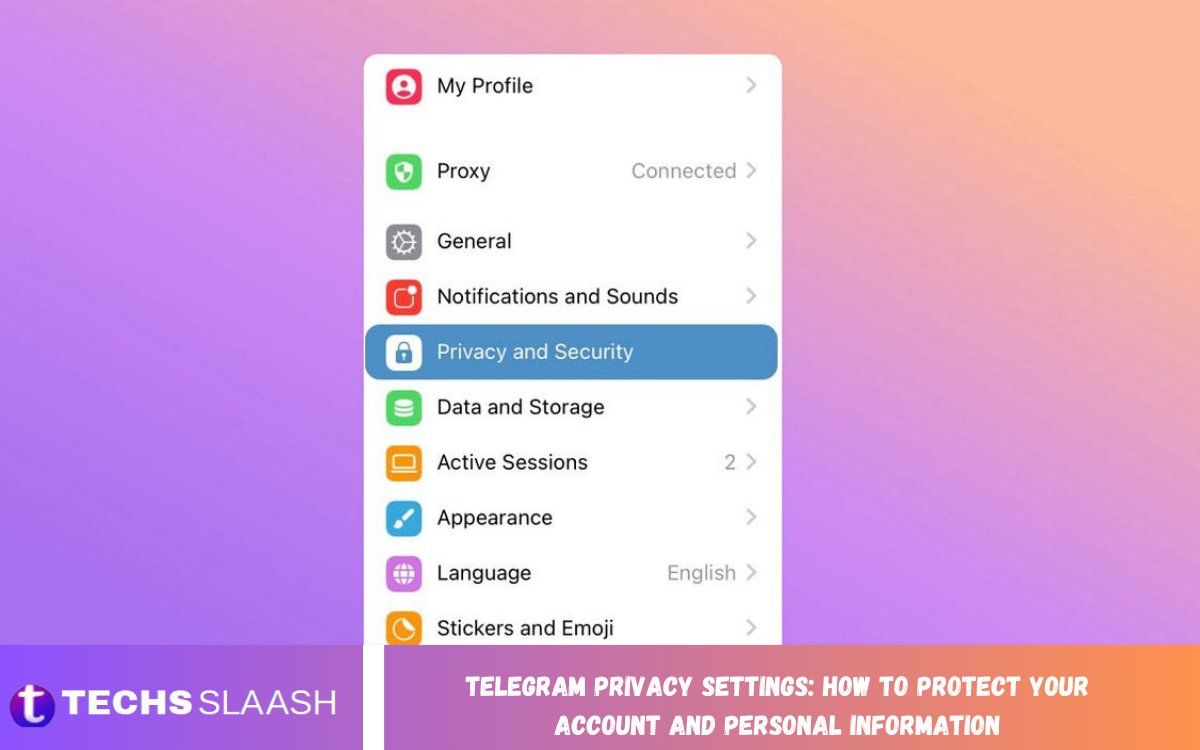
Telegram is a popular messaging platform that allows users to communicate through private chats, groups, channels, and voice or video calls. Although the platform offers several privacy and security features, users need to configure the right settings to protect their personal information and maintain control over their online activity.
Understanding Telegram Privacy Settings: How to Protect Your Account and Personal Information is essential for anyone who wants a safer messaging experience. By adjusting visibility options, enabling two-step verification, controlling group invitations, and managing active sessions, you can reduce unwanted contact and improve account security.
Why Telegram Privacy Settings Matter?
Privacy settings help you decide who can see your phone number, profile picture, last seen status, and other personal details. Without reviewing these options, you may unintentionally share information with strangers, unfamiliar group members, or people you do not trust.
Telegram also supports features designed to protect accounts against unauthorized access. Combining these features with careful messaging habits can help reduce the risk of scams, impersonation, and privacy violations while allowing you to enjoy the platform’s communication features.
Hide Your Phone Number on Telegram
Your phone number is an important part of your Telegram account, but it does not need to be visible to everyone. Open Telegram, go to Settings, select Privacy and Security, and tap Phone Number to review the available visibility options.
Choose Nobody if you want to prevent other users from seeing your number through your profile. You can also use the exceptions section to allow selected contacts to view it when necessary. Remember that people who already know and have saved your number may still recognize it, depending on their contacts and your settings.
Control Who Can See Your Profile Picture
Your profile picture can reveal personal details about your appearance, identity, or surroundings. If you use a recognizable photograph, limiting its visibility can help you maintain a greater level of privacy when interacting with unfamiliar users.
Open Privacy and Security, select Profile Photos, and choose an appropriate visibility option. You can restrict access to your contacts or use available exceptions to control who can see your picture. Telegram may also allow you to set a public profile picture for other users while keeping your preferred photograph more private.
Manage Last Seen and Online Status
Telegram can show when you were last active or whether you are currently online. While this feature helps friends understand your availability, it can also reveal patterns in your daily routine and messaging habits.
To control this information, open Privacy and Security and select Last Seen and Online. Depending on the available options, you can allow everyone, your contacts, or nobody to see your status, with exceptions for specific people. Keep in mind that Telegram may still display approximate status information in certain situations rather than completely hiding every activity indicator.
Enable Two-Step Verification
Two-step verification adds an additional layer of protection to your Telegram account. When enabled, it requires a password in addition to the login code used during account authentication, making unauthorized access more difficult if someone obtains your verification code.
To activate this feature, open Settings, select Privacy and Security, and choose Two-Step Verification. Create a strong, unique password you don’t use for other services. Add a recovery email address if Telegram offers the option, and secure that email account as well. Never share your login codes or verification password with anyone claiming to be a Telegram employee.
Review Active Sessions and Connected Devices
Telegram allows you to access your account from multiple devices, including smartphones, tablets, and computers. However, an old device or unfamiliar login session can become a security concern if someone else gains access.
Open Settings, select Devices or Active Sessions, and review the connected devices. If you notice a session you do not recognize, terminate it immediately. Sign out of devices you no longer use, particularly shared computers or borrowed phones. Regularly reviewing active sessions helps you spot suspicious access before it becomes a bigger problem.
Control Who Can Add You to Groups and Channels
Being added to unfamiliar groups can expose you to spam, suspicious links, unwanted messages, and potentially harmful content. Adjusting group invitation permissions helps you decide who can include your account in conversations.
Navigate to Privacy and Security and find Groups and Channels, or the similarly named option available in your version of Telegram. If that option suits your needs, restrict invitations to your contacts and configure exceptions where available. If an unfamiliar person repeatedly adds or contacts you, consider blocking the account and reporting abusive behavior.
Block Unwanted Users and Report Suspicious Accounts
Blocking is a useful privacy feature when someone repeatedly sends unwanted messages, tries to scam you, or makes you uncomfortable. A blocked user will have more limited ways to interact with you through Telegram, although blocking does not necessarily remove all traces of previous conversations or shared group activity.
To block someone, open the relevant chat, tap the person’s profile, and look for the Block User option. If the account is impersonating someone, distributing scams, or sending abusive content, use Telegram’s reporting feature when appropriate. Avoid responding to suspicious messages or sharing personal information simply because a message appears to come from someone you know.
Use Secret Chats for Sensitive Conversations
Telegram offers Secret Chats for users who want additional privacy in one-to-one conversations. Unlike regular cloud chats, Secret Chats use end-to-end encryption, meaning the messages are designed to be readable only by the participating devices.
Secret Chats are device-specific and do not work like Telegram’s regular cloud-synchronized conversations. Certain features, including self-destructing messages, may be available to help manage sensitive content. However, no messaging feature can guarantee that another person will not photograph a screen, record information, or otherwise preserve what they receive. Share confidential details only with people you trust.
Understand Telegram’s End-to-End Encryption
One important security distinction is the difference between regular Telegram cloud chats and Secret Chats. Regular private and group cloud chats use client-server encryption and are stored in Telegram’s cloud so users can access them across supported devices. They are not end-to-end encrypted by default.
Secret Chats use end-to-end encryption, providing a different level of protection for conversations between participating devices. This distinction matters when discussing confidential information, personal documents, or other sensitive details. Choose the appropriate chat type for your needs, and remember that account security, device security, and the behavior of conversation participants also influence your overall privacy.
Limit Who Can Call You on Telegram
Telegram voice and video calls are convenient, but unwanted calls can interrupt your day and create opportunities for harassment. Controlling who can call you reduces unwanted contact and gives you more control over your availability.
Open Privacy and Security and select Calls. Depending on your app, you can restrict calls to your contacts or choose a more private setting. You may also be able to configure exceptions for specific users. Review related peer-to-peer settings if available, since these can affect whether calls connect directly between devices or through Telegram’s servers.
Protect Your Account With a Strong Passcode
Your Telegram account can remain vulnerable if someone gains physical access to your unlocked phone. Even when your Telegram login is secure, another person who can open the application may be able to read messages and view private conversations.
Use Telegram’s Passcode Lock feature if it is available in your version of the app. Choose a passcode that is hard to guess, and enable biometric unlocking (fingerprint or facial recognition) when supported. Keep your phone’s operating system updated and use a secure screen lock. Avoid leaving your device unlocked in public or lending it to people you don’t fully trust.
Read Also: Telegram’s AI-Powered Features: Smart Tools for Messaging and Productivity
Be Careful With Bots, Links, and Unknown Messages
Telegram bots can provide useful services, including reminders, automated information, and group management. However, bots are operated by their creators, and interacting with an unfamiliar bot may expose information you choose to send it.
Do not provide passwords, banking details, verification codes, or private documents to untrusted bots. Treat unexpected links and offers with caution, especially messages promising free rewards, exclusive prizes, or guaranteed earnings. Check usernames carefully because scammers may imitate legitimate organizations or people. If a message creates urgency or asks you to act immediately, pause and verify the information independently.
Manage Contact Synchronization and Data Sharing
Telegram can synchronize contacts to help you find people you know. While convenient, contact synchronization may not be necessary for everyone, especially users who prefer to keep their address books separate from messaging services.
Review the Contacts section under Privacy and Security for options to stop synchronization or delete previously synchronized contacts, where available. You can also review your phone’s application permissions and restrict Telegram’s access to contacts if you do not need the feature. Remember that deleting synchronized contacts does not necessarily remove information other users already have in their own address books.
Keep Telegram Updated and Recognize Security Risks
Application updates can introduce new features, improve compatibility, and address security vulnerabilities. Using an outdated version may leave you without important improvements, so enable automatic updates or check your device’s official application store regularly.
Download Telegram from trusted sources and avoid unofficial applications that request unnecessary permissions. Never install suspicious files sent by strangers, even when they appear to be photographs, documents, or software updates. If you suspect your account has been compromised, terminate unfamiliar sessions, strengthen your security settings, and review the recovery options associated with your account.
Best Practices for Better Telegram Privacy
Maintaining privacy requires more than changing a few settings once. Review your account periodically, especially after changing phones, joining new groups, or noticing unexpected login notifications. Make sure your phone number, profile photo, online status, and calling permissions reflect your preferred level of visibility.
Also practice responsible information sharing. Avoid publishing sensitive details in public groups, check the recipients before sending documents, and think carefully before forwarding private conversations. Combining Telegram’s security features with good digital habits provides a stronger foundation for protecting your identity and personal information.
Frequently Asked Questions
How can I make my Telegram account more private?
Open Settings and select Privacy and Security. Review your phone number, profile picture, last seen status, calls, group invitations, and other available options to limit access to your personal information.
Can I hide my phone number on Telegram?
Yes. Telegram provides phone number visibility settings that allow you to restrict who can see your number. However, people who already know your number may still recognize it if they have it saved in their contacts.
Is Telegram completely end-to-end encrypted?
No. Regular Telegram cloud chats are not end-to-end encrypted by default. Secret Chats provide end-to-end encryption for supported one-to-one conversations between participating devices.
How do I enable two-step verification on Telegram?
Go to Settings, open Privacy and Security, and select Two-Step Verification. Create a strong password and, if available, set up a recovery email.
Can someone access my Telegram account without permission?
Unauthorized access may occur if someone obtains your login code, accesses an active session, or gains control of your account or device. Two-step verification and regular session reviews help reduce these risks.
How can I remove an unknown device from Telegram?
Open Settings and select Devices or Active Sessions. Review the list, identify unfamiliar sessions, and terminate any access you do not recognize.
Can I stop strangers from adding me to Telegram groups?
Yes. Open Privacy and Security and look for Groups and Channels. Restrict who can add you and use available exceptions to control invitations.
Does blocking someone on Telegram protect my privacy?
Blocking limits that person’s ability to contact you through Telegram. However, it does not erase information they have already seen, saved, or captured, so avoid sharing sensitive information with untrusted users.
Are Telegram bots safe to use?
Some bots provide legitimate services, but their safety depends on who operates them and what information they request. Avoid sending passwords, login codes, financial details, or confidential documents to untrusted bots.
What should I do if my Telegram account is hacked?
If you can still access your account, terminate unfamiliar sessions, enable or update two-step verification, and secure your recovery email. If you lose access, follow Telegram’s official account recovery process and contact your mobile provider if you suspect your phone number or SIM has been compromised.
Conclusion
Telegram Privacy Settings: How to Protect Your Account and Personal Information is an important topic for anyone who values secure and responsible online communication. By hiding your phone number, limiting profile visibility, enabling two-step verification, reviewing active sessions, and controlling unwanted contact, you can reduce common privacy risks.
For stronger protection, understand the difference between regular cloud chats and end-to-end encrypted Secret Chats, keep your application updated, and remain cautious when interacting with strangers, bots, and suspicious links.

1 Comment
Pingback: Telegram Account Recovery: How to Restore Access to Your Account Securely - Techsslaash.com