

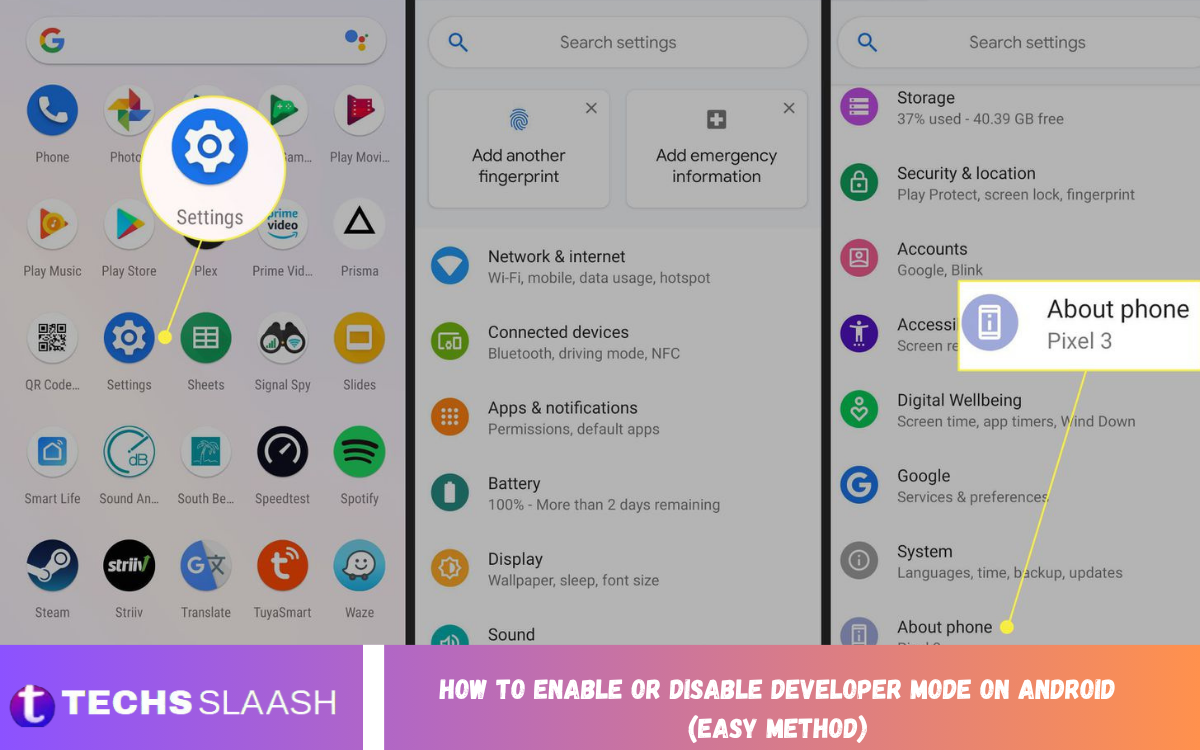
Android includes a hidden collection of advanced settings called Developer Options. Although these settings are mainly designed for developers, they can also be useful for regular users who want more control over their phones. Features such as USB debugging, animation controls, background-process management, and other testing tools are available inside this menu.
If you have ever searched for How to Enable or Disable Developer Mode on Android (Easy Method), the process is simpler than it may seem. Most Android phones allow you to activate Developer Options by tapping the Build Number several times, although the exact location can vary depending on the manufacturer and Android version.
What Is Developer Mode on Android?
Developer Mode, commonly referred to as Developer Options, is a special Android settings menu containing advanced controls. It is primarily intended for application developers who need to test, debug, monitor, and modify certain system behaviors while developing Android software.
For everyday users, Developer Options can provide useful customization tools as well. You can adjust animation speeds, enable USB debugging, inspect certain system behaviors, and access additional testing features. However, because some options can affect how your phone works, changing settings without understanding them is not recommended.
Why Enable Developer Options on Android?
There are several reasons someone may want to enable Developer Options. Developers commonly use the menu for debugging applications and communicating with Android devices through tools such as Android Debug Bridge. USB debugging, for example, is an important option when connecting an Android phone to a development computer.
Power users may also enable Developer Mode for specific customization tasks. Some options can control animation scales, provide additional diagnostic information, or help with testing applications. The important point is to change only the settings you actually need and leave unfamiliar options at their default values.
How to Enable Developer Mode on Android
Start by opening the Settings application on your Android phone. Scroll through the settings until you find About Phone, About Device, or a similarly named section. The wording and location can vary between Android manufacturers.
Inside the About section, locate Build Number. On some devices, especially certain Samsung models, you may first need to open Software Information before finding Build Number. Tap Build Number repeatedly, normally seven times, until Android displays a confirmation that Developer Options have been enabled.
Find Developer Options After Enabling Them
After successfully tapping Build Number, return to the main Settings menu. You should now be able to find Developer Options, although its location depends on the phone manufacturer and Android version. On many devices, it can be found under System or through the Settings search function.
If you cannot immediately find the menu, use the search box inside Settings and type Developer Options. This is often the quickest method because different manufacturers organize their settings differently. Once you locate it, tap the option to open the advanced settings menu.
How to Enable Developer Mode on Samsung Phones
Samsung devices may use a slightly different path compared with standard Android devices. Open Settings, select About phone, and then choose Software information. Look for Build number and tap it seven times. You may be asked to enter your device PIN, password, or another security method before activation is completed.
Once Developer Options are activated, return to Settings and search for Developer Options. Samsung may place the menu near the bottom of the main Settings list. From there, you can open individual developer settings and enable only the features you require.
How to Enable Developer Mode on Other Android Phones
The general process is similar across most Android devices. Open Settings, go to About Phone or About Device, locate Build Number, and tap it repeatedly until Android confirms that developer features have been enabled. The exact menu names can differ between brands and software versions.
If Build Number is difficult to find, check sections such as Software Information, Version Information, or System Information. You can also use the Settings search feature. Once Developer Options are activated, search for that name directly instead of manually browsing every Settings category.
How to Disable Developer Mode on Android
Disabling Developer Mode is just as easy as enabling it. Open Settings and find Developer Options. Depending on your phone, this may be located under System or somewhere else in the Settings menu. Open the section and look for the main switch at the top.
Tap the main switch to change it from On to Off. This disables the Developer Options menu and its active developer settings. If you later need Developer Options again, you can generally reactivate them by repeating the Build Number process.
What Happens When You Disable Developer Options?
Turning off Developer Options prevents the advanced developer settings from remaining active. Android’s official guidance explains that disabling Developer Options can reset developer-related changes that were made while the feature was enabled.
However, you should not assume that every device behaves identically. Android manufacturers can customize their software, so the exact behavior may differ. If you changed an important setting before disabling Developer Options, check your phone afterward to make sure everything is working as expected.
Read Also: How to Lock and Hide Chats on WhatsApp
Useful Developer Options You Should Know
One of the best-known Developer Options is USB debugging. It allows communication between an Android device and a computer for development and debugging purposes. This feature should only be enabled when necessary, especially when connecting your phone to a computer you trust.
Other developer features can provide visual feedback, performance information, animation controls, and additional diagnostic capabilities. Android’s developer documentation lists tools for profiling application performance, capturing bug reports, showing touch feedback, and changing certain rendering behaviors.
Is It Safe to Enable Developer Mode?
Simply enabling Developer Options does not automatically mean that your phone is unsafe. The menu is a built-in Android feature intended to provide advanced controls. The greater concern is changing settings without understanding their purpose or enabling debugging features when they are not required.
For normal users, the safest approach is to make one change at a time and remember the original setting. If you are following a tutorial, make sure you understand what a particular developer option does before changing it. When your task is complete, you can disable Developer Options again.
Developer Mode and USB Debugging
Developer Options and USB debugging are related but not identical. Developer Options is the broader settings menu, while USB debugging is one particular feature inside that menu. Android provides USB debugging primarily for development and debugging workflows involving a computer.
If you only need USB debugging temporarily, enable Developer Options, activate USB debugging, complete your required task, and then turn the feature off afterward. This helps keep your phone configured according to your normal everyday requirements.
Why Developer Options May Not Appear?
Sometimes users successfully tap Build Number but cannot find Developer Options afterward. The most common reason is that the menu is located somewhere different from where they expect it. Android manufacturers can change the organization and naming of Settings menus.
Use the Settings search function and type Developer Options. If it still does not appear, return to About Phone and confirm that Build Number was tapped enough times to activate the feature. Some devices may also require your screen lock credentials before completing activation.
Common Mistakes to Avoid
One common mistake is changing several Developer Options at once without recording the original settings. If something starts behaving differently afterward, identifying the cause can become difficult. A better approach is to change only the option required for your specific task.
Another mistake is assuming that every Android phone has identical menus. Pixel, Samsung, Xiaomi, OnePlus, Motorola, and other manufacturers may place Developer Options and Build Number in different locations. Always look for the equivalent menu on your particular device rather than following a path designed for another phone.
When Should You Disable Developer Mode?
You can disable Developer Options whenever you no longer need its advanced features. This is particularly useful if you enabled the menu temporarily for troubleshooting, application testing, USB debugging, or another specific task.
Disabling it also gives you a simpler Settings experience because you no longer have to worry about accidentally changing advanced options. If an application specifically asks you to turn off Developer Options, you can open the menu and switch the main Developer Options toggle off.
Frequently Asked Questions
How do I enable Developer Mode on Android?
Open Settings, go to About Phone or About Device, find Build Number, and tap it seven times. Android should display a confirmation after Developer Options are activated.
Where is Build Number on Android?
Build Number is commonly located under Settings > About Phone. Some manufacturers place it under Software Information or a similar subsection.
How do I disable Developer Mode on Android?
Open Settings, find Developer Options, open the menu, and switch the main toggle at the top to Off. The exact location of Developer Options can vary by device.
Does enabling Developer Options damage my phone?
Enabling the menu itself does not normally damage your phone. However, changing advanced settings without understanding them can cause unexpected behavior, so modify only the options you need.
Do I need Developer Mode for USB debugging?
Yes. USB debugging is an option within Android’s Developer Options and is commonly used for communication between an Android device and a computer during development and debugging.
Can I enable Developer Options without a computer?
Yes. Developer Options can normally be enabled directly from the Android Settings application by tapping Build Number repeatedly. No computer is required for the activation process.
Why can’t I find Developer Options after enabling it?
The menu may be located under System or another Settings category depending on your phone. Searching for Developer Options inside Settings is usually the fastest way to locate it.
Do Developer Options make Android faster?
Some users adjust animation-related settings to make the interface feel faster, but these changes do not necessarily increase the phone’s actual processing performance. Developer Options should not be treated as a guaranteed performance-boosting tool.
Should I keep Developer Options enabled?
You can keep it enabled if you regularly use its features. If you do not need developer features, disabling it is a simple way to return your phone to a more standard configuration.
Will disabling Developer Options delete my apps?
Turning off Developer Options does not mean that your installed applications are automatically deleted. However, certain developer-related settings may be reset when Developer Options are disabled, depending on the Android device and software version.
Conclusion
Learning How to Enable or Disable Developer Mode on Android (Easy Method) is straightforward once you know where to find Build Number. In most cases, opening About Phone, tapping Build Number several times, and then locating Developer Options is all that is required.
Developer Options can be valuable for developers, advanced users, troubleshooting, and specific Android customization tasks.
