

Computers have become an essential part of modern work, education, communication, entertainment, and business. When a computer suddenly becomes slow, stops responding, displays errors, or refuses to connect to the internet, it can interrupt important tasks and reduce productivity. Computer Troubleshooting and technical support help identify these problems and provide practical solutions.
Effective technical support is not only about fixing a broken computer. It also involves understanding the cause of a problem, protecting important data, improving system performance, and preventing similar issues in the future. With the right troubleshooting approach, you can resolve many common computer problems safely and efficiently.
Common Computer Problems
Slow computer performance is one of the most common issues users experience. Too many startup programs, insufficient storage space, outdated software, background processes, malware, and limited memory can all contribute to poor performance and longer loading times.
Other common problems include application crashes, frozen screens, unexpected restarts, printer failures, audio problems, keyboard or mouse issues, and internet connectivity difficulties. Identifying the exact symptoms can help narrow possible causes and speed up troubleshooting.
Slow Computer Troubleshooting
When a computer becomes unusually slow, first check available storage and running applications. Removing unnecessary files, closing unused programs, and limiting applications that launch automatically at startup can improve performance on many systems.
Users should also check whether the operating system and important drivers are up to date. If performance remains poor, you may need to investigate memory usage, disk health, background services, malware, or aging hardware.
Internet and Network Troubleshooting
Internet problems can stem from the computer, router, modem, network configuration, wireless signal, or internet service provider. Restarting network equipment and checking whether other devices can access the internet are useful first steps for identifying where the problem exists.
If other devices work normally, the issue may involve the affected computer’s network settings or wireless adapter. Forgetting and reconnecting to a Wi-Fi network, checking network drivers, and reviewing configuration settings can often resolve basic connectivity problems.
Software Troubleshooting and Support
Software problems may appear as application crashes, error messages, installation failures, compatibility issues, or programs that stop responding. Before making major changes, users should record the error message because it can provide valuable information about the underlying issue.
Common solutions include updating the application, restarting the computer, checking system requirements, and reinstalling damaged software. If the problem continues, technical support can examine system logs and configuration settings to determine whether another program or system component is responsible.
Hardware Troubleshooting
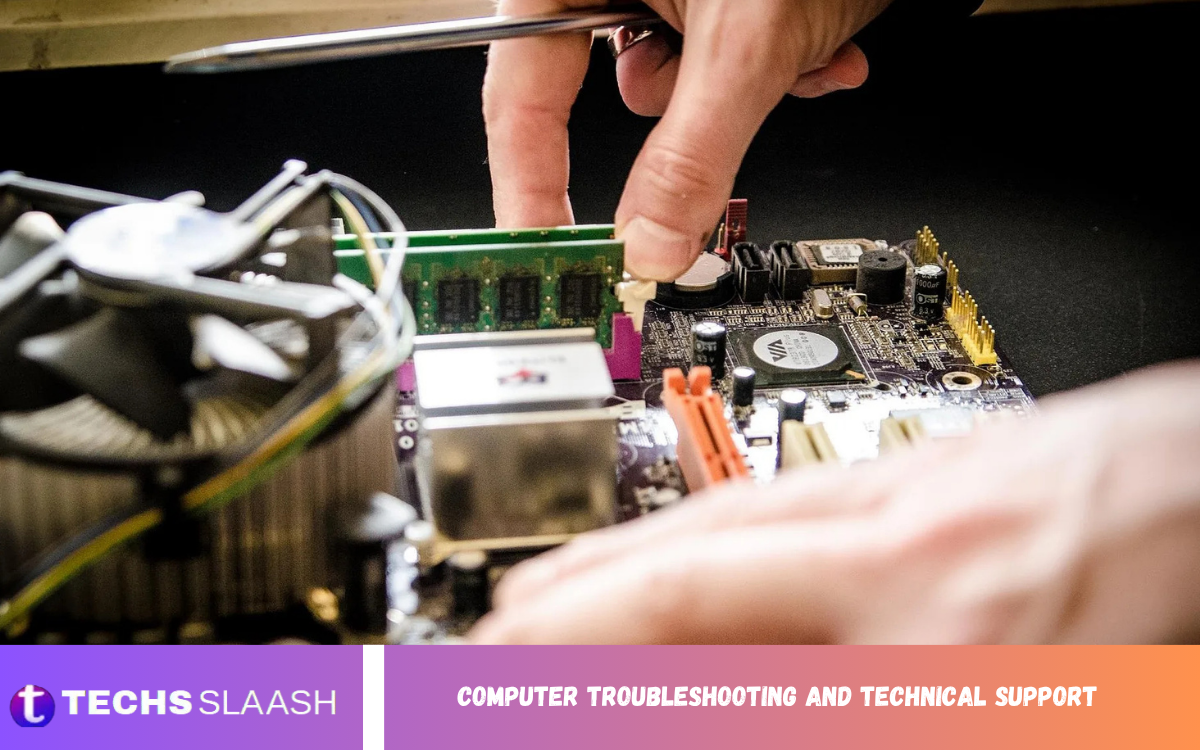
Hardware troubleshooting focuses on physical components such as the processor, memory, storage drive, motherboard, power supply, display, keyboard, mouse, and other peripherals. Hardware problems can produce symptoms such as unexpected shutdowns, unusual sounds, overheating, display failures, or failure to start.
Inspect carefully before replacing components. Loose cables, dust buildup, damaged connections, overheating, and failing peripherals can sometimes cause problems that seem more serious than they are. Perform hardware repairs carefully to avoid damage or data loss.
Operating System Troubleshooting
The operating system controls many of the computer’s essential functions, so operating system problems can affect nearly every part of the device. Corrupted system files, failed updates, incompatible drivers, configuration errors, and damaged installations can cause crashes or unusual behavior.
Basic operating system troubleshooting may include installing updates, restarting system services, checking available storage, repairing system files, or restoring recently changed settings. When the operating system becomes severely damaged, professional support may be needed to protect user data and restore normal operation.
Read Also: Essential Wi-Fi Router Settings and Configuration
Virus and Malware Troubleshooting
Malware can affect computer performance, privacy, security, and system stability. Suspicious pop-ups, unfamiliar applications, unexpected browser changes, unusual network activity, and sudden performance problems can sometimes indicate unwanted software.
Users should keep security software updated and avoid downloading applications from unreliable sources. If malware is suspected, run a trusted security scan. When there is a serious concern about account security, change important passwords from a known-clean device.
Data Backup and Recovery Support
Technical support should include data protection because fixing a computer problem is less useful if important documents, photographs, business files, or other information are lost. Regular backups provide an additional layer of protection against hardware failure, accidental deletion, malware, and other unexpected events.
You can back up important files using external storage or reliable cloud-based solutions. Ideally, users should maintain more than one copy of critical information and periodically confirm that backups can actually be restored. A backup strategy is especially important for businesses and professionals who depend on their computers every day.
Printer and Peripheral Troubleshooting
Printers, scanners, webcams, speakers, external drives, and other peripherals can occasionally stop working because of connection problems, outdated drivers, incorrect settings, or hardware faults. Checking cables and power connections is a simple but important first step.
If the device is connected correctly, users can check whether the computer recognizes it and whether the correct driver is installed. Removing and reconnecting the device, restarting the relevant software, or reinstalling its driver can resolve many common peripheral problems.
Remote Technical Support
Remote technical support lets trained professionals diagnose and resolve many computer problems without visiting the user’s location. This can be especially useful for software errors, account configuration, application problems, system settings, and network troubleshooting.
Remote support can save time and reduce inconvenience, but users should only provide access through trusted technical support providers. Never share sensitive information unnecessarily, and make sure you understand what access you’re granting before letting someone else control or inspect your computer.
Professional Computer Troubleshooting Services
Professional Computer Troubleshooting and Technical Support can be valuable when a problem is complicated, recurring, or potentially related to hardware failure. Experienced technicians use diagnostic tools and systematic testing to identify problems that may not be obvious to ordinary users.
Professional support can also help businesses maintain computers, configure networks, manage updates, improve security, and reduce downtime. Preventive maintenance is often more effective than waiting until a serious technical failure occurs.
Preventing Future Computer Problems
Regular maintenance can prevent many computer problems before they become serious. Keeping software updated, maintaining sufficient storage space, using reliable security protection, and removing unnecessary applications can help keep the system healthier.
Users should also avoid blocking ventilation areas, handle hardware carefully, and shut down or restart computers when necessary. Regular backups and documenting recurring errors can make future troubleshooting much easier.
When to Contact Technical Support?
Some problems can be solved with simple troubleshooting, while others require professional assistance. If a computer repeatedly crashes, fails to start, overheats, loses important data, or shows signs of hardware failure, continuing to experiment with unknown solutions may make the situation worse.
Consider technical support when you’re uncomfortable changing system settings or handling internal hardware. Professional assistance can reduce the risk of accidental data loss and provide a structured solution to complicated technical problems.
Benefits of Computer Troubleshooting and Technical Support
Reliable technical support helps users restore productivity, improve computer performance, and reduce unnecessary downtime. Instead of repeatedly dealing with the same problem, professional troubleshooting can identify the underlying cause and provide a long-term solution.
Another important benefit is improved security and reliability. Regular technical maintenance can identify outdated software, suspicious activity, storage problems, and hardware concerns before they develop into larger issues. This makes Computer Troubleshooting and Technical Support an important part of responsible computer use.
Frequently Asked Questions
What is Computer Troubleshooting and Technical Support?
Computer Troubleshooting and Technical Support involves identifying and resolving computer-related problems. It can include software errors, hardware failures, network problems, security issues, performance concerns, and peripheral problems.
Why is my computer running slowly?
A computer may run slowly because of limited storage, too many startup programs, insufficient memory, outdated software, malware, or aging hardware. Checking these areas can help identify the cause of poor performance.
How can I troubleshoot an internet connection?
Start by checking whether other devices can access the internet. Restarting the router and computer, reconnecting to Wi-Fi, checking network settings, and updating network drivers can help resolve common connectivity problems.
What should I do if a program keeps crashing?
Restart the computer and check whether the application has available updates. If the problem continues, reinstalling the application or checking for compatibility and system errors may help.
Can technical support fix hardware problems?
Technical support can diagnose many hardware problems and recommend appropriate repairs or replacements. Some issues, such as damaged components, failing storage drives, or power-related failures, may require physical repair.
How can I protect my computer from malware?
Keep the operating system and security software updated, avoid suspicious downloads, use strong passwords, and be careful with unknown email attachments and websites. Regular backups also help reduce the impact of malware incidents.
Should I back up my computer regularly?
Yes. Regular backups protect important files against accidental deletion, hardware failure, malware, and other unexpected events. Critical information should ideally have multiple backup copies.
Is remote technical support safe?
Remote technical support can be safe when provided by a trusted professional. Users should verify who is providing the service, understand what access is being granted, and avoid sharing passwords or sensitive information unnecessarily.
When should I contact a computer technician?
Consider contacting a technician when troubleshooting steps don’t resolve the problem or when the issue involves repeated crashes, hardware failure, overheating, serious security concerns, or potential data loss.
How can I prevent common computer problems?
Regular updates, adequate storage, security protection, backups, proper ventilation, and careful software installation can prevent many common problems. Routine maintenance can also help identify issues before they become serious.
Conclusion
Computer Troubleshooting and technical support play an important role in keeping computers reliable, secure, and efficient. From slow performance and software crashes to hardware failures and network problems, systematic troubleshooting can identify the cause and guide users toward an effective solution.
Good technical support is not simply about fixing today’s problem. It also prevents future failures, protects valuable data, maintains security, and helps users get the best performance from their technology.

1 Comment
Pingback: Latest Movie Releases and Upcoming Films - Techsslaash.com