

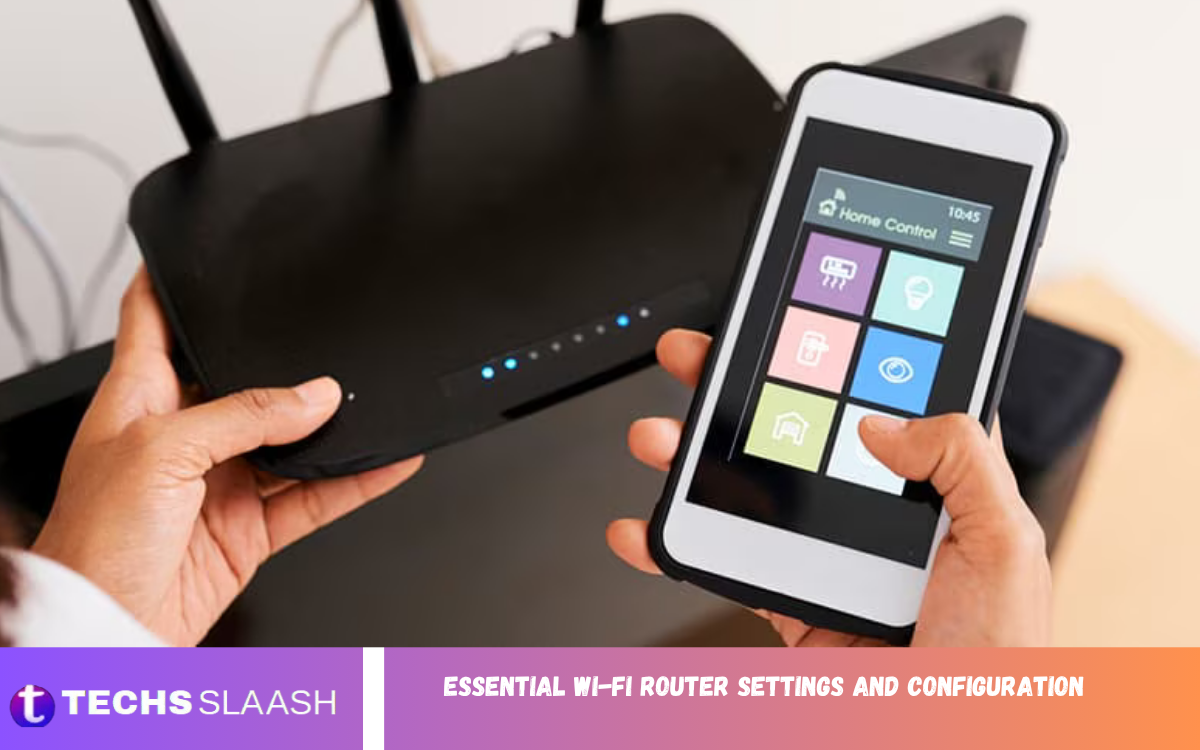
A Wi-Fi router is the central device that connects your phones, computers, smart TVs, gaming consoles, and other devices to the internet. Proper configuration can significantly improve network speed, security, reliability, and overall performance.
Understanding the Essential Wi-Fi Router Settings and Configuration helps users get more from their internet connection while reducing common problems such as weak security, connection drops, slow speeds, and unauthorized access. A few carefully chosen changes can create a faster, safer wireless network.
Accessing Your Wi-Fi Router Settings
The first step in configuring a router is accessing its administration panel. Most routers provide a web-based interface you can open from a connected computer or smartphone using the router’s local gateway address. The exact address and login information usually appear on the router label or in its documentation.
After signing in, users should review the available settings before making changes. Router interfaces differ between manufacturers, but common sections include Wireless, Security, Network, Administration, Parental Controls, Firmware, and Advanced Settings.
Change the Default Router Password
One of the most important security improvements is changing the router’s default administrator password. Default credentials are widely known, making them an easy target for unauthorized users trying to access the router’s management interface.
Create a strong administrator password that is unique and difficult to guess. Avoid using simple names, birthdays, phone numbers, or common phrases. A strong password protects the router’s configuration and prevents unwanted changes to important network settings.
Choose the Right Wi-Fi Network Name
The Wi-Fi network name, commonly called the SSID, identifies your wireless network to nearby devices. A recognizable but privacy-conscious name makes it easier to identify your connection without unnecessarily revealing personal information.
Avoid using your full name, home address, phone number, or other identifying details in the SSID. You can also create separate names for different wireless bands if your router supports them, making it easier to manage compatible devices.
Select a Strong Wi-Fi Security Mode
Wireless security is one of the most important parts of router configuration. Modern routers commonly support security standards such as WPA2 and WPA3, with WPA3 generally providing stronger protection when supported by your devices.
If WPA3 is available and compatible with your equipment, it is usually a strong choice. For older devices, WPA2 may still be necessary. Avoid outdated options such as WEP because they provide significantly weaker protection and should not be relied upon for modern networks.
Create a Strong Wi-Fi Password
Your Wi-Fi password protects the wireless network from unauthorized connections. A weak password can allow neighbors or attackers to use your connection and potentially access devices or network resources.
Choose a long and unique password containing a combination of words, numbers, and symbols where appropriate. A memorable passphrase can be particularly useful because length is an important part of password strength. Avoid reusing passwords from email, banking, or social media accounts.
Configure the 2.4 GHz and 5 GHz Bands
Many modern routers support both 2.4 GHz and 5 GHz wireless bands. The 2.4 GHz band generally provides better range and can pass through obstacles more effectively, while 5 GHz can offer higher speeds and less congestion over shorter distances.
Some newer routers also support 6 GHz through Wi-Fi 6E or newer technologies. When possible, connect high-performance devices located near the router to a faster band, while using the longer-range band for devices that are farther away or separated by walls.
Select an Appropriate Wi-Fi Channel
Wireless channels determine where your network operates within a particular frequency band. In crowded areas, neighboring routers may use overlapping channels, potentially contributing to interference and reduced performance.
Modern routers often provide automatic channel selection, which can be useful for most households. If you experience persistent wireless interference, manually testing a less congested channel may improve reliability, particularly on the 2.4 GHz band.
Adjust Channel Width Carefully
Channel width affects how much wireless spectrum a router uses to communicate with connected devices. Wider channels can potentially provide higher speeds, but they may also be more vulnerable to interference in busy environments.
For 2.4 GHz networks, narrower channel configurations are often preferable in crowded areas. On 5 GHz and newer bands, wider channels may provide better performance when there is enough clean spectrum available and compatible devices can take advantage of it.
Enable Automatic Firmware Updates
Router firmware contains software responsible for controlling the device’s networking features and security functions. Manufacturers periodically release updates to fix vulnerabilities, improve stability, and add new capabilities.
If your router supports automatic firmware updates, enabling the feature can simplify maintenance. Otherwise, check the manufacturer’s update process periodically and install legitimate firmware releases rather than downloading unofficial software from unknown sources.
Configure DHCP Settings Properly
Dynamic Host Configuration Protocol, commonly known as DHCP, automatically assigns IP addresses to devices connecting to your network. For most home users, leaving DHCP enabled provides the simplest and most reliable configuration.
Advanced users may want to create DHCP reservations for specific devices such as printers, network storage systems, cameras, or smart-home hubs. A reserved local address can make these devices easier to manage without requiring every device to use a manually configured static address.
Manage DNS Settings
DNS, or Domain Name System, translates website names into IP addresses so devices can find online services. Routers typically receive DNS information automatically from the internet service provider, but many routers allow users to choose alternative DNS services.
Changing DNS servers can sometimes improve responsiveness, reliability, privacy features, or content filtering depending on the service selected. However, DNS does not directly increase the maximum internet speed provided by your internet connection, so expectations should remain realistic.
Enable Quality of Service
Quality of Service, or QoS, allows a router to prioritize certain types of network traffic. This can be useful in homes where several people simultaneously stream videos, play online games, attend video meetings, and download large files.
A properly configured QoS system can help important activities remain responsive when the network is busy. Depending on the router, users may be able to prioritize specific devices, applications, gaming traffic, or video conferencing services.
Improve Router Placement
Router configuration is important, but physical placement can have an equally significant effect on wireless performance. Placing the router in a central and elevated location can help distribute the signal more evenly throughout a home.
Avoid hiding the router inside cabinets, placing it behind large appliances, or surrounding it with thick materials. Keep it away from sources of electromagnetic interference when possible, and position its antennas according to the manufacturer’s recommendations.
Configure Guest Wi-Fi
A guest network provides visitors with internet access without requiring them to connect directly to the primary wireless network. This can help separate guest devices from computers, printers, storage systems, and smart-home equipment.
Use a separate SSID and password for guest access and enable guest isolation if the router provides it. Guest network features vary considerably, so review the available options and restrict access to the local network whenever possible.
Disable Unnecessary Features
Routers often include numerous advanced features, but not every feature needs to remain enabled. Unused services can add unnecessary complexity and, depending on the feature, increase the device’s attack surface.
Review settings such as remote administration, unnecessary port forwarding, outdated wireless protocols, and unused services. Enable advanced functions only when you understand their purpose and need them.
Read Also: Common Router Problems and Effective Solutions
Configure Firewall Protection
Most home routers include a built-in firewall that helps control unwanted traffic between the internet and your internal network. Keeping the router’s firewall enabled is an important part of maintaining basic network security.
Avoid disabling firewall protection simply to solve connectivity problems. If a particular application cannot connect, investigate its specific requirements instead of turning off broad security protections. Use port forwarding carefully and only when necessary.
Use Parental Control Features
Parental controls can help families manage how connected devices access the internet. Depending on the router, these controls may allow users to create schedules, restrict certain categories, or pause internet access for specific devices.
These tools can be especially useful for managing children’s screen time or limiting internet access during study and sleeping hours. However, router-based controls vary in capability, so view them as one part of a broader digital safety strategy.
Monitor Connected Devices
Regularly checking the router’s connected-device list can reveal which phones, computers, televisions, cameras, and smart devices are currently using the network. This habit helps you spot unfamiliar connections.
If you see an unknown device, investigate it before assuming the network has been compromised. Some devices may have generic names or randomized hardware addresses. Changing the Wi-Fi password and reviewing security settings can help if you suspect unauthorized access.
Restart and Maintain the Router
Occasionally restarting a router can resolve temporary connection problems, memory issues, or communication errors. However, a properly functioning modern router shouldn’t need frequent restarts.
Keep the device adequately ventilated and free from excessive dust. If the router regularly overheats, disconnects, or becomes unusually slow, check for firmware updates and consider whether the hardware is reaching the end of its useful life.
Troubleshoot Slow Wi-Fi Performance
Slow Wi-Fi can result from many factors, including distance, interference, network congestion, outdated hardware, bandwidth-heavy applications, and limitations in your internet service plan. Router settings are only one part of the overall performance equation.
Start troubleshooting by testing the connection close to the router and comparing wired and wireless performance. If wired speeds are normal but wireless speeds are poor, focus on wireless channels, bands, placement, interference, and device compatibility.
Keep Your Router Configuration Secure
Review a secure router configuration periodically rather than treating it as a one-time task. Technology, connected devices, firmware, and security recommendations change over time, making regular checks worthwhile.
Key practices include using strong administrator and Wi-Fi passwords, selecting modern wireless security, installing firmware updates, keeping the firewall enabled, and disabling unnecessary services. These basic measures can significantly strengthen a home network.
Common Wi-Fi Router Configuration Mistakes
One common mistake is changing advanced settings without understanding their purpose. Incorrect channel, DNS, DHCP, firewall, or port-forwarding configurations can create connectivity problems that are difficult to diagnose.
Another mistake is focusing entirely on internet speed while ignoring security. A fast network is not useful if unauthorized users can access it or if outdated security settings expose connected devices to unnecessary risks.
How to Optimize Your Wi-Fi Network
Optimizing a wireless network involves balancing speed, coverage, security, and reliability. Start with the fundamentals, including router placement, strong passwords, modern encryption, firmware updates, and appropriate wireless-band selection.
After you complete the basic configuration, consider advanced options such as QoS, DNS customization, DHCP reservations, and channel adjustments. Make changes gradually and test the network after each significant configuration change.
Frequently Asked Questions
What are the most important Wi-Fi router settings?
The most important settings include administrator credentials, Wi-Fi security, SSID, wireless password, firmware updates, firewall protection, and appropriate frequency-band configuration. These settings provide a strong foundation for a secure and reliable network.
Should I use WPA2 or WPA3?
WPA3 is generally preferable when your router and devices support it. WPA2 remains useful for compatible older equipment, while outdated security standards such as WEP should be avoided because they do not provide adequate modern protection.
Should I separate my 2.4 GHz and 5 GHz networks?
Separating the bands gives you more control over which devices connect to each frequency. However, many modern routers automatically manage band selection, so everyday users don’t always need separate network names.
Does changing the Wi-Fi channel make internet faster?
Switching to a less congested wireless channel can improve local Wi-Fi performance and reduce interference. It does not increase the maximum internet speed your internet service provider provides, but it may help your devices use the available connection more efficiently.
How often should router firmware be updated?
Check for firmware updates periodically or enable automatic updates when the router supports them. Firmware updates can address security vulnerabilities, improve stability, and sometimes introduce useful performance or compatibility improvements.
Is it safe to use the router’s default Wi-Fi password?
It is better to replace the default Wi-Fi password with a unique and strong password. Default credentials may be predictable or publicly documented, depending on the router model and manufacturer.
Should I enable QoS on my router?
QoS can help when several devices compete for bandwidth at the same time. It is particularly useful for households that frequently use video calls, gaming, streaming, and large downloads at the same time.
What is a guest Wi-Fi network?
A guest Wi-Fi network is a separate wireless network designed for visitors. It can provide internet access while limiting direct access to devices and services connected to your primary home network.
Why does my Wi-Fi work slowly even with a fast internet plan?
Wireless performance can be affected by distance, walls, interference, device limitations, router hardware, channel congestion, and network traffic. Testing the connection through Ethernet can help determine whether the issue is wireless or related to the internet connection itself.
How can I make my Wi-Fi more secure?
Use a strong Wi-Fi password, modern WPA2 or WPA3 security, a unique administrator password, current firmware, and an enabled firewall. Disable unnecessary remote-management features and review connected devices regularly.
Conclusion
Understanding Essential Wi-Fi Router Settings and Configuration can help you create a wireless network that is faster, safer, and more dependable. The best approach is to start with basic security and connectivity settings before moving to advanced optimization features.
Strong passwords, modern wireless security, updated firmware, proper router placement, suitable channel settings, guest networking, and regular monitoring can make a noticeable difference.

1 Comment
Pingback: Computer Troubleshooting and Technical Support - Techsslaash.com