

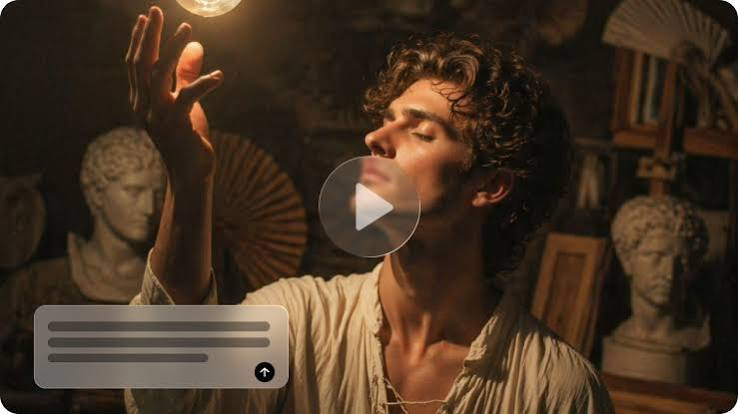
Somewhere in a shoebox or a photo album there’s a picture of a grandmother laughing at something just outside the frame, or a couple squinting into the sun on a beach in 1962. You’ve looked at it a hundred times, and it has never moved.
From image to video, a small, gentle animation can turn that frozen second into something that feels alive: a slow blink, a breeze through hair, a smile that finishes forming.
Dreamina and its Seedance 2.5 model handle motion. This guide shows you how to prepare an old photo, write a careful prompt, and share the result with the people who’ll treasure it.
Why subtle beats dramatic
With family photos, restraint is everything. Big, theatrical movement can feel strange, like someone you know acting out of character. Tiny motion feels true: a soft blink, a slight head tilt, leaves moving behind a porch. These small touches let your eyes fill in the rest, and they respect the photo’s mood. A quiet clip often moves people more than a flashy one, because it feels like a memory instead of a special effect. If the photo has a quiet mood already, match it.
Preparing the photograph
A good scan makes a big difference. Before you upload, check these:
- Scan resolution: high enough to show faces clearly
- Dust and fingerprints: wipe the print and rescan
- Straight framing: crop away the scanner bed
- Visible faces: avoid heavy creases across eyes or mouths
- An untouched original: keep the first scan as a backup
If the photo is badly damaged, a gentle repair before animating usually helps. Take a moment to note who is in the photo and when it was taken.
Bring a memory to life in three Dreamina steps
Step 1: Add your reference picture and compose a prompt
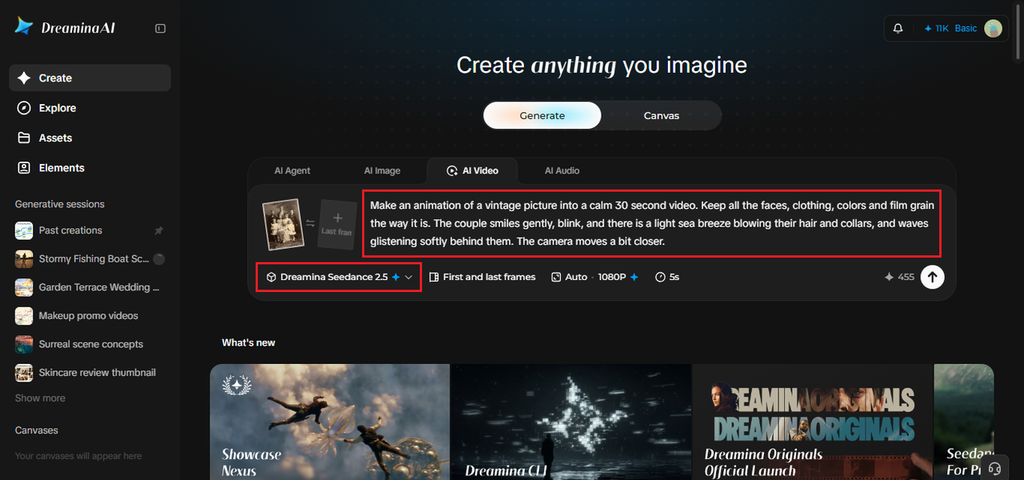
Open Dreamina, log in, go to the AI Video part, and click “Add reference image.” Upload your scanned picture. After that, create a prompt, where you will mention small movements and things to keep.
Example prompt for 30 seconds: Make an animation of a vintage picture into a calm 30 second video. Keep all the faces, clothing, colors and film grain the way it is. The couple smiles gently, blink, and there is a light sea breeze blowing their hair and collars, and waves glistening softly behind them. The camera moves a bit closer.
Step 2: Generate your video
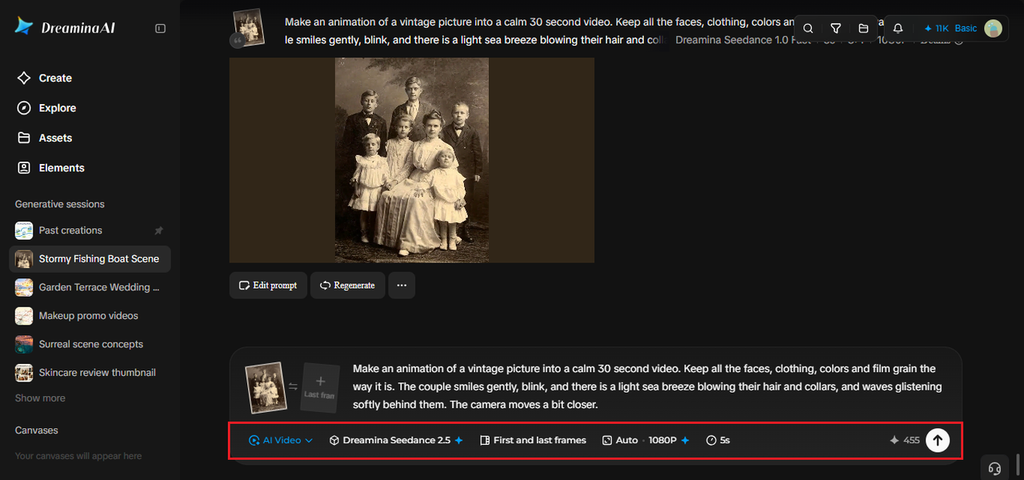
Choose the Seedance 2.5 model, set the clip length, and pick an aspect ratio: 16:9 for YouTube or 9:16 for TikTok. Click Dreamina’s icon and wait while it processes. For a family video you’ll share by message, vertical is usually easiest.
Step 3: Enhance and export
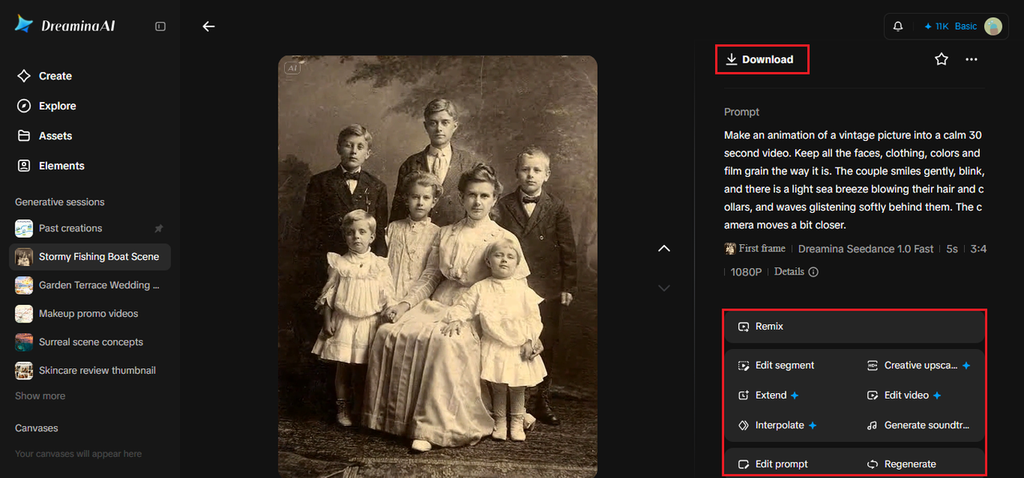
Use Dreamina’s AI editing tools to finish. Upscale sharpens the picture without losing the vintage feel, and Generate soundtrack adds soft audio. Export the video and share it. If the faces look off, simplify the motion and try again.
What Seedance 2.5 offers for gentle motion
Old photographs ask a model to be careful, and a few Seedance 2.5 upgrades help.
Faces that stay themselves
Better consistency and fixes for doubled or swapped faces mean the people in your photo are less likely to drift into strangers.
A less artificial look
The reduced glossy sheen helps the clip keep the soft, grainy texture of real film.
Quick fixes for stray details
Region-level editing can remove a distracting object from the scene without regenerating everything.
Cleaner footage to build on
Random subtitles and stray music are left out of the base clip, so you can add a track that fits the memory.
Choosing small movements
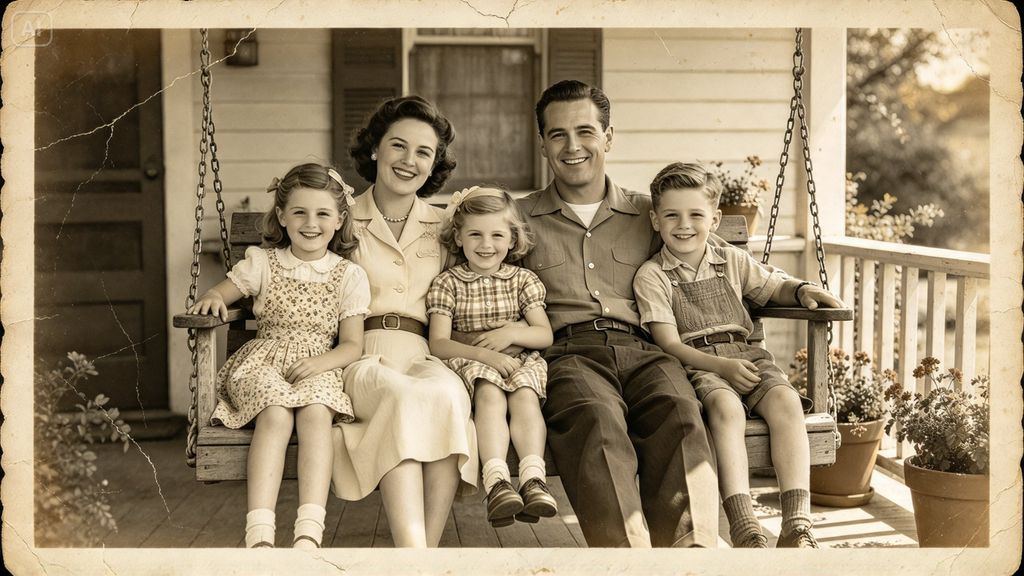
Pick one or two gentle motions per photo. A blink and a smile, a breeze in hair and fabric, clouds drifting, water shimmering. Avoid walking, talking, or sudden gestures, since those can look unnatural on a still. Use words like “gently,” “slowly,” and “softly,” and say what must stay unchanged. A single clear motion usually beats three competing ones.
Adding sound with care
Silence can feel haunting, but the wrong music can break the spell. Think about the ambient sounds of the original moment: waves, a screen door, distant laughter, a record player. Use Generate soundtrack for a soft, period-style background, and keep the volume low. If the photo shows someone who has passed away, a quiet, simple sound often feels kinder than a dramatic score. Don’t add speech to the people in the photo. Preview it with headphones before sharing.
Sharing it gently
Not everyone reacts to an animated family photo the same way. For some it’s a joy, for others it’s bittersweet. Show it first to a close relative, and be ready for tears. Label the clip as an animation of the original photograph so nobody mistakes it for archival footage. Keep the original scan alongside the video, and ask relatives before posting publicly, especially if the photo shows children or people who haven’t agreed to be shared.
A memory that moves
Old photographs are precious because they hold a single moment, and a little motion can make that moment feel closer. Dreamina and Seedance 2.5 let you add that touch without changing who the people are. Choose one cherished picture, write a gentle prompt, and see what happens. Someone in your family has been waiting to see it. Share it at the next family gathering.
