

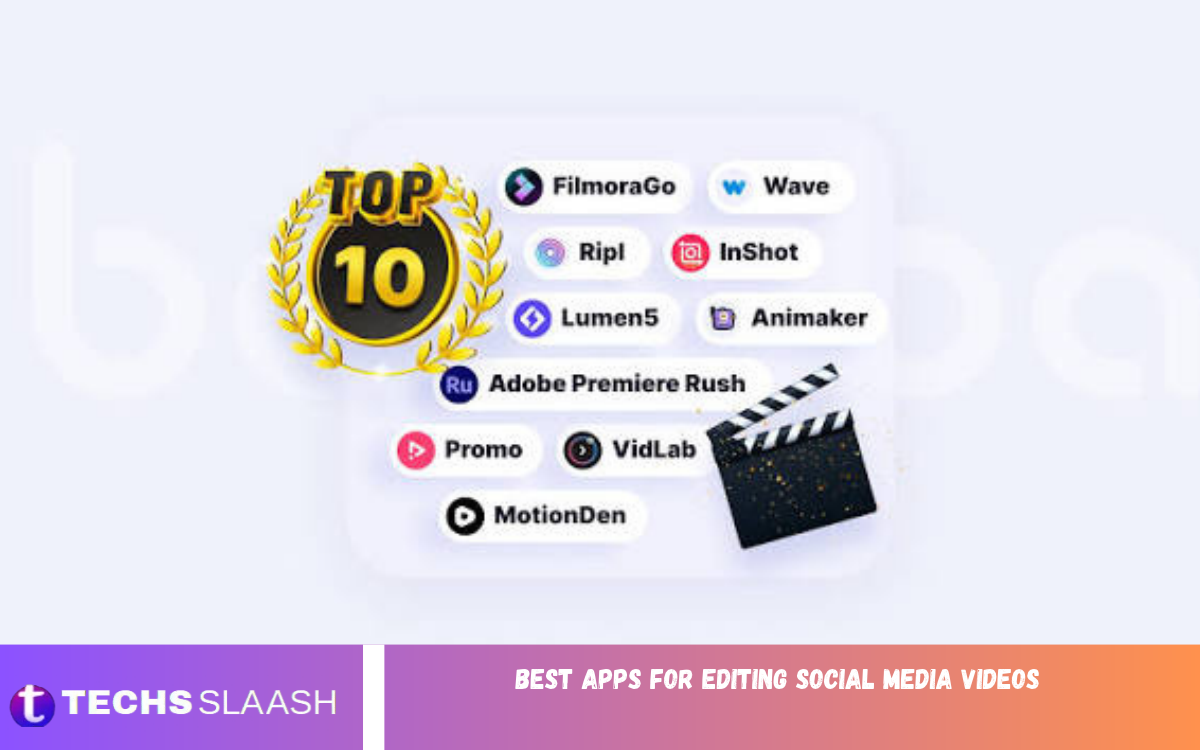
Social media videos have become an important part of online communication, entertainment, education, and digital marketing. Whether you create Instagram Reels, TikTok clips, YouTube Shorts, Facebook videos, or promotional content for a business, the right editing app can help you produce professional-looking videos without expensive equipment.
The best apps for editing social media videos offer tools like trimming, transitions, text overlays, music, automatic captions, color adjustments, and ready-made templates. Some applications are designed for beginners who want quick results, while others provide advanced controls for creators who need greater precision. Choosing the right app depends on your experience, device, budget, and the type of content you want to publish.
Why You Need a Good Social Media Video Editing App?
A good video editing app helps turn ordinary recordings into clear, engaging content. You can remove unnecessary footage, improve the pacing, add captions, adjust sound, and arrange clips into a story that viewers can easily follow. These improvements are useful for personal videos, educational tutorials, product demonstrations, and business promotions.
The right app can also save time with reusable templates, preset dimensions, and automated editing tools. Instead of learning complicated desktop software right away, beginners can start with a mobile editor and gradually build their skills. Consistent editing, clear storytelling, and suitable audio often matter more than using the most expensive application.
CapCut
CapCut is a popular choice for creators producing TikTok videos, Instagram Reels, and YouTube Shorts. Its editing tools include trimming, transitions, filters, text animations, music, templates, and automatic captions, although specific features depend on the version and subscription plan. Its interface makes it relatively easy to create polished videos without extensive editing experience.
CapCut is particularly useful for creators who enjoy fast-paced edits, synchronized transitions, and visually engaging effects. You can combine several clips, adjust playback speed, add subtitles, and prepare videos for different social platforms. Some advanced tools and assets may require payment, and availability can vary by region, so review the current app options before starting a project.
InShot
InShot is a straightforward video editing app for people who want to create social media content directly on a smartphone. It provides basic editing tools, including trimming, splitting, merging clips, adjusting video speed, adding music, inserting text, and applying filters. Its simple layout makes it suitable for beginners who prefer practical controls over a complicated editing workspace.
The app is useful for everyday videos, travel clips, short tutorials, and promotional posts. You can adjust the video canvas to suit different social media formats and add captions or stickers to highlight important details. InShot offers free and paid features, so check export options and watermark restrictions before publishing your finished video.
VN Video Editor
VN Video Editor is worth considering if you want more control over your projects without immediately moving to professional desktop software. Its editing workflow supports multiple timeline layers, transitions, text, music, speed adjustments, and keyframe-based effects. These tools make it suitable for creators who want to develop more advanced editing skills while working on a phone.
VN can be useful for storytelling videos, travel montages, tutorials, and short-form content with several visual elements. Its timeline gives you more flexibility to arrange footage and audio than a very basic editor. Before committing to a particular workflow, check the current export settings and available features on your device, as app capabilities and in-app purchases can change.
Canva Video Editor
Canva is particularly helpful for businesses, bloggers, and creators who want to combine video with attractive graphic design. It offers templates, animated text, visual elements, stock assets, and tools for creating consistent branding. Its browser-based editor and supported mobile and desktop options make it convenient for producing different types of social media content.
You can use Canva to create product promotions, announcements, educational clips, and videos featuring branded colors and typography. It is especially useful when you need several variations of a campaign or want your videos to match your existing social media graphics. Some assets and advanced features require a paid plan, so choose templates and resources according to your budget.
Read Also: Creative TikTok Bio Ideas: Make Your Profile Stand Out
Instagram Edits
Edits is a video creation app from Instagram designed to support creators who produce mobile-first content. Its tools include video capture, timeline editing, text, captions, and creative controls, with additional features depending on the current release. It is a practical option for people who want to create short videos without relying entirely on a separate desktop editor.
The app can be especially useful when Instagram Reels is your main publishing channel. You can prepare clips, refine their presentation, and share content through supported Instagram workflows. Before choosing it as your primary editor, check which features are available on your device and whether its editing controls meet your needs for projects intended for other platforms.
DaVinci Resolve
DaVinci Resolve is a powerful desktop editing application known for its detailed timeline controls, color correction, visual effects, and audio production tools. It is a strong option for creators who want to produce polished videos with more precise control over the final result. Its free version offers substantial functionality, while the paid Studio edition adds more capabilities.
Although it can produce excellent social media videos, DaVinci Resolve has a steeper learning curve than many mobile apps. It is best suited to creators with a capable computer who are willing to spend time learning the interface. For simple daily Reels or Shorts, a mobile editor may be faster, but Resolve is valuable for more demanding projects.
KineMaster
KineMaster is a mobile editing application that offers tools for combining video layers, adding text, working with audio, applying transitions, and adjusting the appearance of footage. Its timeline-based workflow gives creators greater control over how individual elements appear and interact. This makes it suitable for more involved mobile editing than simple trimming and merging.
The app can help produce tutorials, reaction videos, promotional clips, and creative social media content. Its advanced controls may take some practice, particularly for users who have never worked with multiple layers. Check the current free-plan limitations, watermark policy, and subscription options before deciding whether it suits your regular editing needs.
Descript
Descript is particularly useful for videos where spoken content is the main focus. It can transcribe recordings and let users edit speech-based footage through its text transcript, making it easier to remove unwanted sections, shorten explanations, and organize interviews. Depending on the plan and workflow, it also offers tools for captions and audio improvement.
This approach can save time for podcasters, educators, business owners, and creators who regularly turn long recordings into shorter social clips. It is less essential for projects focused mainly on fast visual transitions or music-driven montages. Check transcription accuracy and supported languages before relying on automated tools for important content.
How to Choose the Best Video Editing App
Start by deciding what you want to create and which device you use most often. Beginners who need quick edits may prefer InShot, while creators who want templates and visual effects can explore CapCut. VN is worth considering for timeline control, Canva suits branded content, and desktop software may be more appropriate for detailed production work.
Next, compare export quality, supported aspect ratios, caption tools, audio controls, watermark restrictions, and pricing. An application that looks impressive but makes your usual workflow difficult may not be the right choice. Test a small project before paying for a subscription, and make sure the finished video looks and sounds good on the platform where you intend to publish it.
Tips for Creating Better Social Media Videos
Begin with a clear message and remove footage that does not contribute to the story. Use readable text, clear audio, and transitions that support the content rather than distracting viewers. For vertical videos, keep important text away from areas where platform buttons, captions, and other interface elements may cover it.
Export your video using settings appropriate for the intended platform, and review the final file before uploading. Check spelling, subtitle timing, audio levels, and image quality on a phone screen. Use music and visual assets that you have permission to publish, particularly for commercial content, and avoid adding unnecessary effects simply because they are available.
Frequently Asked Questions
What is the best app for editing social media videos?
The best app depends on your needs. CapCut is useful for short-form videos and effects, InShot suits beginners, VN offers flexible editing controls, and Canva works well for branded marketing content.
Which video editing app is best for beginners?
InShot is a good starting point because its basic editing tools are easy to understand. Canva is another approachable choice for creators who prefer templates and graphic elements.
What is the best free app for editing social media videos?
VN, CapCut, and Instagram Edits are options worth comparing. Free features, export restrictions, watermarks, and paid upgrades can vary by app version and region.
Can I edit Instagram Reels using these apps?
Yes. Apps such as CapCut, InShot, VN, Canva, and Instagram Edits can help you prepare videos for Reels. Choose a vertical format and check the finished video before publishing.
Which app is best for TikTok videos?
CapCut is a popular option for TikTok-style videos because of its templates, effects, captions, and speed controls. Other editors can work equally well for simpler projects or more manual editing.
Which video editor is best for YouTube Shorts?
CapCut and VN are useful for mobile editing, while DaVinci Resolve and Adobe Premiere offer more advanced desktop workflows. Your choice depends on the complexity of your videos and your editing experience.
Can I edit social media videos without a watermark?
Some apps offer watermark-free exports under particular conditions. Check the current export settings and free-plan restrictions before editing an important project, as policies can change.
Do I need a computer to edit professional-looking videos?
No. A smartphone can handle many social media editing tasks, including trimming, captions, transitions, and audio adjustments. A computer becomes more useful for complex timelines, detailed color work, and larger projects.
Which app is best for adding captions to videos?
CapCut, Descript, and other editors offer captioning or transcription tools, depending on the version and plan. Always review automatically generated captions for spelling, timing, and accuracy.
Are paid video editing apps worth buying?
A paid app can be worthwhile if it offers tools you regularly need, such as advanced effects, additional assets, or a more efficient workflow. Start with a free version when possible and upgrade only when its benefits justify the cost.
Conclusion
The best apps for editing social media videos make it easier to create engaging content for Instagram, TikTok, YouTube, Facebook, and other platforms. CapCut, InShot, VN Video Editor, Canva, Adobe Premiere, Instagram Edits, DaVinci Resolve, KineMaster, and Descript each offer different advantages depending on the project and the creator’s experience.
Before choosing an editor, consider your budget, device, preferred video format, and required features.
