

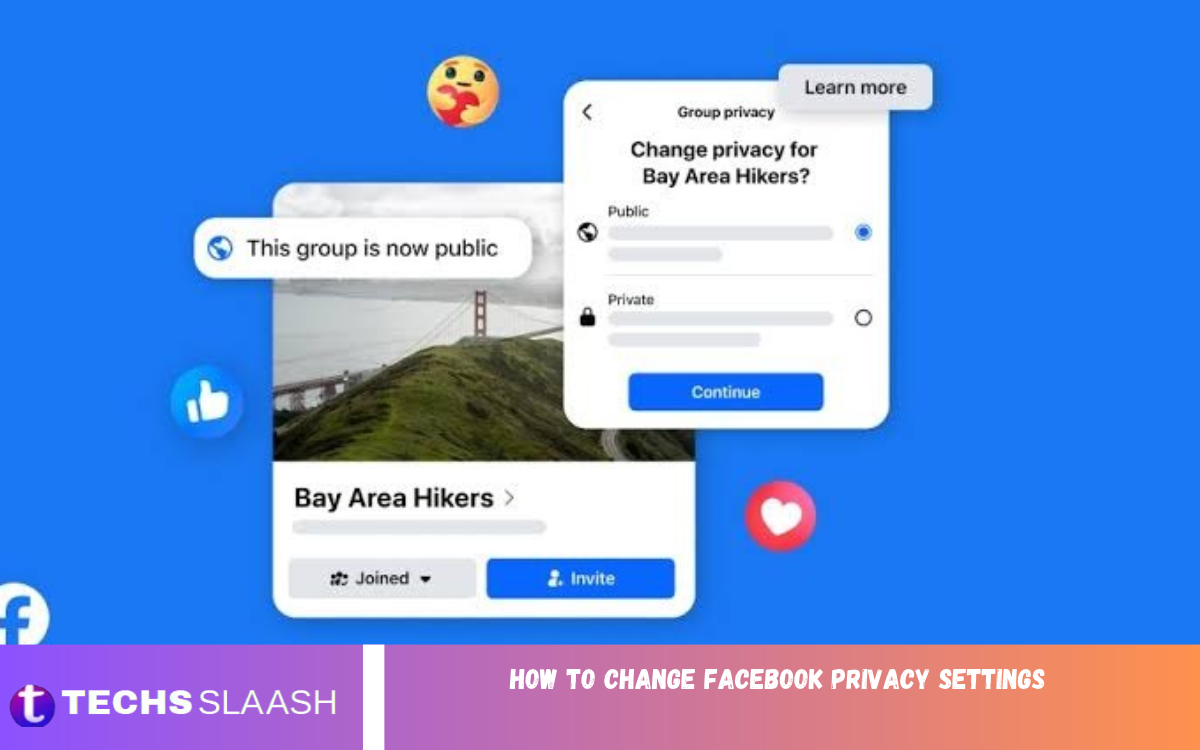
Facebook is one of the most widely used social media platforms, letting people connect with friends, share photos, post updates, and communicate with communities worldwide. However, many users do not regularly review their privacy settings, which can leave personal information visible to a wider audience than intended.
Learning how to change Facebook privacy settings helps you control who can see your posts, access your profile information, send friend requests, and find your account through searches. With a few adjustments, you can make your Facebook experience more private, reduce unwanted interactions, and improve account security.
Open Facebook Privacy Settings
First, locate the privacy controls in your Facebook account. Open Facebook on your phone or computer, sign in, and access the menu from your profile or the main navigation area. Select Settings and Privacy, then open Settings to explore the available account and privacy options.
Facebook occasionally changes its interface, so menu names may vary by device and app version. Look for sections such as Audience and Visibility, Privacy Checkup, and Account Security. These areas give you access to key controls that help you decide how your information is shared and who can interact with you.
Use Facebook Privacy Checkup
Privacy Checkup is a convenient tool for reviewing several important privacy settings in one place. It can guide you through options related to post visibility, profile information, friend requests, account security, and other controls. This makes it especially useful for beginners who aren’t sure which settings to address first.
To use it, open Facebook’s Settings and Privacy menu and look for Privacy Checkup. Follow the available prompts and review each recommendation carefully before applying changes. Rather than accepting every default option, choose settings that match your comfort level and the information you want to share with others.
Control Who Can See Your Facebook Posts
One of the most important steps when learning how to change Facebook privacy settings is controlling your post audience. Facebook generally allows you to share content publicly, with friends, with selected audiences, or with yourself, depending on the available options. Choosing the appropriate audience helps prevent personal updates from reaching people you do not know.
Before publishing a post, check the audience selector near the posting area. You can use a more restricted audience for family photographs and personal updates while choosing a broader audience for content intended for public discussion. Remember that sharing a post with friends does not prevent someone from taking a screenshot or sharing information outside Facebook.
Limit the Audience for Older Posts
Your older Facebook posts may have different privacy settings from the ones you use today. For example, you might have shared public updates several years ago that you would prefer to keep visible only to friends. Reviewing your posting history can help you identify content that no longer matches your current privacy preferences.
Facebook may offer an option to limit the audience of previous public posts through its privacy settings. This can change eligible older posts to a more restricted audience, but it does not necessarily affect every type of content or post. Review the confirmation message before proceeding, and remember that limiting visibility does not remove copies, screenshots, or information already shared by others.
Manage Who Can Send You Friend Requests
Friend requests allow you to connect with other Facebook users, but unrestricted requests can sometimes lead to unwanted contact. Adjusting this setting can help you reduce requests from unfamiliar people and keep your account focused on genuine connections. Facebook may provide options such as Everyone or Friends of Friends, depending on the current interface.
To review the setting, open Settings and Privacy, select Settings, and find the relevant controls under Audience and Visibility or the friend-request section. When available, choosing Friends of Friends can reduce requests from people with no mutual connections. You should also avoid accepting requests simply because an account has a familiar profile picture or name.
Hide Your Friends List
Your friends list can reveal personal connections, family relationships, professional contacts, and other details about your social network. Depending on your settings, people may be able to see some or all of these connections when they visit your profile. Restricting access can reduce the amount of personal information available to strangers.
To change this setting, look for the option controlling who can see your friends list. Select the audience that best suits your needs, such as Only Me where available. Keep in mind that this setting does not necessarily hide every mutual-friend connection, and some information may remain visible through other people’s profiles or public interactions.
Control Who Can Find You on Facebook
Facebook includes settings that influence how people can locate your account. Depending on the options available, you may be able to manage who can find you using your email address or phone number and whether search engines outside Facebook can link to your profile. Reviewing these controls can help reduce unwanted discovery.
Open the privacy settings and look for options related to how people find and contact you. Restrict the relevant audiences where possible and review any external search-engine linking option. These changes may reduce discoverability, but they do not make your account completely invisible. People may still find you through mutual friends, groups, previous conversations, or other information they already possess.
Protect Your Personal Profile Information
Your Facebook profile may include details such as your workplace, education, hometown, current city, birthday, and contact information. While some of these details can help friends recognize you, displaying everything publicly may expose more personal information than necessary. Review each profile field and decide whether it needs to be visible to other people.
Visit your profile and open the section for editing personal details. Adjust the audience for each available field rather than assuming that one privacy setting applies to the entire profile. Consider limiting your birthday, phone number, email address, and location details to trusted people or hiding them where appropriate. Keep only the information that serves a clear purpose.
Review Photo, Tagging, and Timeline Settings
Photos and tags can reveal information about your activities, relationships, and location. Facebook offers controls that may allow you to review posts you’re tagged in before they appear on your profile. You can also manage who is permitted to post on your profile and who can see posts others publish there.
Open the profile and tagging settings, then review each option. Enabling tag review can help you decide whether tagged content appears on your profile, although it does not necessarily remove the original post from Facebook. If a photo or post is inappropriate, you may need to ask the person who shared it to remove it or use Facebook’s reporting options where applicable.
Read Also: Best Telegram Tips and Tricks
Manage Facebook Story Privacy
Facebook Stories let you share photos and videos that are generally available for a limited time. Depending on the content and settings, your Stories may be visible to friends, selected people, or a wider audience. Choosing the right audience is especially important when sharing personal moments or updates about your daily routine.
Before publishing a Story, check its audience settings and confirm who can view it. If you regularly share personal content, consider restricting visibility to friends or another suitable audience. Keep in mind that limited availability does not guarantee complete privacy, because viewers may capture or share what they see.
Strengthen Your Facebook Account Security
Privacy settings work best when your account is also protected against unauthorized access. Use a strong, unique password and enable two-factor authentication if available. This adds another layer of protection by requiring an additional verification step when someone attempts to access your account under certain circumstances.
Visit the security section of Facebook settings to review login activity and devices connected to your account. Sign out of sessions you do not recognize, update your password if you suspect unauthorized access, and check that your recovery information is current. Never share login codes with anyone, even if they claim to represent Facebook support.
Control Apps and Websites Connected to Facebook
Over time, you may have used your Facebook account to sign in to games, websites, and other applications. Some connected services may receive certain account information according to the permissions and policies involved. Reviewing these connections helps you identify services you no longer use or do not trust.
Look for the section managing apps, websites, or connected experiences in your Facebook settings. Review the listed services and remove connections you no longer need, where that option is available. Removing access may affect how a service works, and it does not automatically delete information that the service collected previously. Check the service’s own privacy controls if you want to manage information already stored there.
Review Your Facebook Privacy Settings Regularly
Privacy preferences can change as your personal circumstances, relationships, and online activities evolve. A setting that was appropriate when you first created your account may no longer suit your needs. Reviewing your profile, audience controls, tagged posts, and connected applications periodically helps keep your account aligned with your current preferences.
It is also helpful to check privacy settings after major Facebook updates, because menu locations and available features may change. Review unfamiliar friend requests, remove outdated profile details, and check your active login sessions. A few minutes of maintenance can help you stay informed about what you share and reduce the risk of overlooking important account controls.
Frequently Asked Questions
How do I change Facebook privacy settings on my phone?
Open the Facebook app, tap the menu, and select Settings and Privacy, then Settings. Review Privacy Checkup, Audience and Visibility, and the relevant security options to adjust your preferences.
How can I make my Facebook account private?
Restrict post visibility, limit who can view your friends list and profile details, manage friend requests, and review tagging settings. Facebook doesn’t provide a single switch that makes every part of an account private.
Can I hide my Facebook posts from strangers?
Yes. Set the audience for your posts to Friends or another restricted option where available. Check the audience selector each time you publish something new.
How do I hide my friends list on Facebook?
Open the settings that control who can see your friends list and select Only Me if that option is available. Mutual friends and information visible through other accounts may still appear.
Can I change the privacy of old Facebook posts?
Facebook may offer a tool to limit the audience of eligible older posts. Look for this option in the privacy settings and review the confirmation details before applying the change.
How do I stop strangers from sending friend requests?
Review the friend-request audience setting and select Friends of Friends if available. This can reduce requests from people with no mutual connections.
How can I stop people from finding me through my phone number?
Review the settings for who can find you using your phone number or email address. Restrict the audience where possible, but remember that other discovery methods may still make your profile visible.
Does hiding a tagged post remove it from Facebook?
No. Hiding a tagged post from your profile generally affects whether it appears on your timeline, not whether the original post remains visible elsewhere. Contact the person who posted it or use the available reporting tools if necessary.
How do I secure my Facebook account?
Use a strong, unique password, enable two-factor authentication, review active sessions, and keep your recovery details updated. Never share verification codes or login credentials with other people.
How often should I review Facebook privacy settings?
Review them every few months and whenever your privacy needs change or Facebook updates its interface. Regular checks help you maintain control over your profile, posts, connected apps, and account security.
Conclusion
Learning how to change Facebook privacy settings gives you greater control over your personal information and online interactions. By adjusting post audiences, restricting access to profile details, managing friend requests, reviewing tags, and securing your account, you can create a Facebook experience that better reflects your privacy preferences.
The key is to review these controls regularly instead of relying on default settings. Take time to explore Privacy Checkup, check connected applications, and use strong account security practices.

1 Comment
Pingback: Important Social Media Trends in 2026 - Techsslaash.com