

Running out of storage can make an Android phone feel slow, crowded, and difficult to use. Learning how to free up storage space on your Android phone can help you remove unnecessary files while keeping important photos, videos, apps, and documents safe.
Android devices often accumulate downloaded files, cached data, duplicate photos, unused applications, and large media files over time. Cleaning these items regularly frees up space and makes everyday phone management easier.
Check Your Android Storage Usage
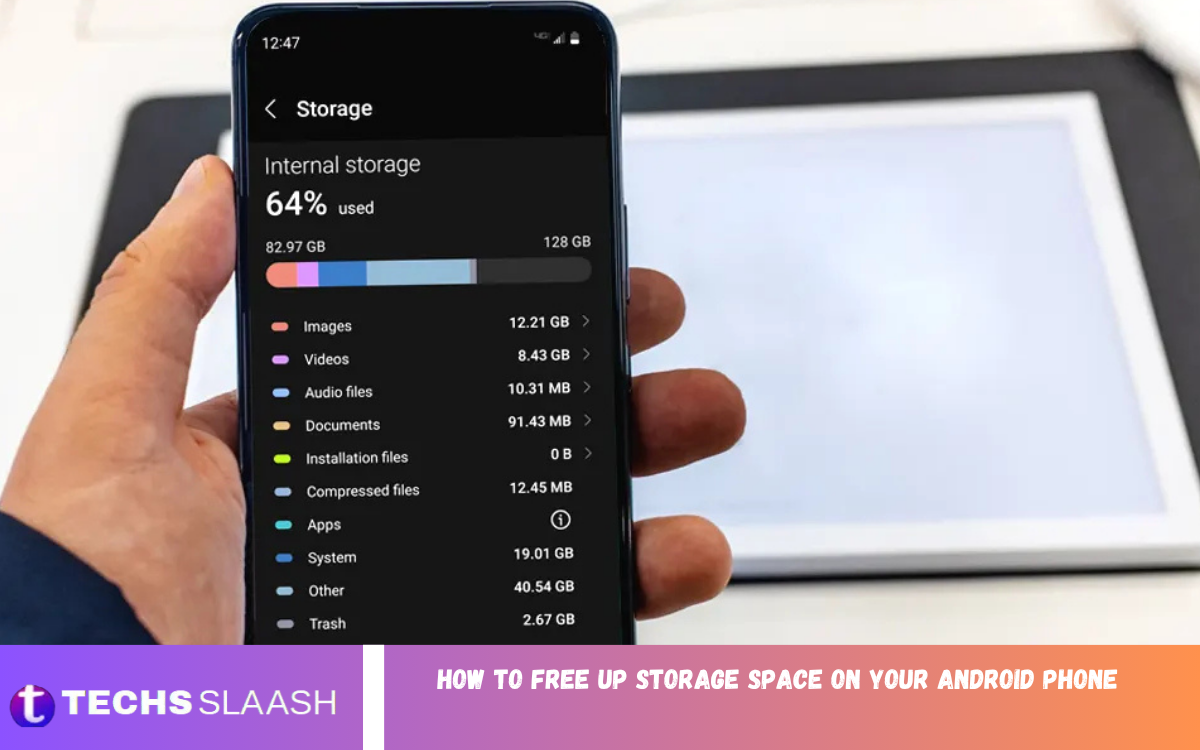
Before deleting anything, check which categories are consuming the most storage. Open your phone’s Settings and look for the Storage section, where Android usually displays information about apps, images, videos, audio, documents, and other files.
Understanding your storage usage helps you focus on the biggest sources of unnecessary data. Instead of randomly deleting files, you can identify large categories and clean them carefully without removing important personal information.
Delete Unnecessary Apps
Unused applications are one of the easiest things to remove when your phone is running low on storage. Review your installed apps and uninstall games, tools, shopping apps, or other applications that you no longer use.
Removing unused apps can recover valuable storage and reduce background activity. If you haven’t opened an application in several months, consider whether you still need it before keeping it installed.
Remove Large Videos and Photos
Photos and videos can take up a lot of Android storage, especially when recorded in high resolution. Open your gallery and review large videos, duplicate images, screenshots, and unnecessary recordings you no longer need.
Before deleting important memories, make sure you’ve backed them up somewhere safe. After confirming your backup, removing unwanted media can free up substantial space without affecting essential phone functions.
Clear Cached Data Carefully
Apps create temporary cached files to improve loading speed and performance. Over time, these files can become large, especially in applications that frequently display images, videos, or other online content.
Android versions handle cache management differently, so avoid deleting app data unless you understand what it does. Clearing cache is generally less disruptive, while clearing storage or app data can remove saved settings, accounts, or downloaded information.
Clean the Downloads Folder
The Downloads folder can become a hidden source of storage problems. Documents, images, videos, installation files, and other items downloaded from websites or apps may remain on the phone long after you need them.
Open your file manager and review the Downloads folder carefully. Delete outdated files, duplicate documents, old installation packages, and other unnecessary downloads, but keep anything you may need later.
Remove Duplicate Files
Duplicate files can occupy storage without providing any real benefit. Multiple copies of photographs, downloaded documents, videos, and shared files may appear after repeated downloads or transfers between devices.
Use your phone’s built-in file management tools to identify duplicates when available. Review each suggested deletion before confirming it, because automatically detected duplicates are not always identical or unnecessary.
Manage WhatsApp and Messaging Media
Messaging applications can accumulate large numbers of photos, videos, documents, voice recordings, and GIFs. Group conversations can drive storage growth because media may download automatically.
Review media management settings inside your messaging applications and remove unnecessary files. You can also adjust automatic media download settings to prevent unwanted content from filling your phone again.
Move Photos and Videos to Cloud Storage
Cloud storage can help reduce the amount of personal media stored directly on your Android device. After confirming your photos and videos are safely backed up, you can remove local copies when appropriate.
Cloud backups are especially useful for people who regularly capture photos and videos. However, always verify that important files are backed up successfully before deleting copies from your phone.
Transfer Files to a Computer
A computer can provide another convenient place to store large personal files. Connect your Android phone to a computer and transfer important photos, videos, documents, or other files that you do not need to keep locally.
After confirming that the transferred files open correctly, you can remove the original copies from your phone. This method is useful when you want to preserve files without relying entirely on cloud storage.
Remove Offline Downloads
Many apps allow users to download content for offline viewing or listening. Movies, music, podcasts, maps, and other offline content can occupy substantial storage space without being immediately obvious.
Check applications that support offline content and review their downloaded files. Remove content you have already watched, listened to, or no longer need, while keeping downloads that you regularly use without an internet connection.
Use Android Storage Management Tools
Modern Android phones often include built-in tools designed to help users identify and remove unnecessary files. These tools may recommend deleting temporary files, unused applications, old downloads, or other items.
Use these recommendations, but review them before confirming deletion. Automatic cleaning can be convenient, but always check important personal files manually before removing them.
Delete Old Screenshots and Screen Recordings
Screenshots are useful for temporary purposes, but they can quickly accumulate. Receipts, conversations, instructions, social media posts, and other screenshots may remain on your phone long after they are no longer useful.
Screen recordings can take up even more space because video files are much larger than ordinary images. Review your screenshot and screen recording folders regularly and remove content that has served its purpose.
Read Also: How to Speed Up Your Android Phone: A Complete Performance Optimization Guide
Reduce Storage Used by Games
Mobile games can require significant storage because of large graphics, downloadable resources, updates, and additional game files. If you have several games installed, check how much space each one uses.
Consider uninstalling games you rarely play or removing unnecessary downloadable content when the application provides that option. Reinstalling a game later may be better than keeping a large, unused application on your device.
Manage Music and Podcast Downloads
Offline music and podcast libraries can become surprisingly large. If you frequently download albums, playlists, or podcast episodes, review the stored content and remove anything you have already finished.
You can also reduce automatic downloads in your media apps. Keeping only regularly used offline content can free storage while still allowing convenient access when you are without an internet connection.
Delete Unused Documents and Files
Documents can remain on an Android phone for years without being opened. Old PDFs, spreadsheets, presentations, text files, and other documents may occupy valuable storage, especially when they contain large images.
Open your file manager and, when possible, organize documents by size or date. Delete outdated files and transfer important documents to another secure location before removing them from the device.
Avoid Unnecessary Cleaning Apps
Third-party cleaning apps aren’t always necessary to maintain Android storage. Many modern Android phones already provide storage management features that can identify temporary files and unused applications.
Installing several cleaning apps can actually create additional storage usage. Before downloading a cleaner, check whether your phone already includes the same functionality through its built-in Settings or file management tools.
Restart Your Phone After Cleaning
Restarting your Android phone after a major storage cleanup can help refresh the operating system and close background processes. It also ensures recently removed files and applications are no longer running.
A restart doesn’t create much storage by itself, but it can help your phone run normally after extensive cleanup. Regular maintenance combined with occasional restarts can support smoother everyday use.
Keep Your Android Storage Organized
Freeing storage is easier when you prevent unnecessary files from accumulating again. Review downloads, media, applications, and documents regularly instead of waiting until your storage is almost completely full.
Keep important files organized into appropriate folders and remove temporary content once it is no longer useful. A simple monthly cleanup routine can help maintain available storage and reduce the need for large emergency cleanups.
Why Free Storage Space Matters?
Keeping some storage available gives Android room to manage applications, temporary files, updates, and other system operations. A nearly full device can make it harder to download updates, save new media, or install applications.
Maintaining available space also makes everyday phone management more convenient. Instead of constantly receiving storage warnings, you can keep your device organized and ready for new photos, videos, applications, and documents.
Frequently Asked Questions
How can I quickly free up storage on my Android phone?
Start by checking your Storage settings to see which categories take up the most space. Removing unused apps, large videos, old downloads, duplicate files, and unnecessary offline content can quickly recover space.
What takes up the most storage on an Android phone?
Photos, videos, games, messaging media, downloaded files, and application data commonly consume large amounts of storage. Checking storage usage shows exactly which categories take up the most space.
Does clearing cache free up storage?
Yes, clearing cached files can recover some temporary storage. However, the amount varies by application, and cached data may be created again when you continue using the app.
Is it safe to delete downloaded files?
It is generally safe to delete downloads that you no longer need. Always review files before deletion because your Downloads folder may contain important documents, images, or other personal information.
Should I delete unused Android apps?
Yes, uninstalling apps you no longer use can effectively free up storage. You can reinstall an application later if you need it again, although some apps may require you to sign in again.
How do I free space without deleting photos?
You can transfer photos to a computer or use a suitable cloud backup service. After verifying that your photos are safely backed up, you can remove local copies when appropriate.
Why does my Android storage fill up so quickly?
Storage can fill quickly because of high-resolution videos, messaging media, application downloads, games, offline content, and accumulated files. Regularly reviewing these categories can help prevent rapid storage consumption.
Can WhatsApp use a lot of storage?
Yes, WhatsApp and similar messaging applications can store large amounts of photos, videos, documents, voice messages, and other media. Reviewing and deleting unnecessary media can recover considerable space.
Should I use a storage cleaner app?
A third-party cleaner is usually unnecessary if your Android phone already provides built-in storage management tools. Use trusted system features first and avoid installing multiple apps that perform the same cleaning tasks.
How much free storage should I keep on my Android phone?
No universal amount works for every device, but keeping a reasonable portion of your storage free is better than operating with almost no space. Regular cleanup helps maintain flexibility for updates and new files.
Conclusion
Knowing how to free up storage space on your Android phone can help you keep your device cleaner and more manageable. Removing unused apps, unnecessary media, old downloads, duplicate files, and offline content can quickly free up valuable storage.
The best approach is regular maintenance, not waiting until your phone is completely full. Review your storage periodically, protect important files before deleting them, and use Android’s built-in management tools to keep your device organized and ready for everyday use.

1 Comment
Pingback: How to Troubleshoot and Fix Common Wi-Fi Connection Problems - Techsslaash.com