

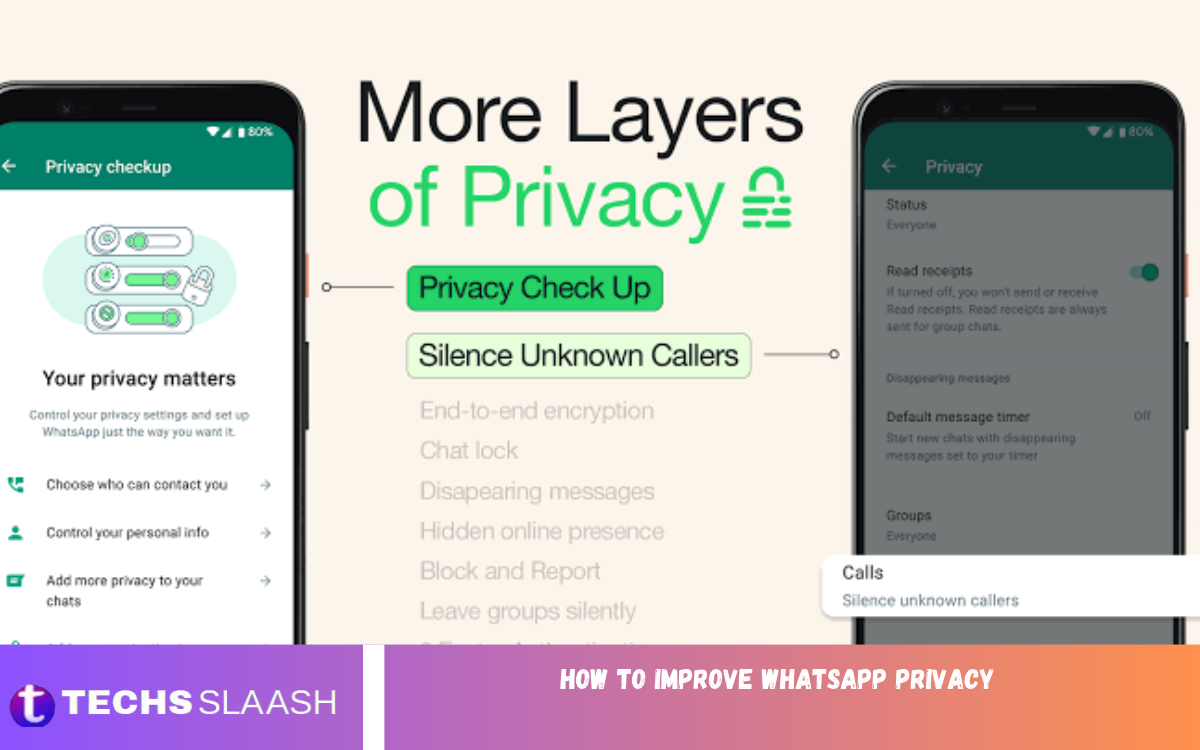
WhatsApp has become one of the most popular messaging applications for staying connected with friends, family members, colleagues, and customers. People use it daily to exchange messages, share photographs, make voice and video calls, send documents, and participate in group conversations. Although the application offers several security features, many users do not know how to configure them properly.
Learning how to improve WhatsApp privacy can help you protect personal conversations, control who can view your information, and reduce unwanted contact. With a few practical changes, you can make your account more secure without giving up the features you use every day. This guide explains the most useful privacy settings and habits to help you use WhatsApp more confidently.
Review Your WhatsApp Privacy Settings
The first step toward better protection is reviewing the privacy settings available in your account. Open WhatsApp, go to Settings, and select Privacy. Depending on your device and application version, you will find options for your profile photo, last seen, online status, About information, status updates, groups, and other privacy controls.
Take a few minutes to review each setting instead of leaving everything at its default value. Choose options that match your comfort level and the people you trust. Restricting unnecessary access to your personal information can make your account less exposed to strangers and reduce the chances of unwanted attention.
Control Who Can See Your Last Seen and Online Status
WhatsApp allows users to control who can see their last seen information and whether they appear online. These settings can be helpful if you prefer not to reveal when you were last active or whether you are currently using the application. Open the Privacy section and select Last Seen and Online to review the available choices.
You can generally choose between options such as Everyone, My Contacts, My Contacts Except, and Nobody for last seen visibility. Online visibility can also be configured using the available choices, including an option that matches your last seen setting. Remember that hiding your activity may also limit your ability to see similar information about other users.
Hide Your Profile Photo and About Information
Your WhatsApp profile photo and About section can reveal personal details to people you do not know. A photograph may show your face, family members, workplace, or surroundings, while your About information might reveal your habits or other identifying details. Limiting visibility can help you maintain a more private digital presence.
Open Settings, select Privacy, and adjust the Profile Photo and About options. Choosing My Contacts or My Contacts Except can help restrict access to people outside your preferred audience. If you use WhatsApp for business or communicate with unfamiliar customers, consider using a professional photograph and avoiding sensitive personal information in your profile.
Enable Two-Step Verification
Two-step verification is an important security feature that adds another layer of protection to your WhatsApp account. It requires a six-digit PIN when you register your phone number with WhatsApp again. This additional step can make it more difficult for someone to take over your account, even if they obtain access to your verification code.
To enable this feature, open Settings, select Account, and choose Two-Step Verification. Follow the instructions to create a PIN and add a recovery email address if the option is available. Choose a PIN that is difficult to guess, avoid sharing it with anyone, and never disclose verification codes received through SMS or other channels.
Lock WhatsApp With Your Fingerprint or Face ID
Even when your phone is protected, someone who can access an unlocked device may be able to read your messages. WhatsApp offers an app-locking feature on supported devices that can require fingerprint authentication, Face ID, or another supported biometric method before opening the application.
Look for App Lock, Fingerprint Lock, or the relevant screen-lock option in WhatsApp’s privacy settings. The exact name and availability depend on your operating system and application version. You can also enable your phone’s screen lock and configure automatic locking to reduce the possibility of someone opening your messages without permission.
Use Chat Lock for Sensitive Conversations
Chat Lock allows you to protect selected conversations separately from your general WhatsApp chat list. This feature is useful for private discussions involving family matters, personal information, financial arrangements, or other subjects that you do not want immediately visible when someone opens your application.
Open the conversation you want to protect, tap the contact or group name, and look for the Chat Lock option. Follow the instructions to enable it. Locked conversations are moved into a protected area that requires authentication to access. Where supported, additional features such as a secret code can offer more control over how locked chats are accessed.
Turn On Disappearing Messages
Disappearing messages can help reduce the amount of conversation history stored in a chat. WhatsApp provides options for messages to disappear after a selected period, depending on the conversation and feature availability. This can be useful for everyday discussions that do not need to remain in your chat history indefinitely.
To use this feature, open a chat, tap the contact or group name, and select Disappearing Messages. Choose an available duration that suits your needs. However, disappearing messages are not a guarantee that information will remain private. Recipients may take screenshots, copy messages, photograph their screens, or save content before it disappears.
Protect Your WhatsApp Status Updates
WhatsApp Status lets you share photographs, videos, text, and other updates with your chosen audience. Although this feature is convenient, sharing updates without checking your audience can expose personal activities, locations, and details about your daily routine to people you did not intend to include.
Open the Status privacy settings and select the audience you prefer. Available choices generally include My Contacts, My Contacts Except, and Only Share With. Review your selection before posting anything sensitive. Avoid sharing travel plans, live locations, identification documents, or other private details that could create security concerns.
Manage Who Can Add You to Groups
Being added to unfamiliar WhatsApp groups can expose your phone number and introduce you to unwanted messages, suspicious offers, and potentially harmful links. Group members may also be able to see certain details about your profile, depending on your privacy settings and the group environment.
To reduce this risk, open Settings, select Privacy, and choose Groups. Select the audience you trust, such as My Contacts or My Contacts Except, where available. People who cannot directly add you may need to send a private invitation instead. Review group invitations carefully and decline those from unfamiliar people or groups that appear suspicious.
Be Careful With Linked Devices
WhatsApp supports linked devices that allow you to use your account on computers and other supported devices. This is useful for work and communication, but an unfamiliar or forgotten linked device could allow someone to access your messages while the session remains active.
Open WhatsApp Settings and select Linked Devices to review the devices connected to your account. If you notice an unfamiliar device or no longer use a particular computer, log it out. Avoid linking your account on public or shared computers unless necessary, and always log out when you finish using a device that other people can access.
Keep WhatsApp Updated
Updating WhatsApp is an essential part of maintaining account security and privacy. Updates can introduce security fixes, improve existing features, address software problems, and provide access to newer privacy controls. Using an outdated application for long periods may leave you without important improvements.
Visit the official app store on your device and check whether an update is available. Enable automatic updates if that suits your preferences, and keep your phone’s operating system updated as well. Avoid downloading modified versions of WhatsApp from unknown websites because they may expose your messages, credentials, or personal information to unnecessary risks.
Understand End-to-End Encryption
WhatsApp uses end-to-end encryption for personal messages and calls. This means that, during transmission, the content is designed to be readable only by the communicating participants and not by WhatsApp itself. Encryption is an important foundation for protecting private conversations against unauthorized access while they travel between devices.
However, encryption does not protect every part of your digital activity. Someone who gains access to your unlocked phone may still read your messages, and a recipient can share information you send. Cloud backups also require attention because their protection depends on the backup settings you choose. Review WhatsApp’s backup options and consider enabling end-to-end encrypted backups when available.
Protect Your WhatsApp Backups
Chat backups can help you restore conversations after changing phones or reinstalling WhatsApp. However, they can also contain sensitive information, including personal discussions, photographs, and shared documents. Understanding how backups are protected is therefore an important part of improving WhatsApp privacy.
Open WhatsApp’s Chats settings and find the Chat Backup section. Review the backup destination, frequency, and available encryption options. If you choose end-to-end encrypted backups, set a strong password or use another supported recovery method and keep it secure. Losing the required password or recovery key may prevent you from restoring the encrypted backup.
Read Also: Best WhatsApp Tips and Tricks
Avoid Suspicious Links and Scams
Privacy and security depend on more than application settings. Fraudsters may use WhatsApp messages to distribute fake giveaways, impersonate friends or family members, advertise unrealistic earning opportunities, or request verification codes. A convincing message can still be dangerous if it comes from a compromised account.
Avoid opening unexpected links, downloading unknown files, or providing personal details to unverified contacts. If someone urgently requests money, contact them through another trusted method to confirm their identity. Never share your WhatsApp registration code or two-step verification PIN. Use the application’s blocking and reporting features when you encounter suspicious accounts or messages.
Limit Location Sharing and Sensitive Information
WhatsApp makes it possible to share your current location or live location with other people. These options can be useful when meeting friends or coordinating travel, but sharing location information unnecessarily can create privacy concerns, particularly when the recipient or group is not fully trusted.
Only share your location with people who need it, and review active live-location sessions when appropriate. Avoid posting identity documents, bank details, passwords, or confidential work files in chats without considering the risks. If you accidentally share sensitive information, take appropriate steps to limit further exposure and contact the relevant service provider if necessary.
Improve Your WhatsApp Privacy With Better Daily Habits
Strong privacy settings work best when combined with sensible everyday habits. Review your contacts periodically, remove people you no longer trust, check linked devices, and think carefully before sharing photographs or documents. Be especially cautious when communicating with unknown numbers or joining groups through public invitations.
You should also consider what appears in message notifications on your lock screen. Depending on your phone, you can hide notification previews so that private messages are not displayed while your device is locked. Combine this option with a strong device passcode, biometric protection, and regular software updates to build a more complete privacy routine.
Frequently Asked Questions
How can I improve WhatsApp privacy quickly?
Start by restricting your last seen, online status, profile photo, and About information. Enable two-step verification, activate app locking, review linked devices, and adjust your group and Status privacy settings.
Is WhatsApp private and secure?
WhatsApp uses end-to-end encryption for personal messages and calls. However, account security also depends on your device, linked sessions, backup settings, and how carefully you share information.
Can I hide my online status on WhatsApp?
Yes. Open Settings, select Privacy, and choose Last Seen and Online. Configure the available options to limit who can see your activity.
How do I stop strangers from seeing my WhatsApp profile photo?
Open the Privacy settings and select Profile Photo. Choose My Contacts, My Contacts Except, or another available option that matches your privacy preferences.
What is two-step verification on WhatsApp?
Two-step verification adds a six-digit PIN that is requested when your phone number is registered with WhatsApp again. It provides an additional layer of protection against account takeover.
Can I lock individual WhatsApp chats?
Yes. Chat Lock allows you to move selected conversations into a protected area that requires authentication. Availability and additional options depend on your application version and device.
Do disappearing messages guarantee privacy?
No. Disappearing messages can reduce how long messages remain visible in a chat, but recipients may copy, save, or capture the content before it disappears.
How can I prevent people from adding me to WhatsApp groups?
Open Settings, go to Privacy, and select Groups. Choose the available audience restriction that best suits your needs to reduce unwanted group additions.
How can I check whether someone else is using my WhatsApp account?
Review the Linked Devices section for unfamiliar sessions. Log out devices you do not recognize, enable two-step verification, and never share your registration code with anyone.
Should I enable end-to-end encrypted WhatsApp backups?
If the option is available, enabling end-to-end encrypted backups can provide additional protection for stored chat history. Keep your password or recovery key safe because losing it may prevent you from restoring your backup.
Conclusion
Learning how to improve WhatsApp privacy is an important step toward protecting your conversations, personal information, and digital identity. By reviewing your privacy settings, enabling two-step verification, locking sensitive chats, managing linked devices, and controlling who can see your updates, you can reduce common privacy risks.
Remember that privacy is an ongoing responsibility rather than a one-time setting. Keep WhatsApp updated, remain alert to suspicious messages, protect your backups, and think carefully before sharing sensitive information.

1 Comment
Pingback: How to Create and Use WhatsApp Channels - Techsslaash.com