

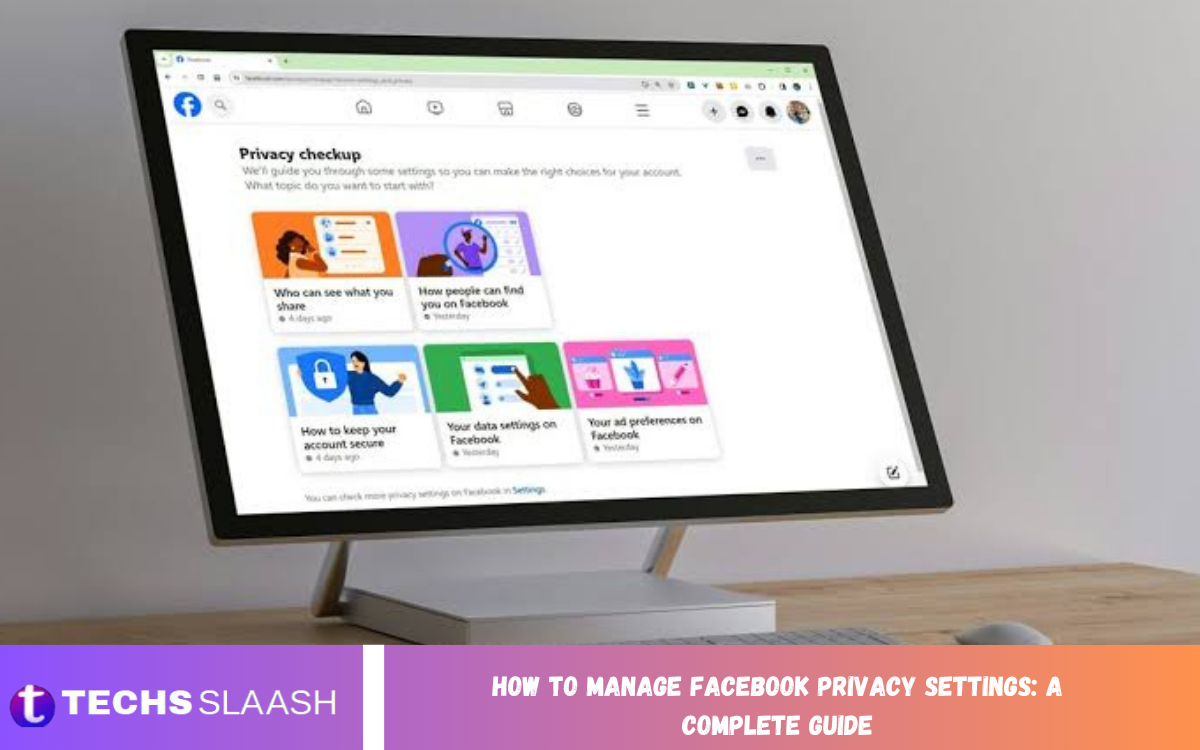
Facebook is one of the most popular social media platforms, letting people connect with friends, share photos, post updates, and communicate with family. However, sharing personal information online can raise privacy concerns if your account settings aren’t configured correctly. Understanding Facebook privacy settings helps you control your digital presence and decide what information other people can access.
Learning how to manage Facebook privacy settings is essential for anyone who wants a safer social media experience. From controlling who can see your posts to reviewing tagged photos and managing third-party apps, Facebook offers several tools to protect your information. This complete guide explains the most important privacy features and how to use them effectively.
How to Access Facebook Privacy Settings
To begin managing your account, open Facebook and sign in using your credentials. On a computer, select your profile picture or account menu, open Settings and Privacy, and then choose Settings. On a mobile device, open the Facebook app, tap the menu icon, then go to Settings and Privacy, then Settings.
Once you enter Settings, look for sections related to audience and visibility, profile information, account security, and permissions. Facebook may also provide a Privacy Checkup feature that guides you through important privacy decisions. Reviewing these sections step by step helps you identify settings that may expose more information than you intend to share.
Control Who Can See Your Facebook Posts
One of the most important parts of managing Facebook privacy settings is controlling who can view your posts. Facebook generally offers audience options such as Public, Friends, Friends except, Specific friends, and Only me, although available choices can vary by feature. Selecting the appropriate audience allows you to share personal updates without automatically making them visible to everyone.
Before publishing a post, check the audience selector displayed near your name or post composer. Choose Friends for ordinary personal updates, a more limited audience for sensitive information, or Public when you intentionally want content to reach a wider audience. Remember that changing the audience of a future post does not automatically change the audience of every post you previously published.
Change Your Default Post Audience
Facebook allows you to choose a default audience for many future posts. This setting is useful if you usually share updates with friends rather than the general public. Open the relevant privacy settings and locate the option that controls who can see your future posts, then select the audience that best matches your preferences.
Choosing Friends as your default audience can help reduce accidental public sharing. However, you should still review the audience selector whenever you publish something because individual posts may have different privacy requirements. For example, a public announcement may need a broader audience, while a family photograph may be more appropriate for friends only.
Review and Limit Your Previous Posts
Your older Facebook posts may contain personal information, photographs, opinions, or updates that you no longer want to share publicly. Facebook provides an option to limit the audience of certain previous posts, typically changing posts shared with Public or Friends of Friends to Friends. This feature can be particularly helpful if you have used Facebook for many years without reviewing your privacy preferences.
To find this control, open your privacy settings and look for an option similar to Limit Past Posts. Read the confirmation message carefully before applying the change because the action may affect many older posts at once. Limiting past posts does not necessarily hide everything from everyone, and it may not cover posts you shared in groups, posts on other people’s profiles, or every type of content.
Manage Your Facebook Profile Information
Your Facebook profile may contain details such as your workplace, education, hometown, current city, relationship status, and contact information. Depending on your settings, some of these details may be visible to friends or a wider audience. Sharing too much personal information can make it easier for strangers to learn about your routines, relationships, or background.
Visit your profile and review the information displayed in the About section. For each detail, check whether Facebook allows you to change its audience, and remove information that is unnecessary for your social media activity. Keeping sensitive details private and sharing only what is useful can help reduce unwanted attention and improve your overall digital privacy.
Control Who Can Find You on Facebook
Facebook includes settings that influence how people can find your profile using your email address or phone number. Depending on the options available to your account, you may be able to restrict who can use these details to find you. Adjusting these controls can make your account less discoverable to people outside your preferred social circle.
You should also review settings related to search engines linking to your profile. If Facebook offers the option to allow external search engines to link to your profile, consider whether you want your profile to appear in search results. Disabling this option may reduce discoverability, but it does not guarantee that all references to you will disappear from search engines or that publicly shared content will become inaccessible.
Manage Friend Requests and Your Friends List
Accepting friend requests from unfamiliar people can expose your posts and profile details to individuals you do not know. Facebook provides controls that may allow you to limit who can send you friend requests, such as everyone or friends of friends. Choosing a more restrictive option can help reduce unwanted requests and make your account easier to manage.
Your friends list can also reveal information about your relationships and social connections. Review the audience setting for your friends list and restrict its visibility if you prefer not to share those connections publicly. Even when your full friends list is hidden, some friendships or mutual connections may still be visible depending on other people’s settings and Facebook’s features.
Review Photo Tags and Timeline Settings
Photo tagging allows friends to connect your profile with pictures, posts, or other content. Although tagging can make sharing easier, it can also expose your name and profile to audiences you did not choose. Reviewing your tagging and timeline settings helps you manage how tagged content appears in connection with your account.
Look for options that let you review posts you are tagged in before they appear on your profile. You may also be able to review tags people add to your posts before those tags become visible. These controls can help prevent unwanted content from appearing on your timeline, but they do not necessarily remove the original post from Facebook or prevent its intended audience from seeing it.
Improve Facebook Account Security
Privacy settings work best when your account is protected against unauthorized access. Use a strong, unique password that you do not reuse on other websites or applications. A password manager can help you create and maintain secure passwords without requiring you to remember every combination.
Enable two-factor authentication if it is available for your account. This adds another verification step when someone attempts to sign in under certain circumstances. You should also review where you are logged in, sign out of unfamiliar sessions, and check security alerts for activity you do not recognize. Never share verification codes with anyone who contacts you unexpectedly.
Read Also: How to Delete Your Facebook Account: A Complete Step-by-Step Guide
Manage Apps and Websites Connected to Facebook
Over time, you may have used your Facebook account to sign in to games, websites, quizzes, or other applications. Some connected services may receive information according to the permissions you granted and the applicable policies. Reviewing these connections helps you identify applications you no longer use or no longer trust.
Open the app and website settings to review connected services. Remove access for applications you do not recognize or no longer need, and be cautious before granting new permissions. Removing a connection does not necessarily delete information the service previously collected, so you may need to contact the service separately if you want to request deletion of its stored data.
Adjust Facebook Ad Preferences
Facebook uses information and activity signals to personalize advertising, subject to its settings, policies, and applicable laws. You may be able to review advertising preferences, information used for ad personalization, and certain controls concerning activity from other businesses. Understanding these options helps you make more informed decisions about how advertisements are tailored to your account.
Open the settings area for Accounts Center or advertising preferences, depending on your version of Facebook. Review the available controls and adjust them according to your comfort level. Keep in mind that changing ad preferences does not necessarily remove advertisements from Facebook or prevent all forms of data processing. The available choices can differ by location, account type, and platform policies.
Use Facebook Privacy Checkup Regularly
Privacy Checkup is a convenient feature that helps you review several important account settings in one place. Depending on the options available, it may guide you through post visibility, profile information, account security, and how people can find you. Using this tool can make privacy management easier, especially if you have not checked your settings recently.
Make privacy reviews part of your regular digital routine. Revisit the settings after major Facebook updates, changes in your personal circumstances, or concerns about unusual account activity. A short review every few months can help you identify outdated preferences and keep your account aligned with the way you currently want to use social media.
Common Facebook Privacy Mistakes to Avoid
One common mistake is assuming that everything shared on Facebook is visible only to friends. Posts can have different audiences, and content shared in public spaces may reach people outside your immediate network. Always check the audience selector before sharing personal photographs, location details, or sensitive updates.
Another mistake is accepting unknown friend requests, ignoring security alerts, or leaving unused applications connected to your account. Avoid posting private documents, financial information, passwords, or details that could put your safety at risk. Remember that screenshots and copies may remain available even after you delete a post, so think carefully before publishing anything you would not want shared beyond its original audience.
Frequently Asked Questions
How do I make my Facebook account more private?
Open Settings and Privacy, select Settings, and review your post audience, profile visibility, friend requests, tagging, and search options. Use Privacy Checkup when available to review important controls in one place.
Can I hide my Facebook posts from strangers?
Yes, you can set many personal posts to Friends or a more restricted audience. Check the audience selector before publishing because some content, such as public group posts, may follow different visibility rules.
How can I hide my friends list on Facebook?
Open your profile or privacy settings and look for the audience control for your friends list. If available, change it to Only me or another restricted audience that suits your preferences.
Does limiting past posts make all my old posts private?
No, limiting past posts generally changes the audience of certain older posts to Friends. It may not cover every type of content, including some group posts or content shared on other people’s profiles.
How can I stop strangers from sending friend requests?
Review the setting for who can send you friend requests. If the friends-of-friends option is available, selecting it can reduce requests from people with no mutual connections.
Can I control who tags me in Facebook photos?
You can review tagging and timeline settings to control how tagged content appears on your profile. However, these settings may not prevent the original post from being visible to its existing audience.
How do I protect my Facebook account from hackers?
Use a unique password, enable two-factor authentication, review active sessions, and pay attention to security alerts. Avoid suspicious links and never share your password or verification codes.
Can I remove applications connected to Facebook?
Yes, you can review connected apps and websites in your account settings and remove access to services you no longer use. Removing access may not erase information those services collected previously.
Does Facebook Privacy Checkup protect all my information?
Privacy Checkup helps you review important privacy and security controls, but it does not guarantee complete privacy. You should also review individual settings, connected applications, and the information you choose to share.
How often should I review Facebook privacy settings?
Review your settings every few months and whenever Facebook changes its features or you notice unusual account activity. Regular checks help ensure your preferences match your current needs.
Conclusion
Learning how to manage Facebook privacy settings is an important step toward protecting your personal information and maintaining greater control over your online presence. By reviewing post audiences, limiting unnecessary profile information, managing tags, securing your account, and checking connected applications, you can make your Facebook experience safer and more comfortable.
Privacy management is not a one-time task. Facebook features and policies can change, and your sharing preferences may evolve over time.

1 Comment
Pingback: Facebook Reels: A Complete Guide to Creating, Watching, and Sharing Short Videos - Techsslaash.com