

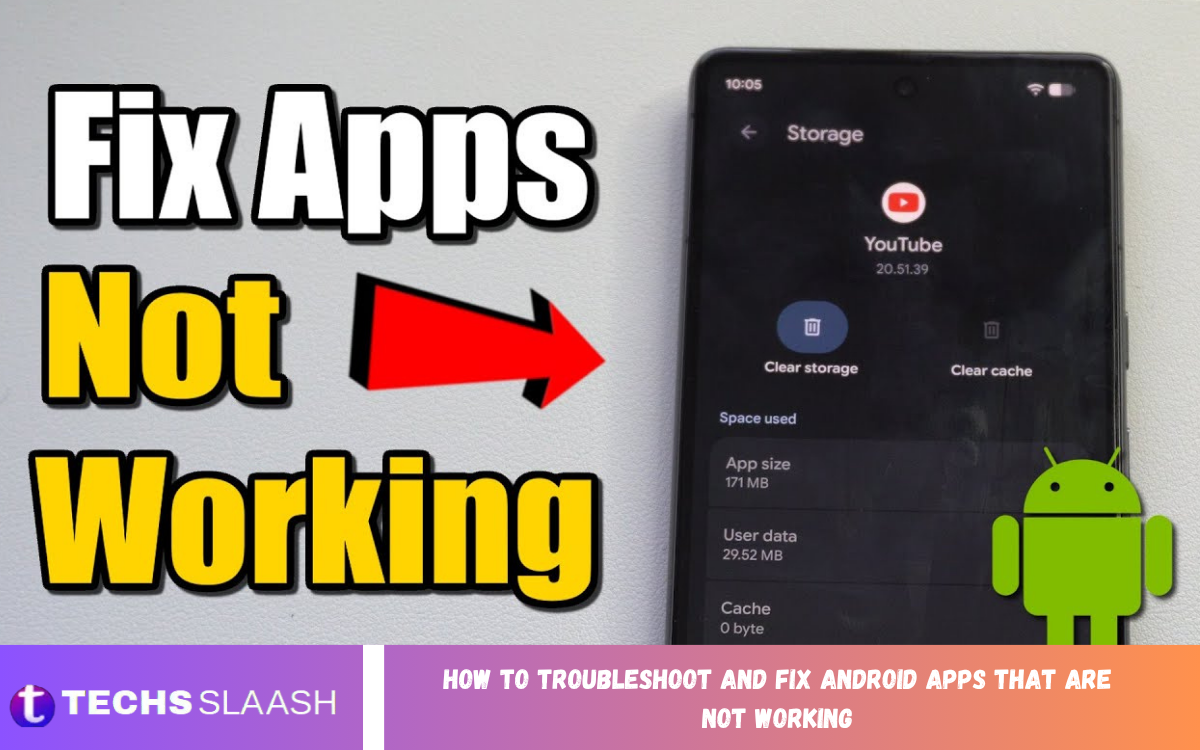
Android apps can sometimes stop working properly because of temporary software glitches, outdated versions, corrupted cache files, insufficient storage, or compatibility problems. When an app crashes, freezes, refuses to open, or repeatedly shows an error, you can often fix the issue with a few practical troubleshooting steps.
Knowing how to troubleshoot and fix Android apps that aren’t working helps you restore normal performance without immediately uninstalling the app. Start with simple solutions and gradually move toward advanced troubleshooting if the problem continues.
Check Your Internet Connection
Some Android applications require a stable internet connection to load content, synchronize information, or connect to online services. If an app stays stuck on a loading screen or shows a connection error, check whether your Wi-Fi or mobile data is working.
Try opening another website or online application to determine whether the problem affects your entire connection. You can also switch between Wi-Fi and mobile data to identify whether the issue is related to a particular network.
Restart Your Android Device
Restarting your smartphone is one of the easiest ways to resolve temporary application problems. Background processes, memory issues, and minor system glitches can sometimes prevent an app from operating correctly.
Turn off your Android device, wait a few seconds, and then turn it back on. After restarting, reopen the problematic app and check whether its performance has improved.
Force Stop the Problematic App
An application may keep running in the background even when it appears closed. If its process becomes unresponsive, force stopping the app can give it a fresh start.
Open your phone’s settings, go to Apps, select the affected app, and choose Force Stop. Launch the app again after a few seconds to see whether the problem has been resolved.
Clear the App Cache
Cached files help Android applications load information faster, but damaged or outdated cache data can sometimes cause crashes and unusual behavior. Clearing the cache is therefore an effective troubleshooting method.
Go to Settings, open Apps, select the problematic application, and find its storage options. Select Clear Cache, then reopen the app. Clearing cache normally does not remove your account information or important app data.
Clear App Data When Necessary
If clearing the cache doesn’t solve the problem, clearing the app’s stored data may provide a more complete reset. This option removes locally stored settings and app-related information.
Before clearing app data, make sure important information is synchronized with your account or backed up. After clearing the data, you may need to sign in again and configure the application according to your preferences.
Update the Android App
Developers regularly release updates to fix bugs, improve compatibility, enhance security, and introduce new features. An outdated application may stop working correctly after an Android system update or service change.
Open the Google Play Store and check for available updates for the affected application. Install the latest compatible version, then restart the app to see whether the update resolves the issue.
Update the Android Operating System
Sometimes an application problem is caused by an outdated Android operating system rather than the app itself. Newer applications may depend on system components that are unavailable or unstable on older software versions.
Check your device settings for available system updates and install them when appropriate. Keeping Android updated can improve compatibility, security, stability, and overall application performance.
Check Available Storage Space
Insufficient storage can cause applications to freeze, crash, or fail to download necessary files. Android also needs free space for temporary files, updates, and normal system operations.
Open your device’s storage settings and check how much space remains. Remove unnecessary videos, duplicate photos, unused apps, and large files to free up space before testing the app again.
Check App Permissions
Some applications require specific permissions to access features such as the camera, microphone, storage, contacts, or location. If a required permission has been disabled, certain app features may stop working.
Open Settings, select Apps, choose the affected application, and review its permissions. Enable only the permissions the application genuinely needs, then reopen the app and test the affected feature.
Disable Battery Restrictions
Android battery optimization can restrict background activity for certain applications. This can cause messaging, synchronization, navigation, or other background-dependent features to work incorrectly.
Check the battery settings for the affected application and review any battery optimization or background activity restrictions. If appropriate, allow the app to operate normally in the background and test its functionality again.
Check Date and Time Settings
Incorrect date and time settings can interfere with applications that use secure connections, authentication systems, or online services. An inaccurate device clock may cause login failures or connection problems.
Open your Android date and time settings and enable automatic date and time when available. Correct time-zone settings can also help applications communicate properly with online servers.
Uninstall and Reinstall the App
If the app remains broken after other troubleshooting steps, reinstalling it can provide a clean installation. This can replace damaged files and remove configuration problems that may have developed over time.
Before uninstalling an application, confirm that important information is synchronized or backed up. After reinstalling, sign in again and check whether the latest version works correctly.
Check Android System WebView and Related Components
Some Android applications rely on system components to display web-based content inside the application. Problems with these components can cause certain apps to crash or display blank screens.
If several apps have similar issues, check whether Android system components and Google-related services have pending updates. Updating these components can sometimes restore proper functionality without reinstalling every affected application.
Check for App Compatibility Issues
Not every application works equally well on every Android device. Hardware limitations, Android versions, screen configurations, processor architecture, and developer support can influence application compatibility.
If an app worked previously but stopped functioning after a major Android update, check whether the developer has released a compatible version. Persistent compatibility problems may require waiting for an official application update.
Disable Conflicting Apps
Some apps can interfere with others by controlling screen overlays, network traffic, accessibility functions, security settings, or system resources. Recently installed applications may be responsible when problems begin unexpectedly.
Consider whether the issue started after installing a new app or changing system settings. Temporarily disable or uninstall the suspected app to see whether a conflict is causing the problem.
Read Also: How to Troubleshoot and Fix Common Bluetooth Problems
Test the App in Safe Mode
Safe Mode can help determine whether a third-party application is interfering with normal Android operation. When Safe Mode is active, it temporarily disables many downloaded applications.
If the problematic app works correctly in Safe Mode, another installed application may be causing the conflict. Remove recently installed or suspicious applications one at a time and test the device after each change.
Restart After Making Major Changes
Restarting Android after troubleshooting can help apply system changes and terminate processes that may still be running in the background. This is especially useful after updating applications, changing permissions, or removing software.
After completing the recommended troubleshooting steps, restart the smartphone and open the affected app. Testing the app after a clean restart gives a clearer indication of whether the issue is fixed.
When an Android App Keeps Crashing?
Repeated crashes can indicate corrupted application files, insufficient memory, compatibility problems, or a software bug. Start by force stopping the application and clearing its cache before moving to more advanced solutions.
If the crashes continue, update both the app and Android system software. Reinstalling the application can also help, particularly when the installation itself has become corrupted.
When an Android App Freezes?
A frozen application may consume excessive memory or wait for a service that isn’t responding. Close the app and close unnecessary background tasks before reopening it.
If freezing occurs repeatedly, check storage space, update the application, clear its cache, and restart the device. These steps can address many common causes of temporary freezing.
When an Android App Will Not Open?
An app that immediately closes or refuses to launch may have corrupted data, an incompatible version, or a missing system component. Force-stop the app and restart the device as your first troubleshooting steps.
If the problem continues, clear the cache, install available updates, and confirm you have enough storage space. Reinstalling the app is another effective option when other solutions fail.
When Only One App Is Not Working?
If every other application works normally, the issue is likely specific to the affected application. Problems may include corrupted data, a temporary server outage, an application bug, or compatibility limitations.
Focus troubleshooting on that particular app by checking updates, permissions, cache, storage, and compatibility. If the app remains unusable, you may need to contact the developer.
When Multiple Apps Stop Working
When several Android applications suddenly stop working, the problem may involve the operating system, system components, storage, or a broader device issue. Consider updating Android and related system services.
Restart the device and check available storage before making major changes. If multiple apps keep crashing, check recent system updates or newly installed software that could be affecting stability.
Contact the App Developer
Some problems cannot be fixed through normal device troubleshooting because they originate in the app’s code or on its servers. Developers may already know about widespread bugs and can provide a specific solution.
When contacting support, provide the application version, Android version, device model, and a clear description of the problem. Screenshots or error messages can also help developers identify the cause more quickly.
Factory Reset as a Last Resort
Consider a factory reset only when serious device-wide problems remain after other troubleshooting methods. It removes personal data, applications, settings, and stored information from the device.
Before performing a factory reset, back up important files, photos, contacts, and other information. A reset can resolve deep software problems, but it shouldn’t be the first solution for a single malfunctioning app.
Prevent Android App Problems
Keeping applications and Android updated is one of the best ways to reduce compatibility and security problems. Regularly removing unnecessary files and maintaining sufficient storage can also support stable performance.
Avoid installing applications from unreliable sources and review app permissions carefully. Restarting your device occasionally and backing up important information can make future troubleshooting easier.
Frequently Asked Questions
Why is my Android app not working?
An Android app may stop working because of corrupted cache files, outdated software, insufficient storage, permission problems, network issues, or compatibility conflicts. Restarting the device and updating the app are good places to start.
How do I fix an Android app that keeps crashing?
Force-stop the app, clear its cache, check for updates, and restart your device. If crashes continue, clear the app data or reinstall the application after confirming that important information is backed up.
Does clearing cache delete my app data?
Normally, clearing cache removes temporary files without deleting your account information or personal settings. However, clearing app data is different and can remove locally stored information, requiring you to sign in again.
Why do Android apps freeze?
Apps can freeze because of limited memory, corrupted data, outdated software, insufficient storage, network problems, or bugs. Closing background applications and restarting the device can often resolve temporary freezing.
Should I reinstall an app that is not working?
Reinstalling can help when application files are damaged or the installation has become corrupted. Make sure important app information is synchronized or backed up before uninstalling.
Can low storage cause apps to stop working?
Yes. Very low storage can affect temporary files, updates, application processes, and overall Android performance. Removing unnecessary files can help restore normal operation.
Why does an app work on one Android phone but not another?
Different devices may use different Android versions, hardware configurations, system components, and manufacturer software. These differences can create compatibility problems between an application and a particular device.
Can an Android update break an app?
Yes, although this is uncommon. A major Android update can expose compatibility issues in older applications until the developer releases an updated version.
What should I do if several apps stop working?
Restart your device, check available storage, install system and application updates, and review recently installed software. If several apps remain affected, the problem may involve Android system components rather than one individual app.
When should I contact an app developer?
Contact the developer when standard troubleshooting doesn’t work, especially if the app shows a specific error or appears to have a widespread bug. Provide accurate device, Android, and app-version information to help with diagnosis.
Conclusion
Learning how to troubleshoot and fix Android apps that are not working can save time and prevent unnecessary factory resets or device replacements. Most application problems can be addressed by restarting the device, checking connectivity, clearing cache, updating software, reviewing permissions, and maintaining adequate storage.
For persistent problems, you may need to reinstall the app, check compatibility, test for software conflicts, or contact the developer.

1 Comment
Pingback: How to Update Android to the Latest Version - Techsslaash.com