

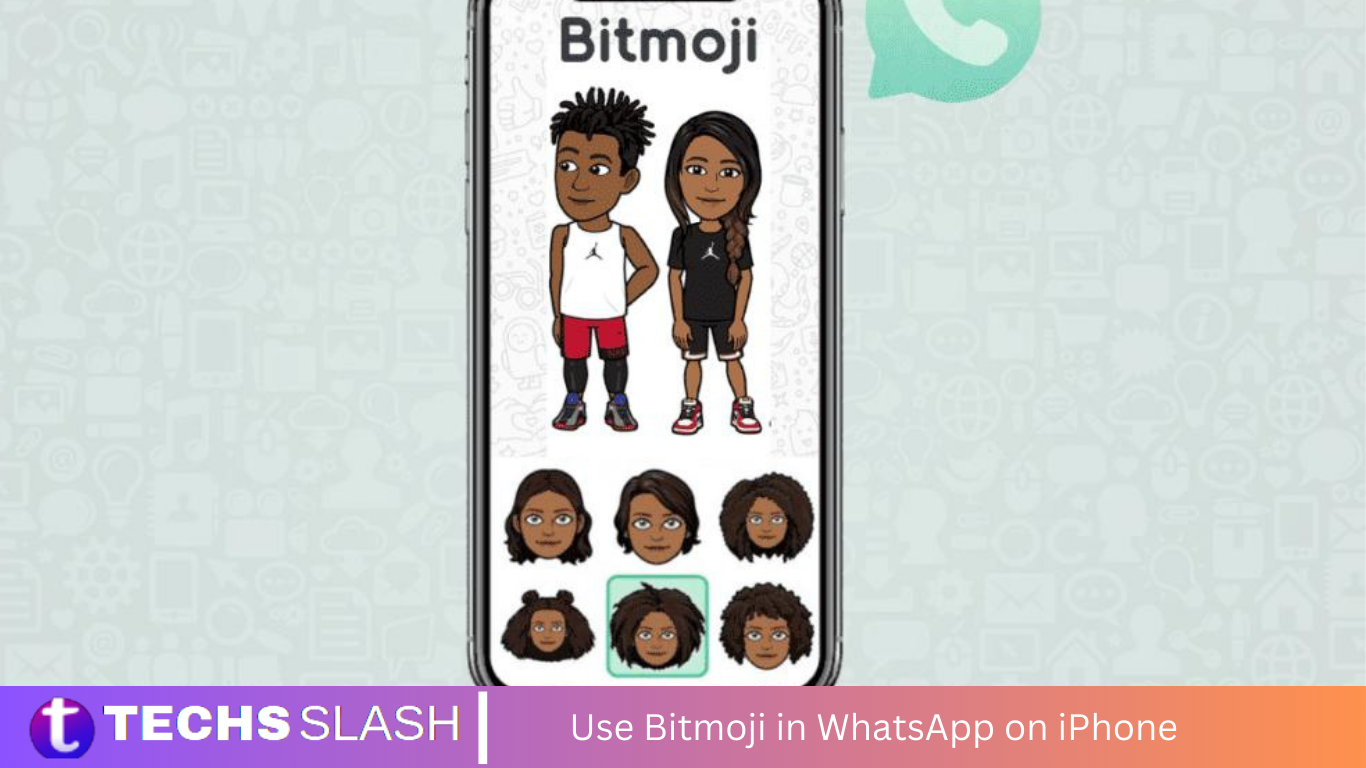
Bitmoji enhances your online persona with its personalized features, ideal for various social media platforms like Instagram, Facebook, and WhatsApp. Whether you’re crafting a playful avatar or expressing emotions through unique Bitmoji stickers, it adds flair to your digital presence. For those seeking guidance on integrating Bitmoji with WhatsApp on iPhone, our comprehensive guide provides step-by-step instructions.
Introduction to Bitmoji
Bitmoji offers a wide array of personalized emoji-style avatars that are designed based on user choices. These choices include face shapes, skin tones, hairstyles, and outfits. By customizing these elements, users can create avatars that resemble their real-life appearance or an entirely fictional character.

Installation of Bitmoji App
Install of Bitmoji app on your iPhone, start by opening the App Store. In the search bar, type “Bitmoji” and select the app from the search results. Tap “Get” to download and install the app. Once installed, open Bitmoji and sign up or log in using your Snapchat account or email address. Follow the on-screen prompts to design your avatar, choosing features like face shape, skin tone, hairstyle, and outfit to personalize your Bitmoji. With your avatar set up, you can use Bitmoji across various apps including messaging platforms like WhatsApp to enhance your digital interactions.

Integrating Bitmoji with your iPhone Keyboard
To use Bitmoji in WhatsApp, you need to enable it in your iPhone’s keyboard settings:
- Settings: Go to the iPhone Settings app.
- General: Scroll down and tap on ‘General’.
- Keyboard: Tap on ‘Keyboard’.
- Keyboards: Tap ‘Keyboards’ at the top.
- Add New Keyboard: Choose ‘Add New Keyboard’.
- Bitmoji: Select ‘Bitmoji’ from the list of third-party keyboards.
- Allow Full Access: Tap on Bitmoji in your keyboard list and enable ‘Allow Full Access’.
How to Use Bitmoji Stickers on WhatsApp iPhone
Bitmoji stickers on WhatsApp for your iPhone, first ensure that the Bitmoji app is installed on your device. You can download it from the App Store if it’s not already installed. Once you have the app, you’ll need to create your Bitmoji avatar. Follow the prompts in the app to customize your avatar’s appearance, choosing features like hairstyle, eye color, and outfits to reflect your personal style.

Using Bitmoji in WhatsApp
Bitmoji is integrated with your iPhone’s keyboard, you can start using it in WhatsApp:
- Open WhatsApp: Launch WhatsApp and go to any chat.
- Switch Keyboards: Tap on the text field to bring up the keyboard, then press and hold the globe icon to switch to the Bitmoji keyboard.
- Select Bitmoji: Your Bitmoji keyboard will show various stickers and expressions. Tap any Bitmoji to copy it to the clipboard.
- Paste Bitmoji: Tap in the text field again and select ‘Paste’ to insert your Bitmoji into the message.
Update Bitmoji Avatar
Bitmoji avatar, first open the Bitmoji app on your device. If you’re logged in, you’ll immediately see your current avatar. Tap on the avatar or select ‘Edit Avatar’ to start customizing. You can modify various aspects such as facial features, hairstyle, clothing, and accessories to reflect your current style or mood. Once you are satisfied with the changes, tap ‘Save’ to update your avatar. This refreshed Bitmoji will automatically sync across all apps where you use Bitmoji, allowing you to consistently present your updated digital persona.

Frequently Asked Questions
How do I add Bitmoji to WhatsApp on my iPhone?
First, ensure the Bitmoji app is installed on your iPhone. Set up your Bitmoji avatar in the Bitmoji app. Then, go to your iPhone settings, tap on ‘General’, select ‘Keyboard’, choose ‘Keyboards’, add ‘Bitmoji’ from third-party keyboards, and allow full access.
How do I send Bitmoji stickers in WhatsApp chats?
Open a WhatsApp chat, tap on the globe icon at the bottom of the keyboard to switch to the Bitmoji keyboard. Browse and select the sticker you want to send by tapping on it.
Can I customize my Bitmoji stickers for WhatsApp?
Yes, you can customize your Bitmoji avatar in the Bitmoji app. Any changes you make will be reflected in the stickers that you can send in WhatsApp.
Why can’t I see Bitmoji keyboard on my iPhone?
If you can’t see the Bitmoji keyboard, make sure you have added it to the iPhone’s keyboard settings as described above. Ensure ‘Allow Full Access’ is also toggled on to enable functionality.
Are Bitmoji stickers available in WhatsApp group chats?
Yes, Bitmoji stickers can be used in both individual and group chats on WhatsApp, just like any other emoji or sticker.
Conclusion
Integrating Bitmoji with WhatsApp on your iPhone enhances your chatting experience by adding a personal and creative touch to your conversations. By following simple steps to install the Bitmoji app, set up and customize your avatar, and then enable the Bitmoji keyboard, you can seamlessly send unique stickers in both individual and group chats. Whether you’re expressing emotions, and reactions, or just having fun, Bitmoji provides a colorful and engaging way to communicate with friends and family on WhatsApp.
