


I used to think updating drivers was one of those things every Windows user should know how to do manually.
Whenever I noticed a problem with sound, graphics, Wi-Fi, or a connected device, I’d start searching. First, I’d figure out which piece of hardware was causing the problem. Then I’d look up the manufacturer, find the right support page, check the driver version, download the installer, and hope I had picked the correct one.
It worked, but it was also a lot of effort for something I rarely wanted to spend my time doing. The problem became more obvious when I started dealing with several different devices. Graphics drivers, audio drivers, network adapters, chipsets, Bluetooth devices, printers—the list seemed endless. Keeping track of all of them manually was simply not practical.
That’s what eventually led me to Driver Booster. After using it for a while, I stopped treating driver updates as a task I needed to remember and started letting the software handle most of the routine work for me.
Why Manual Driver Updates Became a Hassle
The hardest part of updating drivers manually isn’t downloading the file. It’s knowing which file to download in the first place.
A typical search might involve checking the exact hardware model, Windows version, driver version, release date, and sometimes even whether the system uses a particular architecture. One wrong download can mean installing a driver that isn’t appropriate for the device. I also found that manufacturers organize their support pages differently. Some make drivers easy to find, while others require going through several menus before reaching the correct download.
Doing this once isn’t a big deal. Doing it for every device on a PC is another story. I eventually realized that I was spending more time looking for drivers than actually benefiting from the updates.
My First Scan with Driver Booster
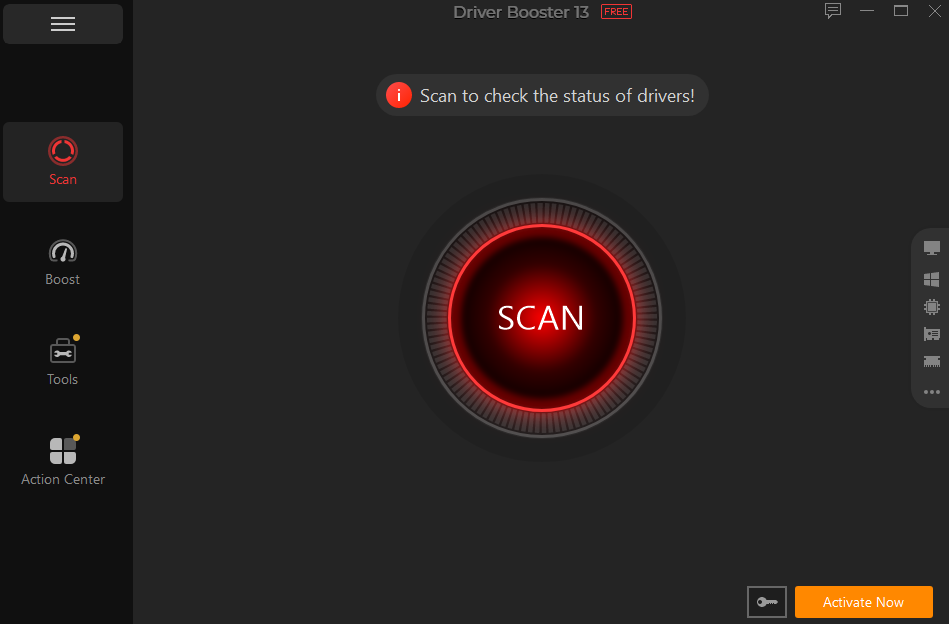
The first thing I noticed about Driver Booster was how little information I needed to provide.
After launching it, I simply started a scan. The software checked the drivers installed on my PC and identified which ones were outdated or missing. According to IObit’s current product information, Driver Booster can automatically scan the system and find drivers for connected hardware, rather than requiring users to search for each one individually.
For me, this was the biggest change in my routine. Instead of opening multiple browser tabs and searching for drivers one by one, I had a single list showing what needed attention.
I could then decide which drivers I actually wanted to update.
A Large Driver Database Makes a Difference
One reason manual searches became frustrating was that my PC doesn’t use hardware from a single manufacturer.
My graphics hardware comes from one company, my motherboard uses components from several others, and peripherals such as printers and audio devices add even more names to the list.
Driver Booster’s database covers drivers from 1,200+ major brands, including Intel, AMD, and NVIDIA. The company says its database also covers Windows ARM64 devices and hardware ranging from GPUs to printers and audio devices.
That broad coverage is useful because I don’t have to think about which manufacturer’s website I need to visit next. I can start with one scan and deal with the results from there.
The Installation Process Is Much Simpler
Finding the right driver is only part of the job. There’s also the installation process.
When I was doing everything manually, I had to download each driver, open the installer, work through the prompts, and repeat the process several times.
Driver Booster puts these updates into one interface. Once I’ve reviewed the available drivers, I can start the updates without opening a separate installer for every device.
Another feature I appreciate is that Driver Booster can create a restore point before updating drivers and supports restoring previous driver versions if something goes wrong.
I Started Noticing the Difference with Problematic Devices
The real test for me wasn’t updating drivers that were already working perfectly.
It was dealing with hardware problems.
I’ve had situations where audio stopped working properly or a network connection became unreliable. Before using Driver Booster, I’d usually search online for troubleshooting guides and try to determine whether the driver was responsible.
Driver Booster includes dedicated tools for problems such as no sound and network failure, alongside its regular driver update function.
I don’t expect a driver updater to fix every Windows problem, but having these tools in the same application makes troubleshooting much less tedious. The same applies to other common issues, including display problems, USB devices that aren’t recognized, and printer connectivity.
Gaming Is Another Reason I Keep It Around
I originally started using Driver Booster mainly because I was tired of searching for drivers. Gaming is what made me keep using it.
Graphics drivers are updated frequently, particularly when new games are released or major patches arrive. NVIDIA, AMD, and Intel regularly release graphics driver updates aimed at compatibility, bug fixes, and game-related improvements.
Driver Booster includes support for Game Ready Drivers, including NVIDIA GeForce, AMD Radeon, and Intel graphics drivers. It also includes Game Boost, which can free up system resources by reducing unnecessary background activity.
I wouldn’t say updating a driver automatically transforms every game into a completely different experience. In my case, the more useful benefit is simply knowing that my graphics drivers aren’t several versions behind when I’m troubleshooting stuttering, compatibility issues, or graphical glitches. It’s one less thing to wonder about.
It Isn’t Just About Gaming
What surprised me was how often drivers affect things outside of gaming.
My audio depends on drivers. So does my Wi-Fi adapter. The same applies to Bluetooth, USB devices, printers, displays, and various components inside the PC.
Driver Booster’s website specifically highlights common problems such as no sound, network failures, blue-screen errors, chipset issues, offline printers, and unrecognized USB devices.
That made me look at driver maintenance differently.
I used to associate drivers almost entirely with graphics cards and gaming. Now I think of them as part of general PC maintenance.
How I Use Driver Booster Now
I don’t run driver updates every day.
Instead, I treat Driver Booster as part of my regular PC maintenance routine. Every so often, I run a scan and check what it finds.
If everything looks fine, I don’t feel the need to update every single driver just because a newer version exists. If there is an important update, a device problem, or a driver that is significantly out of date, I’ll review it and decide whether to install it.
That approach works better for me than constantly searching for updates manually.
Final Thoughts
I haven’t completely forgotten how to update drivers manually. If I need a specific driver from a manufacturer’s site, I’ll still go there. But I no longer want to do that for every device on my PC. That’s why I stopped manually searching. It wasn’t because it was impossible—it was because it was repetitive, time-consuming, and surprisingly easy to mess up.
Driver Booster takes most of that routine work and puts it behind a single scan. I can see which drivers need attention, review the results, and update them without jumping between websites. It’s what a good driver updater should do—just simplify the process.
For me, that’s the real value. Driver maintenance has gone from a chore I had to remember to something I can check in a few minutes. And when you’re trying to keep your PC stable for work, gaming, and everyday use, having one less task to worry about is more useful than it sounds.
