

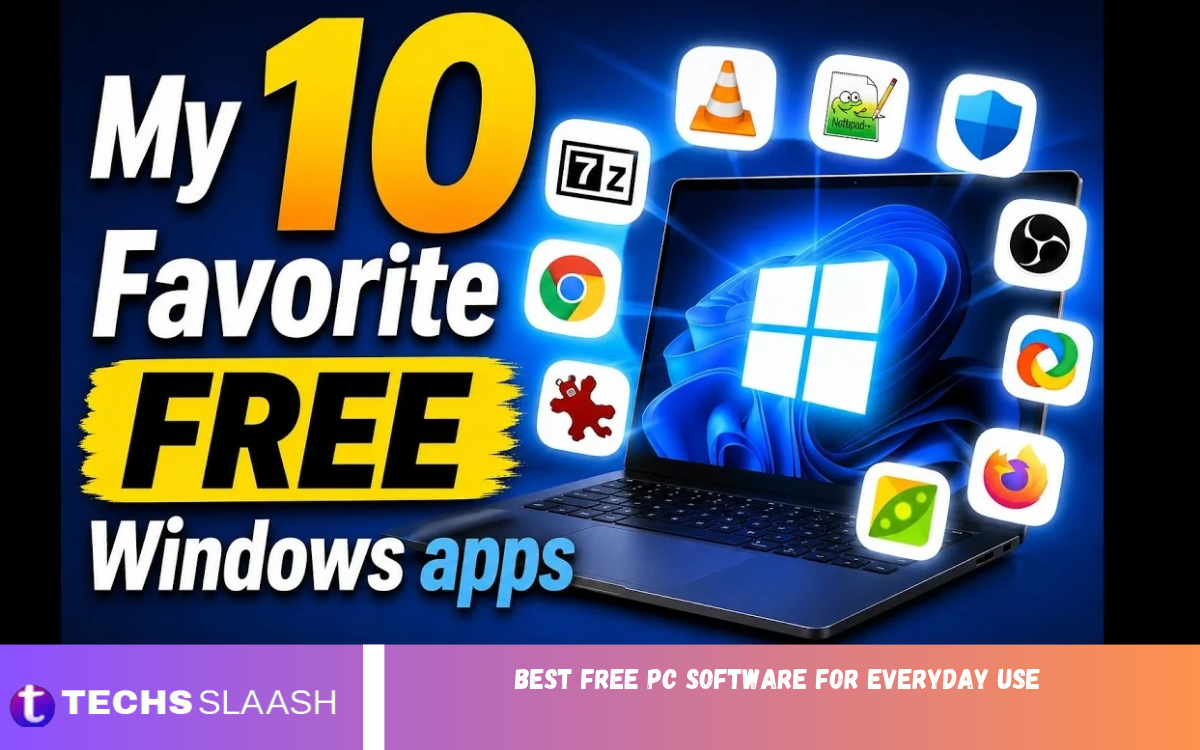
A computer has become an essential part of everyday life, whether you use it for studying, working, browsing the internet, managing documents, or enjoying entertainment. However, getting the most out of a PC does not always require expensive applications. Many free software programs offer powerful features that help users complete daily tasks quickly and efficiently.
The best free PC software for everyday use can boost productivity, protect your computer, organize files, and make routine tasks easier. From office applications and web browsers to media players and security tools, Windows users have plenty of reliable options. The right programs depend on your needs, system specs, and personal preferences.
What Makes Free PC Software Worth Using?
Good free software should provide useful features without creating unnecessary complications. A well-designed application should be easy to install, simple to navigate, compatible with your operating system, and able to handle everyday tasks without slowing your computer.
Security and regular updates matter just as much when choosing free PC software. Download applications from official sources, review their privacy policies, and avoid installers that bundle unwanted programs. The best tools combine practical functionality, dependable performance, and a reasonable approach to user privacy.
LibreOffice: Best Free Office Software
LibreOffice is one of the best free PC software options for students, office workers, and home users who regularly create documents or spreadsheets. It includes Writer for word processing, Calc for spreadsheets, Impress for presentations, and additional tools for other document-related tasks.
The software supports many popular file formats, including Microsoft Office formats, making it useful for exchanging files with colleagues and classmates. Although complex documents may occasionally display differently from their originals, LibreOffice offers an impressive feature set without requiring a paid subscription.
Google Chrome: Best Browser for Everyday Browsing
Google Chrome is a popular web browser for users who need quick access to websites, online services, email, and cloud applications. Its clean interface, extensive extension library, password management features, and synchronization options make it convenient for everyday internet use.
Chrome is especially helpful for people who manage multiple online accounts or frequently switch between devices. However, it can use a lot of memory when many tabs are open. Users with older computers may benefit from limiting background activity and closing unnecessary tabs to maintain smooth performance.
Mozilla Firefox: Best Alternative Web Browser
Mozilla Firefox is an excellent choice for users who want a capable browser with strong privacy controls and customization. It includes tracking protection, flexible settings, useful extensions, and tools that help users manage their online experience.
Firefox handles everyday activities such as research, video streaming, news reading, and web-based applications. Its customizable interface also lets users adjust the browser to their preferences. For people who want an alternative to Chrome, Firefox is a practical free option.
VLC Media Player: Best Free Media Player
VLC Media Player is a versatile program for watching movies, playing music, and opening different types of media files. It supports numerous audio and video formats, reducing the need to install separate players or additional codecs for common playback tasks.
Another advantage of VLC is its ability to handle subtitles, adjust playback speed, and stream compatible media sources. Its straightforward interface suits beginners, while its advanced settings appeal to experienced users. VLC is particularly useful for people who keep movies, recordings, or music collections on their computers.
7-Zip: Best Tool for Compressing Files
7-Zip is a lightweight file compression utility that helps users reduce file sizes and organize multiple files into archives. It supports formats such as 7z, ZIP, TAR, and several other common archive types, making it useful for everyday file management.
The program can also extract compressed files downloaded from websites or received through email. Its high compression efficiency and minimal system requirements make it a good choice for older and newer computers alike. Whether you are sharing documents or storing backups, 7-Zip provides useful features without a subscription.
Malwarebytes Free: Useful Malware Scanning Software
Protecting your computer against malicious software is essential if you download files, browse websites, or connect external storage devices. Malwarebytes offers free scanning that can help users identify certain malware threats and unwanted software.
However, its free offering shouldn’t be treated as a complete replacement for real-time antivirus protection. Windows users should keep Microsoft Defender or another reputable real-time security solution enabled and up to date. Running scans periodically and avoiding suspicious downloads can further improve everyday computer security.
Microsoft Defender: Best Built-In Security Tool
Microsoft Defender Antivirus is integrated into supported Windows systems and provides essential protection against many common digital threats. Because it is built into Windows, most users can benefit from its security features without purchasing another antivirus application.
It offers real-time protection, threat detection, and integration with Windows security settings. Users should ensure that protection is enabled, security intelligence updates are installed, and potentially unwanted applications are handled appropriately. For many home users, Microsoft Defender is a convenient starting point for keeping a PC safer.
Everything: Best Software for Finding Files
Finding a particular document among thousands of files can be frustrating, especially when folders are poorly organized. Everything is a lightweight Windows search utility that quickly locates files and folders by name.
Unlike traditional searches that may take longer to scan locations, Everything uses file-system indexing to deliver fast results for supported local volumes. Itis especially useful for people who manage large collections of documents, photos, videos, and downloads. Users should review its indexing permissions and understand that filename searches are different from searching inside document contents.
ShareX: Best Free Screenshot and Screen Capture Tool
ShareX is a powerful utility for capturing screenshots and recording screen activity on Windows. It offers several capture methods, including full-screen screenshots, selected regions, and scrolling captures, making it helpful for work, education, and troubleshooting.
The software also includes editing, annotation, and workflow automation features. Users can highlight important information, add arrows, and prepare images for presentations or instructions. Some advanced features may require initial configuration, but ShareX is a strong choice for anyone who frequently creates visual guides or shares screen content.
Read Also: Essential Windows 11 Tips and Tricks to Boost Productivity and Improve Your PC Experience
Bitwarden: Best Free Password Manager
Managing passwords for email, banking, social media, and other online accounts can become difficult without a reliable system. Bitwarden provides a password management solution that helps users store credentials securely and generate strong passwords for different services.
Its free plan offers useful password storage and sync features, though plan benefits can change over time. A password manager reduces the temptation to reuse the same password across multiple accounts. Users should protect their vault with a strong master password and enable additional authentication where available.
Microsoft PowerToys: Best Productivity Utility for Windows
Microsoft PowerToys is a collection of utilities designed to improve the Windows desktop experience. Depending on the version, its tools can help users manage windows, rename files in batches, launch applications quickly, and automate other repetitive tasks.
PowerToys is especially useful for people who spend several hours a day working on a computer. Features like FancyZones help arrange application windows into custom layouts, while PowerRename simplifies bulk file renaming. Because it includes multiple independent tools, users can enable only the features they need.
Audacity: Best Free Audio Editing Software
Audacity is a popular audio editing application for recording, trimming, and modifying sound files. It can help students, content creators, and home users prepare voice recordings, clean up basic audio, and combine multiple tracks for simple projects.
The program supports a range of audio formats and includes tools for adjusting volume, removing unwanted sections, and applying effects. While professional audio production may require more advanced software, Audacity provides a capable starting point without a purchase. Its practical features make it useful for podcasts, voiceovers, and personal audio projects.
Paint.NET: Best Free Image Editing Software
Paint.NET is a useful image editor for people who need more features than a basic drawing application provides. It supports layers, selections, effects, and several editing tools that make everyday image adjustments easier.
Users can employ it to crop photographs, resize images, create simple graphics, and prepare visuals for documents or websites. Its interface is generally approachable, making it suitable for beginners who do not need the complexity of professional design software. Availability and licensing should be checked on the official Paint.NET website before installation.
Google Drive for Desktop: Best Cloud File Management Tool
Google Drive for Desktop helps users access and manage files stored in Google Drive from their Windows computer. Depending on the selected synchronization settings, it makes cloud documents and folders easier to work with alongside locally stored files.
This tool helps students, remote workers, and people who move between multiple devices. Cloud storage can also support file sharing and collaboration. However, available storage depends on the account plan, and users should review synchronization settings carefully to avoid accidentally uploading private files.
How to Choose the Best Free PC Software
The best software collection is not necessarily the one with the most applications. Instead, choose programs that solve genuine problems and match the way you use your computer. A student may prioritize office tools and research browsers, while a content creator may need audio editing, image processing, and screen recording applications.
Before installing a program, check its system requirements, update history, privacy practices, and licensing terms. Download it from the developer’s official website or another trusted distribution channel. Avoid installing multiple applications that do the same thing unless you have a specific reason to keep alternatives.
Tips for Keeping Your PC Fast and Secure
Installing useful applications is only one part of keeping your computer reliable. Regularly update Windows and your installed software, remove applications you no longer use, and keep enough free storage space for temporary files and system updates. These simple habits can help prevent common performance problems.
Also back up important documents, use unique passwords, and be cautious when opening unfamiliar attachments. Avoid suspicious pop-ups that claim your computer is infected or offer instant performance improvements. A well-maintained system with a small set of trusted applications is often more dependable than a computer cluttered with unnecessary utilities.
Frequently Asked Questions
What is the best free PC software for everyday use?
The best choice depends on your needs. LibreOffice is excellent for documents, VLC handles media playback, 7-Zip manages compressed files, Firefox and Chrome support web browsing, and Microsoft Defender provides built-in Windows security.
Which free software is best for office work?
LibreOffice is a strong free option for writing documents, creating spreadsheets, and preparing presentations. It supports many commonly used office file formats and works well for personal, educational, and professional tasks.
Is free PC software safe to download?
Free software can be safe if you download it from trustworthy developers and official sources. Check the application’s permissions, avoid suspicious installers, and keep the program updated to reduce security risks.
Which free browser is best for Windows?
Google Chrome and Mozilla Firefox are both capable options. Chrome offers extensive extension support and Google account integration, while Firefox provides useful customization and privacy controls.
What is the best free software for playing videos?
VLC Media Player is an excellent choice because it supports many common audio and video formats. It also supports subtitles, playback controls, and additional media management features.
Do I need to install a separate antivirus on Windows?
Not necessarily. Microsoft Defender provides built-in antivirus protection on supported Windows systems. Keep it enabled and up to date, and consider additional security software only when it meets a specific need.
Which free program is best for compressing files?
7-Zip is a popular choice for creating and extracting compressed archives. It supports several formats and offers useful compression features without requiring a paid subscription.
What is the best free screenshot software for PC?
ShareX is a feature-rich option for Windows users who need screenshots, annotations, and screen capture workflows. Windows’ built-in screenshot tools also work well for basic tasks.
Can free PC software work on older computers?
Yes, many free applications have modest system requirements. Programs such as 7-Zip and VLC can work well, but compatibility and performance depend on your Windows version, memory, processor, and available storage.
How many applications should I install on my computer?
Install only the programs you genuinely need. A carefully selected collection of productivity, security, browsing, and media tools can cover most everyday tasks without unnecessarily consuming storage or system resources.
Conclusion
The best free PC software for everyday use can make your computer more productive, secure, and enjoyable without increasing your expenses. Applications such as LibreOffice, VLC Media Player, 7-Zip, Firefox, ShareX, and Microsoft PowerToys provide useful features for common personal and professional tasks.
You do not need to install every available program to build an effective computer setup. Start with the applications that meet your immediate needs, download them from trusted sources, and keep them updated.

1 Comment
Pingback: Essential Cybersecurity Tips for Beginners - Techsslaash.com