

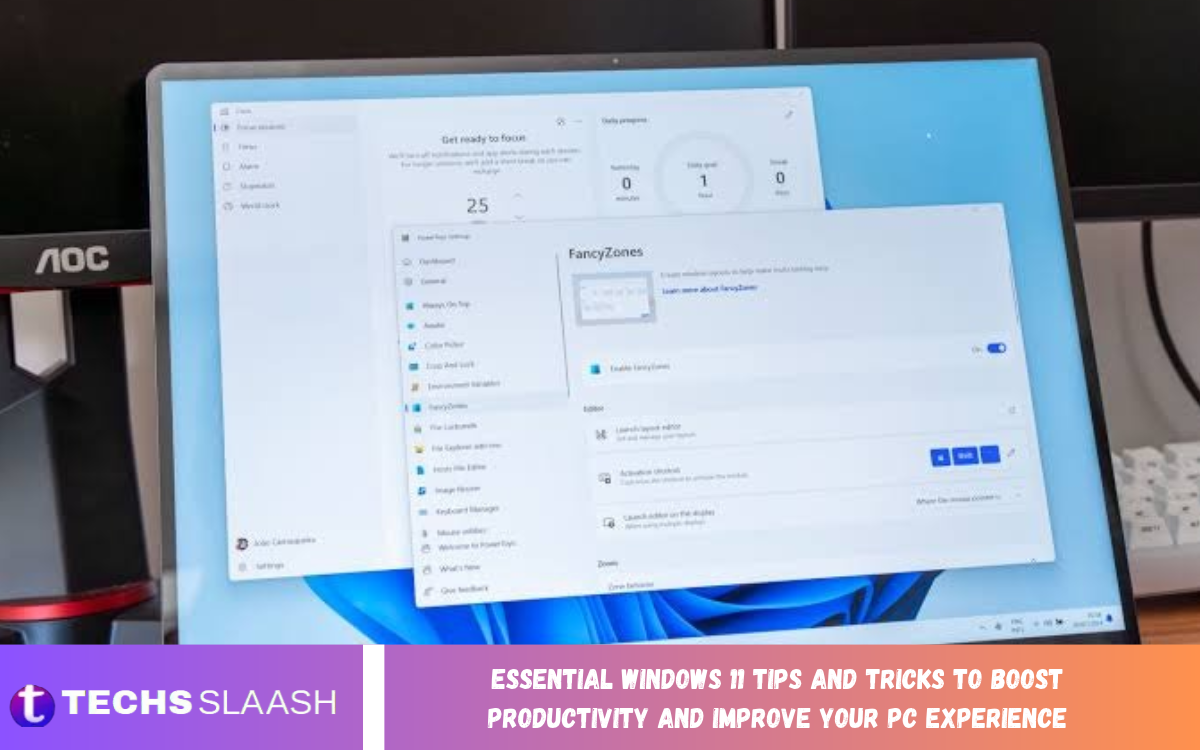
Windows 11 offers a modern interface, useful productivity tools, and advanced features that make everyday computing more convenient. Whether you use your computer for office work, online learning, gaming, or personal projects, understanding its built-in capabilities can help you work more efficiently and enjoy a smoother PC experience.
Many users rely only on the basic functions of their operating system without exploring the tools available. From keyboard shortcuts and virtual desktops to storage management and security settings, a few practical changes can make a noticeable difference. These essential Windows 11 tips and tricks will help you save time, organize your workspace, and get more value from your computer.
Customize the Start Menu and Taskbar
The Start menu and taskbar are among the most-used parts of Windows 11. Customizing them to match your daily routine makes it easier to access your favorite apps, important files, and system settings without repeatedly searching through menus.
Pin frequently used apps to the Start menu or taskbar, and remove shortcuts you rarely use. You can also adjust taskbar alignment and other available personalization options through Settings. Keeping these areas organized creates a cleaner desktop and reduces unnecessary clicks throughout the day.
Master Essential Windows 11 Keyboard Shortcuts
Keyboard shortcuts are one of the simplest ways to boost productivity in Windows 11. Instead of navigating multiple menus with your mouse, you can open applications, manage windows, capture screenshots, and access useful features with a few key combinations.
Some shortcuts are particularly helpful for everyday tasks. Press Windows + E to open File Explorer, Windows + I to access Settings, and Windows + L to lock your computer. Use Alt + Tab to switch between open applications and Windows + V to access clipboard history after enabling the feature. Learning these combinations gradually can save considerable time.
Use Snap Layouts to Organize Your Workspace
Snap Layouts is a valuable Windows 11 feature for people who frequently work with multiple applications. It allows you to arrange open windows into predefined layouts, making it easier to compare documents, attend online meetings, research information, and write content simultaneously.
To use Snap Layouts, hover over the maximize button of a compatible window or press Windows + Z. Choose a layout that suits your workflow, then assign other open applications to the remaining spaces. This feature is especially useful on larger monitors, where side-by-side windows can reduce the need to switch between tabs repeatedly.
Create Virtual Desktops for Different Tasks
Virtual desktops help you separate different types of work without closing your applications. For example, you can maintain one desktop for professional tasks, another for personal activities, and a third for studying or research.
Press Windows + Tab to open Task View and create additional desktops. You can move between them using Windows + Ctrl + Left Arrow or Windows + Ctrl + Right Arrow. This approach keeps your workspace organized and makes it easier to concentrate on one activity at a time, particularly when several projects require your attention.
Improve PC Performance by Managing Startup Apps
Applications that launch automatically when Windows starts can slow boot times and consume system resources. Some startup programs are necessary, but others may run in the background without providing immediate value.
Open Task Manager by pressing Ctrl + Shift + Esc and select the Startup apps section. Review the listed programs and disable any unnecessary applications you recognize and don’t need at startup. Avoid disabling unfamiliar system components or security software. Managing startup behavior can help your computer start faster and free up more resources for your daily work.
Keep Windows 11 Updated
Windows updates provide security improvements, bug fixes, and feature enhancements that help maintain a reliable computing experience. Regularly installing updates reduces the risk of running outdated software with known vulnerabilities.
Open Settings, select Windows Update, and check for available updates. Review any restart requirements and save your work before allowing the computer to restart. For business-critical systems, check compatibility and organizational update policies before installing optional updates. Keeping Windows current is an important part of maintaining both performance and security.
Use Focus Sessions to Reduce Distractions
Constant notifications, incoming messages, and unnecessary interruptions can make it difficult to finish important tasks. Windows 11 includes focus-related features that help you create dedicated periods for concentrated work.
Open the Clock app and look for Focus sessions, where available. You can set a work period, plan breaks, and use supported integrations to manage distractions. Consider combining focus sessions with a simple task list and silencing nonessential notifications. This routine can help you complete assignments more consistently without feeling overwhelmed by incoming alerts.
Make File Explorer More Efficient
File Explorer helps you organize documents, downloads, images, and other files stored on your computer. Using its navigation features effectively makes it much easier to find important information, especially when you work with many folders.
Pin frequently accessed folders to Quick access or the Home area, depending on your Windows version, and use descriptive filenames for important documents. You can also use the search box to locate files by name and organize content into clearly labeled folders. A consistent filing system prevents duplicate downloads, reduces clutter, and saves time when you need to retrieve older work.
Free Up Storage Space With Storage Sense
Low storage space can interfere with updates, downloads, and everyday computer tasks. Windows 11 includes storage management tools that help you identify what’s taking up space and safely remove unnecessary files.
Go to Settings, select System, and open Storage to review categories such as temporary files, installed applications, and documents. You can enable Storage Sense to automatically clean certain unnecessary files based on your settings. Review its configuration carefully, especially options involving the Downloads folder and cloud-synced content, before allowing automatic cleanup.
Improve Battery Life on Laptops
Laptop users can extend battery life by adjusting power settings and reducing unnecessary background activity. These changes help especially when you’re away from a power outlet, attending classes, or traveling.
Open Settings and navigate to System, then Power & battery. Depending on your device, you can choose a suitable power mode, enable Battery Saver, and review app-specific battery usage. Lower screen brightness, reduce unnecessary background processes, and disconnect unused accessories to conserve power. Battery performance varies with hardware, workload, and battery condition.
Strengthen Your Windows 11 Security
Protecting your computer is essential when handling personal information, business documents, or online accounts. Windows 11 includes built-in security features that help defend against common threats, including malware and unauthorized access.
Open Windows Security to review virus and threat protection, firewall settings, and other available safeguards. Keep Microsoft Defender Antivirus and its security intelligence updated, and avoid downloading suspicious attachments or untrusted applications. Use a strong sign-in method, enable multifactor authentication for important online accounts, and back up valuable files regularly.
Read Also: Android 17 Features, Changes, and Updates
Use Clipboard History to Copy and Paste Faster
The standard clipboard stores recently copied content temporarily, but Windows 11 also offers clipboard history. This feature is useful when you regularly copy multiple pieces of text, links, or other supported content while preparing documents or working across applications.
Press Windows + V to open clipboard history and enable it if prompted. You can then select a previously copied item rather than copying it again. Remember that clipboard contents may include sensitive information, so avoid storing passwords or confidential data there. Clipboard history is a practical productivity feature when used carefully.
Personalize Notifications and Quick Settings
Unnecessary notifications can interrupt concentration and make important alerts harder to notice. Windows 11 allows you to adjust which applications can send notifications and how those alerts appear on your screen.
Open Settings and select System, then Notifications. Turn off alerts from apps that don’t require immediate attention, while keeping essential communication and security notifications enabled. You can also use Quick Settings from the taskbar to access commonly used controls, such as Wi-Fi, Bluetooth, volume, and brightness, depending on your device.
Take Screenshots With Built-In Tools
Screenshots help document errors, share instructions, create tutorials, and save information displayed on your screen. Windows 11 includes built-in screenshot tools that allow you to capture the entire screen or select a specific area.
Press Windows + Shift + S to open the screen capture interface and select the area you want to capture. The resulting image can usually be copied, edited, and saved through the available notification or Snipping Tool interface. For longer workflows, give screenshots meaningful filenames so they are easier to find later.
Use Microsoft Edge Efficiency Features
Microsoft Edge includes several features that can make browsing more organized and productive. Collections, vertical tabs, profiles, and sleeping tabs help users manage research, separate browsing activities, and reduce resources used by inactive tabs.
Use separate browser profiles when you need to distinguish personal browsing from professional accounts. Organize research into collections where supported, and close tabs you no longer need. Sleeping tabs can reduce resource usage for inactive pages, although the exact effect depends on your browsing habits and computer hardware. These features are especially useful for people who regularly keep many tabs open.
Back Up Important Files Regularly
A reliable backup routine protects important documents against accidental deletion, hardware failure, malware, and other unexpected problems. Even a well-maintained computer can lose data, so keeping a copy of valuable files is a sensible precaution.
Windows 11 supports several backup options, including Windows Backup features and File History on supported configurations. You can also copy important documents to an external drive or use a trusted cloud storage service. Check that your backup includes the files you need, and periodically test whether you can restore them. A backup that has never been verified may not provide the protection you expect.
Troubleshoot Common Windows 11 Problems
Occasional slowdowns, application crashes, and connectivity problems can affect any computer. Windows 11 includes troubleshooting tools that help you identify possible causes before you resort to more disruptive solutions.
Start by restarting the affected application or your computer, checking available storage, and installing relevant updates. Task Manager can help identify applications consuming excessive CPU, memory, or disk resources. For persistent problems, use the appropriate troubleshooter in Settings or review Windows Security alerts. Avoid installing unknown repair utilities or changing advanced system settings without understanding their effects.
Frequently Asked Questions
What are the best Windows 11 tips for beginners?
Beginners should start by learning essential keyboard shortcuts, customizing the Start menu, organizing files in File Explorer, and managing notifications. These simple changes make everyday computer tasks easier without requiring advanced technical knowledge.
How can I make Windows 11 run faster?
Review startup apps, free up unnecessary storage, install updates, and close apps you don’t need. If the computer remains slow, check Task Manager for resource-intensive processes and consider whether your hardware meets your workload requirements.
Does Windows 11 have built-in productivity tools?
Yes, Windows 11 includes Snap Layouts, virtual desktops, clipboard history, Focus sessions, File Explorer, and multiple keyboard shortcuts. The availability of some features or integrations may depend on your Windows version and installed applications.
How do I improve multitasking in Windows 11?
Use Snap Layouts to arrange applications side by side and virtual desktops to separate different projects. Learning Alt + Tab and Task View also makes switching between applications more convenient.
How can I reduce distractions while working?
Adjust notification settings, use Focus sessions when available, and silence nonessential alerts during important tasks. Keeping only the applications relevant to your current activity open can also improve concentration.
Do I need to update Windows 11 regularly?
Yes, installing appropriate updates is important for security, reliability, and bug fixes. Review optional updates separately and follow your organization’s update policies if you use a managed work computer.
How can I free up space on my Windows 11 PC?
Open Settings, go to System, and select Storage to identify large files and unnecessary temporary data. Storage Sense can automate certain cleanup tasks, but review its settings before enabling automatic deletion.
How do I protect my computer from viruses?
Keep Microsoft Defender Antivirus or another reputable security solution updated, use the firewall, and avoid suspicious downloads. Use strong passwords, multifactor authentication, and regular backups for added protection.
Can Windows 11 help improve laptop battery life?
Yes, compatible laptops offer power modes and Battery Saver options. Lowering screen brightness, limiting unnecessary background activity, and disconnecting unused accessories can also extend battery life.
What should I do if my Windows 11 computer becomes slow?
Check Task Manager for apps using excessive resources, review startup programs, and make sure you have enough storage space. Restarting the computer and installing relevant updates may help. If issues persist, you may need hardware upgrades or more detailed troubleshooting.
Conclusion
Learning essential Windows 11 tips and tricks can transform the way you use your computer every day. From keyboard shortcuts and Snap Layouts to storage management, security settings, and backup routines, these features help you work more efficiently while keeping your system organized and reliable.
You do not need to change every setting at once to improve your PC experience. Start with the features that address your biggest challenges, then gradually introduce other tools as your needs evolve.

1 Comment
Pingback: Best Free PC Software for Everyday Use - Techsslaash.com