

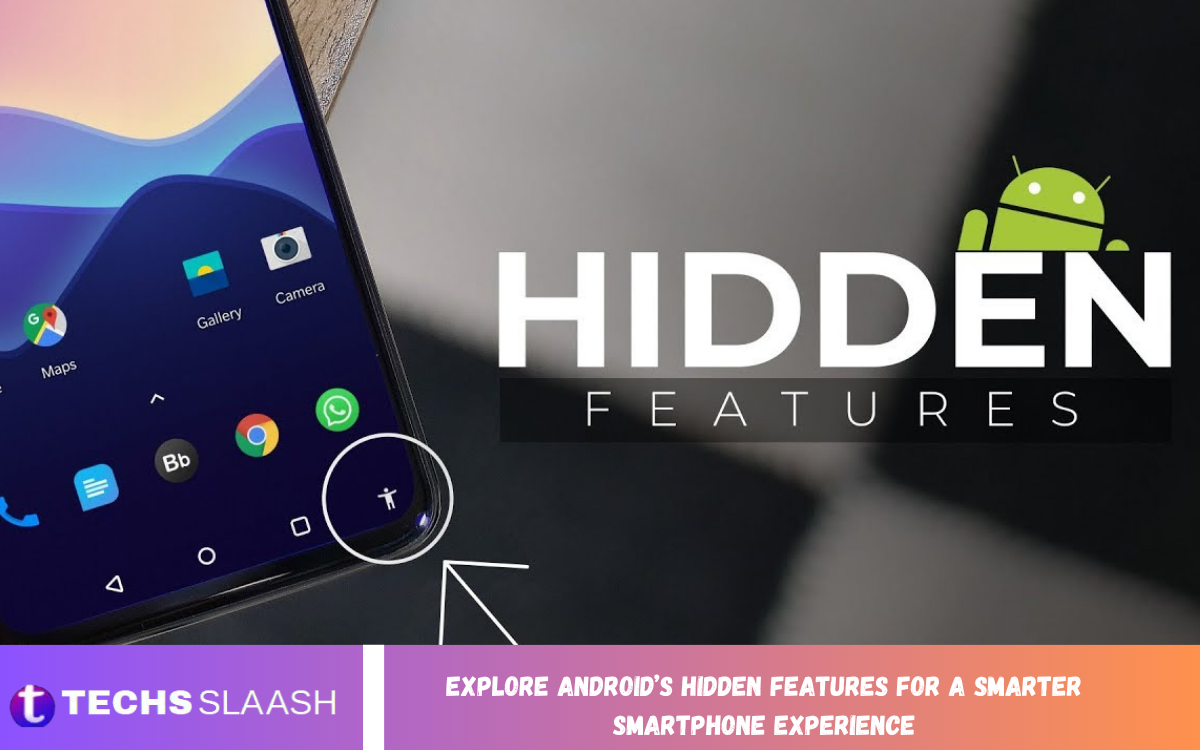
Android is more than a simple mobile operating system for calling, messaging, browsing, and entertainment. It includes many useful features hidden inside settings, shortcuts, privacy controls, and customization tools that can make everyday smartphone use easier and more efficient.
Many users only explore the basic Android functions and never discover the advanced tools available on their devices. By learning how to use these hidden features, you can improve productivity, strengthen privacy, personalize your phone, and enjoy a smarter smartphone experience.
Discover Hidden Android Settings
Android offers a wide range of settings that can change how your smartphone works. Features such as quick settings customization, notification controls, gesture navigation, and display adjustments allow users to create an experience that matches their daily habits.
Some options may be located in advanced settings or additional menus, making them easy to overlook. Carefully exploring the Settings app can reveal useful controls that improve performance, accessibility, security, and convenience.
Use Split-Screen for Better Multitasking
Split-screen mode is one of Android’s most useful productivity features. It allows you to run two compatible applications on the screen at the same time, making it easier to copy information, watch content, respond to messages, or work with documents.
This feature is particularly useful for students, professionals, and anyone who frequently switches between applications. Instead of repeatedly opening and closing apps, you can keep two important tasks visible and save valuable time.
Make Smarter Use of Quick Settings
The Quick Settings panel provides fast access to commonly used smartphone controls. Wi-Fi, Bluetooth, mobile data, screen recording, flashlight, airplane mode, and other options can often be accessed without opening the complete Settings menu.
Android also allows users to customize many Quick Settings panels by adding, removing, or rearranging available shortcuts. Organizing these controls around your daily needs can make your smartphone significantly faster to operate.
Explore Gesture Navigation
Gesture navigation can provide a cleaner and more natural way to control an Android smartphone. Instead of relying on traditional navigation buttons, users can swipe from different areas of the screen to go home, return to the previous page, or switch between applications.
Once you become comfortable with these gestures, navigating through your phone can feel faster and smoother. Gestures also provide more usable screen space because traditional navigation buttons do not need to remain visible.
Improve Privacy With Permission Controls
Android provides detailed permission controls that allow you to decide which applications can access sensitive information. Depending on the device and Android version, permissions may include location, camera, microphone, contacts, files, and other personal data.
Reviewing application permissions regularly is a smart privacy habit. If an application does not need a particular permission to perform its main function, removing that access can reduce unnecessary data exposure and give you greater control over your information.
Take Advantage of Notification History
Notification History is a helpful feature for users who frequently dismiss notifications accidentally. When enabled on supported Android versions, it can keep a record of recently dismissed notifications so you can review important alerts later.
This can be especially useful when notifications disappear before you have time to read them. Instead of worrying about missing an important message, reminder, or alert, you can check the notification history when necessary.
Use Screen Recording Without Extra Apps
Many modern Android devices include built-in screen recording functionality. This allows you to capture what happens on your display without installing a separate screen recording application.
Screen recording can be useful for creating tutorials, demonstrating problems, saving important on-screen information, or sharing instructions with someone else. Depending on the device, you may also be able to record system audio, microphone audio, or both.
Customize Your Lock Screen
The Android lock screen can provide more than basic security. Depending on the smartphone manufacturer and Android version, you may be able to customize shortcuts, notifications, clock styles, wallpapers, widgets, and other visual elements.
A well-configured lock screen can provide useful information without requiring you to unlock your phone. Weather, notifications, media controls, and other shortcuts can make everyday interactions quicker.
Use Focus and Digital Wellbeing Tools
Digital Wellbeing features are designed to help users understand and manage their smartphone habits. Screen-time information can show how frequently you use applications, how many notifications you receive, and how often you unlock your device.
Focus tools can also help reduce distractions by temporarily limiting selected applications and notifications. Using these options can make it easier to concentrate on work, study, reading, or other important activities.
Read Also: Best Android Tips and Tricks to Improve Your Smartphone Experience
Discover One-Handed Mode
Large smartphone displays are excellent for watching videos, browsing websites, and viewing documents, but they can sometimes be difficult to operate with one hand. One-handed mode can make important screen controls easier to reach.
When supported, the feature reduces or shifts the usable interface toward one side of the screen. This can be especially convenient when you are walking, traveling, carrying something, or using your phone with only one hand.
Make Your Smartphone More Accessible
Android includes a broad selection of accessibility features that can make smartphones easier to use. Options may include larger text, magnification, color adjustments, captions, hearing support, touch controls, and other helpful tools.
Accessibility settings are not limited to users with disabilities. Anyone who wants a more comfortable viewing or interaction experience can benefit from adjusting these options according to personal preferences.
Use App Pinning for Better Security
App pinning can keep a specific application visible on the screen until you intentionally exit the pinned mode. This can be useful when handing your phone to someone who only needs access to one application.
For example, you can pin a video, game, browser, or another application while preventing easy access to other areas of your smartphone. When available, this feature provides an additional layer of convenience and privacy.
Find Files and Information Faster
Android includes built-in tools that can help users locate downloaded files, documents, images, and other content. Instead of searching through multiple applications, you can use the device’s file management tools to organize and locate important items.
Keeping files properly organized can also reduce clutter and make your smartphone easier to manage. Removing unnecessary downloads and duplicate files can free storage space and improve overall organization.
Make Battery Management Smarter
Battery settings can reveal which applications and services consume the most power. Checking battery usage regularly can help identify applications that run excessively in the background or consume more energy than expected.
Battery Saver and adaptive battery features can also help extend battery life. Adjusting background activity, screen brightness, and unnecessary connectivity options can further improve how long your smartphone lasts between charges.
Use Nearby Sharing for Easy Transfers
Android’s Nearby Share feature can make it easier to transfer compatible files between supported devices. Photos, videos, documents, links, and other content can often be shared without relying on traditional messaging applications.
This is particularly useful when transferring files to another nearby device. It can save time and reduce the need for cables, cloud uploads, or third-party file-sharing applications.
Explore Developer Options Carefully
Developer Options contain advanced controls designed primarily for testing and development. Although most users do not need these settings, some options can provide additional control over animations, debugging, background processes, and other system behaviors.
These settings should be changed carefully because certain adjustments can affect normal smartphone operation. Users who are unfamiliar with advanced Android controls should research an option before changing it.
Personalize Android for a Better Experience
Android provides extensive customization options through wallpapers, widgets, launchers, icon styles, themes, fonts, and home-screen layouts. These tools allow users to create an interface that is visually appealing and practical.
Customization should focus on usability rather than simply appearance. Placing frequently used applications and widgets within easy reach can reduce unnecessary navigation and speed up everyday smartphone tasks.
Keep Android Features Updated
Android features can change significantly with system and security updates, as well as manufacturer interfaces. A feature that is unavailable on one device may become available after an update or may already exist under a different name.
Keeping your smartphone updated can provide access to new capabilities while also improving security and stability. Checking system updates periodically is therefore an important part of maintaining a smarter Android experience.
Frequently Asked Questions
What are Android’s hidden features?
Android’s hidden features are useful settings, tools, shortcuts, and controls that are not always obvious during normal smartphone use. They can include gesture controls, notification history, screen recording, app pinning, privacy settings, and customization options.
How can I make my Android phone smarter?
You can make Android smarter by customizing Quick Settings, using gestures, managing notifications, enabling useful automation or accessibility tools, and organizing your home screen.
Does every Android phone have the same hidden features?
No, Android features can vary depending on the Android version, smartphone manufacturer, and device model. Manufacturers often add their own software features and customization tools.
How can I improve Android privacy?
Start by reviewing application permissions and removing access that applications do not genuinely need. You should also review location settings, microphone access, camera permissions, and notification visibility.
Can Android record the screen without an app?
Many modern Android devices include built-in screen recording tools. These are commonly accessible through the Quick Settings panel, although the exact location and available options depend on the device.
How does Android split-screen work?
Split-screen allows two compatible applications to appear simultaneously on the display. You can use it to perform two tasks without constantly switching between applications.
What is Android Notification History?
Notification History is a feature that can save recently dismissed notifications on supported Android devices. It can help users recover alerts that were accidentally cleared.
Is Developer Options safe to use?
Developer Options can be safe when used carefully, but they contain advanced settings that can affect device behavior. Changing unfamiliar options without understanding their purpose may cause unexpected results.
How can I improve Android battery life?
Reducing unnecessary screen brightness, limiting background activity, managing location access, and using battery-saving features can help extend battery life.
Why should I explore Android’s hidden features?
Exploring Android’s hidden features can help you save time, improve privacy, personalize your device, manage applications more effectively, and make everyday tasks easier.
Conclusion
Android offers far more functionality than many users realize. From split-screen multitasking and gesture navigation to notification history, privacy controls, screen recording, accessibility tools, and battery management, these features can transform how you interact with your smartphone.
Taking time to explore Android’s settings and built-in tools can help you create a faster, safer, and more personalized device. By discovering and using these hidden capabilities, you can Explore Android’s Hidden Features for a Smarter Smartphone Experience and get more value from the smartphone you already own.

1 Comment
Pingback: Discover the Latest Android Features and Innovations - Techsslaash.com