

Android smartphones have become essential tools for communication, entertainment, work, education, photography, and everyday tasks. However, many users only use a small portion of the features available on their devices. Learning a few practical Android tips and tricks can make your phone faster, more convenient, secure, and enjoyable to use.
The Best Android Tips and Tricks to Improve Your Smartphone Experience focus on simple settings and features that can make a noticeable difference without requiring technical knowledge. From improving battery life to organizing your home screen, these techniques can help you get more value from your Android smartphone.
Keep Your Android Phone Updated
Keeping Android and installed applications up to date is one of the simplest ways to maintain a reliable smartphone. Software updates can introduce useful features, improve compatibility, fix bugs, and address security vulnerabilities. Check your phone’s system update section regularly and install trusted updates when they become available.
Applications should also be updated through the official app store. Outdated apps can sometimes consume unnecessary resources or experience compatibility problems after a system upgrade. Regular updates help maintain a smoother and more secure Android experience.
Improve Battery Life With Smart Settings
Battery life can often be improved by adjusting a few settings. Reducing screen brightness, shortening the screen timeout, and disabling unused features can reduce unnecessary power consumption. Adaptive brightness can also help balance visibility and battery usage throughout the day.
Battery optimization settings can provide additional control over applications running in the background. If an app constantly consumes power when you rarely use it, review its background activity and permissions. Using Battery Saver when your battery is low can also extend usage until you have access to a charger.
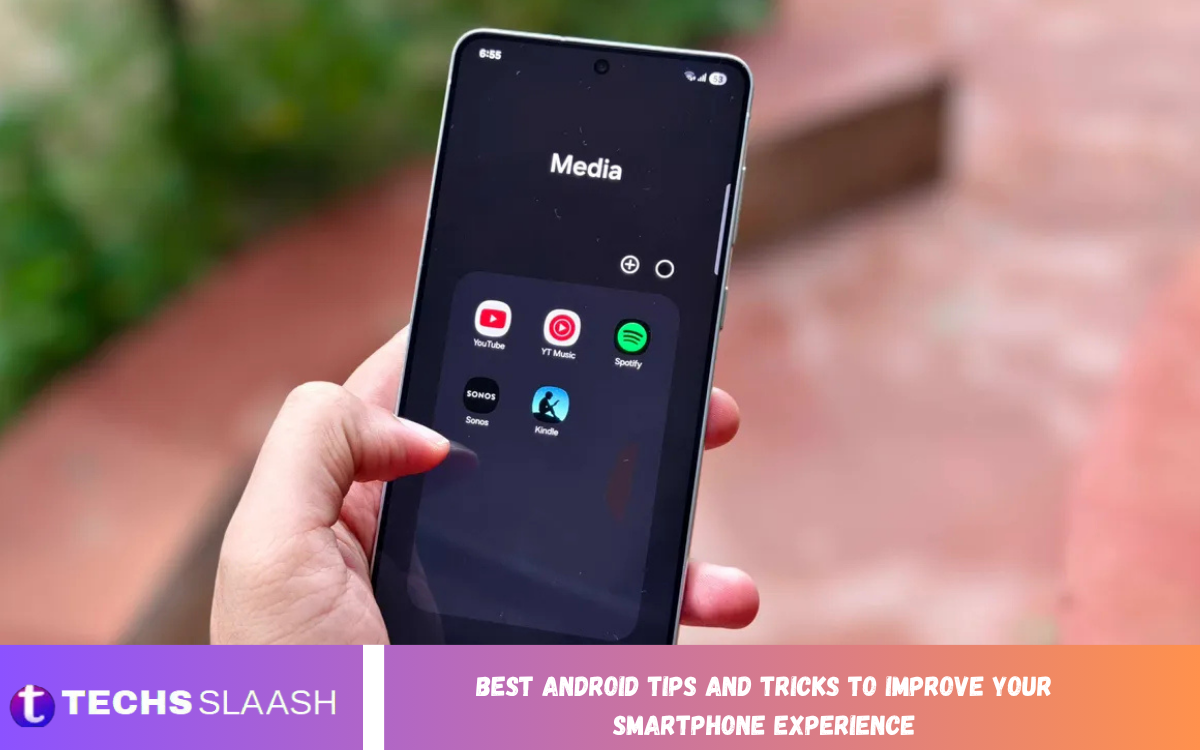
Make Your Home Screen More Organized
A clean home screen makes it easier to find frequently used applications and reduces unnecessary clutter. Keep your most important apps on the primary screen and move less frequently used applications into clearly labeled folders. Removing unused widgets can also create additional space.
Android launchers and widgets can offer useful customization options for your device. Calendar, weather, notes, clock, and task widgets can place important information directly on the home screen. The goal should be convenience rather than filling every available space.
Use Android Split-Screen Multitasking
Split-screen mode is a valuable feature for people who regularly work with two applications simultaneously. You can use a browser while taking notes, watch a video while messaging, or compare information between two applications without repeatedly switching between them.
The exact method for activating split-screen mode varies by Android version and manufacturer. Look for the split-screen or multi-window option in the recent-apps interface. Once enabled, you can adjust the amount of screen space assigned to each application.
Use Gestures for Faster Navigation
Android gestures can make everyday navigation faster and more natural. Depending on your device, gestures may let you return to the previous screen, switch between applications, open the home screen, or access certain device functions with simple swipes.
Explore the navigation settings on your smartphone to see which gestures are available. If you prefer traditional navigation buttons, you can usually switch between navigation styles. Choosing the method that feels most comfortable can make your daily smartphone experience more efficient.
Manage App Notifications
Too many notifications can quickly become distracting and make important alerts difficult to notice. Android lets you manage notifications for individual applications, giving you greater control over what appears on your screen.
Review notification settings and disable unnecessary alerts. For applications that you want to keep but do not need immediate alerts from, consider reducing their notification priority. This can create a quieter phone experience without completely disabling useful applications.
Free Up Storage Space
Insufficient storage can affect how comfortably you use your smartphone. Large videos, duplicate photos, downloaded files, unused applications, and cached data can gradually consume available space. Regularly reviewing storage can help prevent unexpected problems.
Start by removing applications you no longer use and transferring important photos or videos to a trusted storage solution. Android’s storage management tools can also help identify large files and unnecessary data. Avoid deleting unfamiliar system files unless you understand what they contain.
Improve Android Privacy and Security
Security should be an important part of every Android smartphone routine. Use a strong screen lock such as a secure PIN, password, or supported biometric authentication. Avoid sharing your unlock credentials with others and keep your device protected when you are not using it.
Review application permissions periodically as well. Some apps may request access to your camera, microphone, location, contacts, or files. Provide only the permissions necessary for the application’s intended functionality. Android’s privacy controls make it easier to review and adjust these permissions.
Customize Quick Settings
Quick Settings provides convenient access to commonly used smartphone functions. Depending on your device, the panel may include Wi-Fi, Bluetooth, mobile data, flashlight, airplane mode, screen recording, battery controls, and other options.
You can usually edit the Quick Settings panel and rearrange tiles according to your preferences. Place frequently used controls where they are easy to reach and remove unnecessary shortcuts. A customized panel can save time because you do not need to search through the Settings application for common functions.
Use Search to Find Apps and Settings Faster
Android’s search capabilities can save considerable time when you have many applications or settings on your phone. Instead of manually searching through multiple screens, use the device’s search function to quickly locate an application, setting, contact, or other available information.
Search is particularly useful when you know what you want but do not remember where it is located. Learning to use search instead of navigating through long menus can make your smartphone feel significantly faster and easier to manage.
Take Better Screenshots and Screen Recordings
Screenshots are useful for saving important information, sharing instructions, documenting conversations, or remembering something displayed on your screen. Most modern Android devices provide convenient screenshot controls through buttons, gestures, or the Quick Settings panel.
Screen recording can be equally useful when explaining a process or demonstrating a problem. Before recording, review whether sensitive information such as passwords, private messages, or payment details could appear on the screen. Always protect personal information before sharing a recording.
Make the Keyboard More Efficient
The Android keyboard includes features that can make typing faster and more accurate. Predictive text, automatic corrections, voice typing, clipboard tools, and personalized suggestions can reduce the effort required to write messages and documents.
Spend a few minutes exploring your keyboard settings and enable the features that suit your typing habits. If you frequently use certain phrases, clipboard functionality and text shortcuts can also save time. Keeping the keyboard updated can provide additional improvements and bug fixes.
Read Also: Best Keyboard Apps for Faster, Smarter, and More Personalized Typing
Use Dark Mode and Display Controls
Dark mode can provide a different visual experience and may be more comfortable for some users, particularly in low-light environments. Many Android smartphones allow you to schedule dark mode according to the time of day or your preferred routine.
Display settings also include options such as font size, screen zoom, refresh rate, color settings, and brightness. Adjust these options to suit your needs rather than relying solely on the default configuration. A comfortable display can make your phone easier to use for extended periods.
Control Background App Activity
Some applications continue performing tasks in the background even when you are not actively using them. Background activity can consume battery, mobile data, and system resources depending on the application.
Review battery and data usage to identify apps that appear unusually active. Where appropriate, restrict background activity or disable automatic features you do not need. Be careful with essential messaging, security, and system applications, as restricting them may prevent important functions from working properly.
Use Focus and Digital Wellbeing Features
Smartphones are useful, but constant notifications can make it difficult to concentrate. Android’s Digital Wellbeing features can help users understand their smartphone habits and manage distractions through tools such as app timers and focus-related controls.
Consider creating periods when unnecessary notifications are muted. You can keep essential communication available while reducing interruptions from entertainment and social applications. Small changes can make the phone more useful without requiring you to stop using it completely.
Back Up Important Android Data
A smartphone contains valuable information, including contacts, photos, documents, messages, and application data. A reliable backup strategy can protect this information if your device is lost, damaged, reset, or replaced.
Review your Android backup settings and ensure important data is backed up through a trusted service. Photos and documents that are particularly important can also be stored in an additional secure location. Having more than one copy of important files provides extra protection against unexpected problems.
Use Nearby Sharing and Other Convenient Features
Modern Android devices offer several features designed to make sharing and connecting easier. Nearby sharing can help transfer supported files between compatible devices without requiring complicated setup.
Other useful features may include casting, Bluetooth connections, hotspot functionality, NFC, and device-to-device connectivity. Explore these features when necessary, but remember to turn off connectivity options you do not need, particularly when conserving battery or limiting unnecessary wireless connections.
Clear Cache Carefully
Cached data can help applications load information faster, so clearing cache should not become a routine task without a reason. If a particular application behaves unusually, crashes frequently, or displays outdated information, clearing its cache may sometimes help resolve the issue.
Avoid repeatedly using aggressive cleaning tools simply because they promise to speed up your phone. Modern Android systems already manage many temporary files automatically. Focus on removing genuinely unnecessary data rather than constantly deleting cached information.
Restart Your Smartphone Regularly
A simple restart can sometimes resolve temporary software problems, refresh system processes, and restore normal behavior after an application becomes unresponsive. Although restarting is not a replacement for proper troubleshooting, it is a useful first step for minor issues.
If your smartphone becomes unusually slow, experiences temporary glitches, or has connectivity issues, restarting it may help. If problems continue afterward, investigate the specific application, setting, or system feature responsible instead of repeatedly restarting the device.
Frequently Asked Questions
How can I make my Android phone faster?
Remove unused applications, keep the operating system updated, maintain sufficient storage space, and limit unnecessary background activity. Restarting the phone can also help with temporary performance problems.
How can I improve Android battery life?
Reduce excessive screen brightness, shorten screen timeout, review battery-consuming applications, and use Battery Saver when necessary. Turning off unused wireless features can also reduce power consumption.
How do I organize my Android home screen?
Keep frequently used applications on the main screen and group related apps into folders. Remove unnecessary widgets and shortcuts to create a cleaner and more accessible layout.
Are Android gestures useful?
Yes. Gestures can make navigation faster by allowing you to move between screens, return to previous pages, or access the home screen with simple movements.
How can I reduce Android notifications?
Open notification settings and disable unnecessary alerts for individual applications. You can also adjust notification priorities so that important notifications receive greater attention.
How can I free up Android storage?
Remove unused applications, large unnecessary files, duplicate media, and downloads you no longer need. Review your storage settings to identify what is consuming the most space.
Is Android Dark Mode useful?
Dark Mode can provide a more comfortable viewing experience for some users, especially in darker environments. Its effect on battery life depends on the phone’s display technology and how the device is used.
How can I protect my Android phone?
Use a strong screen lock, keep the software updated, review app permissions, and install applications only from trustworthy sources. Avoid sharing sensitive login information with others.
What is Android split-screen mode?
Split-screen mode allows two compatible applications to appear simultaneously on the display. It is useful for multitasking, such as reading information while taking notes or messaging while viewing another application.
Should I regularly clear Android cache?
Not necessarily. Android generally manages cached data automatically. Clearing an application’s cache can be useful for troubleshooting specific problems, but repeatedly clearing cache is usually unnecessary.
Conclusion
The Best Android Tips and Tricks to Improve Your Smartphone Experience do not require expensive accessories or advanced technical knowledge. Simple improvements such as organizing your home screen, controlling notifications, managing storage, protecting privacy, optimizing battery usage, and learning useful gestures can make everyday smartphone use considerably better.
Android offers a wide range of customization and productivity features, but the best setup depends on how you use your device. Take time to explore your phone’s settings, remove unnecessary distractions, and enable features that genuinely improve your routine.

1 Comment
Pingback: Explore Android’s Hidden Features for a Smarter Smartphone Experience - Techsslaash.com