

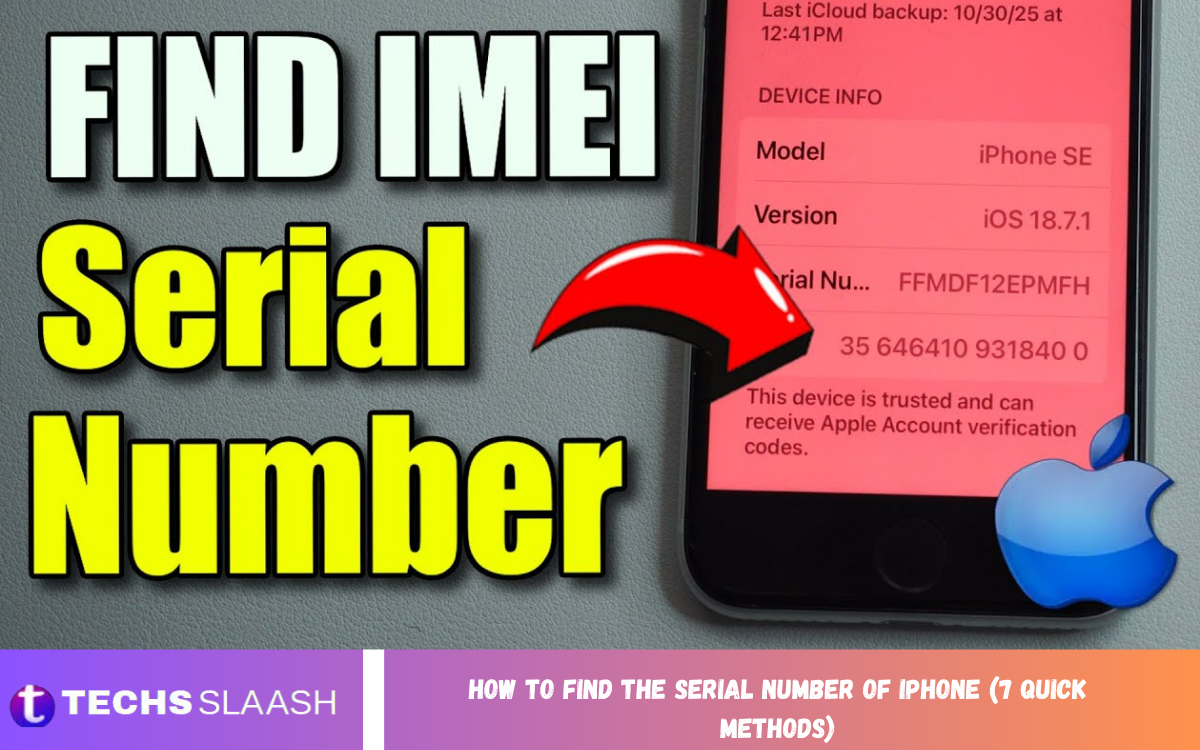
Finding the serial number of an iPhone is useful when you need Apple support, warranty information, repair assistance, insurance documentation, or device identification. Apple provides several reliable ways to locate this unique identifier, even when you cannot access the normal Settings menu.
The easiest method is usually through Settings > General > About, where the serial number appears alongside other device information. However, if your iPhone is damaged, locked, unavailable, or already sold, you can use other options such as your Apple Account, a connected computer, the original packaging, or another Apple device.
What Is an iPhone Serial Number?
An iPhone serial number is a unique identifier assigned to an individual device. It helps identify the specific iPhone when dealing with Apple support, repairs, service coverage, registration, or other device-related matters.
The serial number is different from the IMEI, which identifies the cellular device on mobile networks. Both numbers can appear together in some locations, but they serve different purposes. When Apple specifically asks for the serial number, use the value labeled Serial Number rather than substituting the IMEI.
Find the Serial Number in Settings
The quickest way to find the serial number of iPhone is through the Settings application. Unlock your iPhone, open Settings, select General, and then tap About. Scroll through the information until you see Serial Number.
You can press and hold the serial number to copy it, which is helpful when entering it into an Apple support or registration form. This method is particularly convenient because it does not require a computer, packaging, or another device.
Find the Serial Number Before Setup
If you have a new or reset iPhone that is still showing the Hello setup screen, you may not need to complete the entire setup process to locate its identification information. Turn on the device and look for the Info button on the setup screen.
Tap the Info button to view available device identifiers before completing setup. This can be useful when checking a device before activation or when you need information without signing into the iPhone first.
Find the Serial Number Using Apple Account
Another practical method is to use your Apple Account. Sign in to your Apple Account on the web and open the section showing your devices. Select the relevant iPhone to view information associated with that device, including its serial number.
This option can be especially useful if you no longer have immediate access to the iPhone. It may also help when the phone cannot be turned on but remains associated with your Apple Account. Make sure you sign in to the account that was used with the specific iPhone.
Find the Serial Number on Another Apple Device
If you own another Apple device signed in to the same Apple Account, you may also be able to locate information for the iPhone there. On another compatible iPhone or iPad, open Settings and tap your name at the top.
Scroll through the list of devices associated with the account and select the iPhone you want to identify. This can provide a convenient alternative when the original iPhone is unavailable, damaged, or unable to display its Settings information.
Find the Serial Number With Finder
A Mac can provide another straightforward way to find the serial number of iPhone. Connect the iPhone to the Mac and open Finder. On supported macOS versions, locate the iPhone in Finder and open its device information.
Apple explains that the serial number can be displayed from the device information in Finder, and it can also be copied when needed. This method is particularly useful if the iPhone screen is difficult to use but the computer can still recognize the device.
Find the Serial Number With Apple Devices or iTunes
Windows users can use the Apple Devices app or iTunes, depending on their setup. Connect the iPhone to the computer, open the appropriate application, and locate the connected device.
The device information can display the serial number along with other identifiers. Older Mac systems that use iTunes can also provide device information through iTunes. This gives users another dependable option when they prefer using a computer instead of navigating the phone itself.
Find the Serial Number on the Original Box
If you still have the original iPhone packaging, check the barcode label. Apple places important device identifiers on the original packaging, including the serial number and, depending on the model, other identifiers.
This method is especially helpful if the iPhone is not working, has been reset, or cannot be accessed. However, make sure the box actually belongs to the iPhone you are checking, because packaging from another device will not provide the correct serial number for your phone.
Can You Find the Serial Number on the iPhone?
The physical location of device identifiers varies by iPhone generation. Some older iPhone models have identifiers physically engraved on the device or SIM tray, while newer models may not have the serial number visibly printed on the hardware.
Apple notes that several older models have IMEI or MEID information on the SIM tray or back of the device, but this does not mean the physical identifier is necessarily the serial number. For many newer iPhones, Settings, Apple Account, computer software, or original packaging are better options.
Serial Number vs IMEI
It is important to understand the difference between the serial number and IMEI. The serial number is used primarily to identify the specific Apple device, while the IMEI is a cellular identifier associated with mobile communication hardware.
You may see both values on the About screen, packaging, or computer information. If Apple support asks specifically for the serial number, copy the number next to Serial Number. Do not automatically provide the IMEI simply because it is easier to locate.
Read Also; How to Enable or Disable Developer Mode on Android (Easy Method)
Why You May Need Your iPhone Serial Number?
There are several situations where knowing your serial number can save time. Apple support may request it when troubleshooting a device, arranging service, or identifying a particular iPhone.
The serial number can also be useful for maintaining personal purchase records, insurance documentation, business asset records, and repair information. Keeping a secure record can make future support or ownership-related tasks easier.
What to Do If Your iPhone Is Lost?
If your iPhone is lost or unavailable, you may still be able to retrieve its serial number through your Apple Account or another device signed in to the same account. This is useful when preparing information for support or documentation.
Avoid sharing your serial number publicly on social media or unfamiliar websites. Treat device identifiers as information that should generally be shared only with trusted services or people who genuinely need them.
What If Your iPhone Will Not Turn On?
A phone that will not power on can make the Settings method impossible. In this situation, check the original box first, then look through your Apple Account or another Apple device associated with the same account.
You can also try connecting the iPhone to a compatible Mac or PC. If the computer recognizes the device, Finder, Apple Devices, or iTunes may provide the serial number. The exact options available can depend on the device condition and computer software.
Tips for Recording Your Serial Number
Once you find the serial number of iPhone, consider keeping it somewhere secure for future reference. You can record it with your purchase information, warranty documents, or personal device inventory.
Do not publish the complete serial number unnecessarily. If you are documenting several devices, label each record clearly so you do not accidentally associate one iPhone’s serial number with another device.
Common Problems When Finding an iPhone Serial Number
One common mistake is confusing the serial number with the IMEI. Both may appear on the same screen, but they are different identifiers and should be used according to what Apple or another service requests.
Another issue occurs when people rely on an old box or incorrect device information. Always compare the information from multiple sources when possible, especially if you are buying or selling a used iPhone and need to confirm that the packaging belongs to the device.
Which Method Is the Fastest?
For an accessible iPhone, Settings > General > About is normally the fastest option. It requires only a few taps and does not require additional equipment or accounts beyond the iPhone itself.
If you cannot access Settings, the best alternative depends on your situation. An Apple Account works well for an unavailable device, Finder or Apple Devices can help when you have a computer, and the original box can provide the information when the phone itself is inaccessible.
Frequently Asked Questions
How do I find the serial number of my iPhone?
Open Settings, tap General, select About, and look for Serial Number. You can press and hold the number to copy it.
Is the iPhone serial number the same as the IMEI?
No. The serial number and IMEI are different device identifiers. Apple may request either one depending on the type of support or service you need.
Can I find my iPhone serial number without the phone?
Yes. If the iPhone is associated with your Apple Account, you may be able to view its information through your account or another Apple device signed in to the same account.
Can I find the serial number on the iPhone box?
Yes. The original packaging includes a barcode label containing the serial number and other device information.
Can I find the serial number before activating an iPhone?
Yes. On supported iPhones, the Info button on the Hello setup screen can provide device identification information before setup is completed.
Can Finder show my iPhone serial number?
Yes. Connect the iPhone to a Mac and locate it in Finder. The device information can display the serial number.
Can Windows show an iPhone serial number?
Yes. Depending on your Windows setup, you can use the Apple Devices app or iTunes after connecting the iPhone to the computer.
Where is the serial number on older iPhones?
Older iPhone generations may have device identifiers engraved on the back or SIM tray, depending on the model. Settings remains one of the most reliable places to check.
Why does Apple need my serial number?
Apple can use the serial number to identify your specific device when providing support, service, or other device-related assistance.
Should I share my iPhone serial number publicly?
It is better to keep your serial number private and provide it only to trusted services or people who have a legitimate reason to need it.
Conclusion
There are several simple ways to find the serial number of iPhone, so you do not need to rely on a single method. The Settings app is generally the quickest choice, while Apple Account, another Apple device, Finder, Apple Devices, iTunes, the Hello setup screen, and original packaging provide useful alternatives.
If your iPhone is working normally, start with Settings > General > About. If the phone is unavailable, check your Apple Account, another connected Apple device, computer software, or original packaging.
