

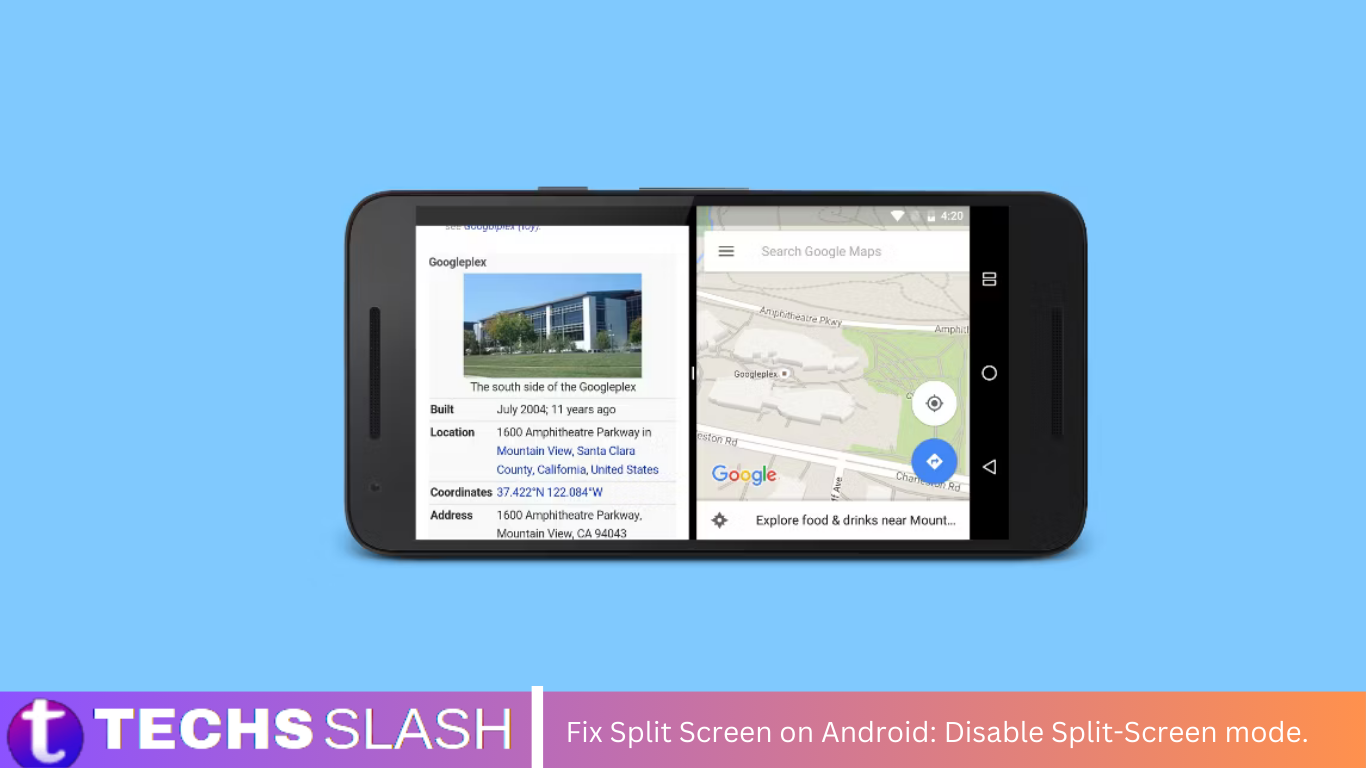
Split screen mode for multitasking on your Android device offers convenience, yet there are moments when concentrating on a single app becomes imperative. Turning off this mode is straightforward if caught in a split-screen view and prefers a singular full-screen experience. With a few intuitive gestures, you can seamlessly transition back to a single app, reclaiming full control over your Android’s display.
Introduction to Fix Split Screen on Android
Android devices offer many features to enhance user experience, including the split-screen mode. While this feature can be useful for multitasking, it may cause inconvenience or confusion for users. This comprehensive guide provides step-by-step instructions on disabling split-screen mode on Android devices, allowing users to regain control of their display.

Split-Screen Mode
Split-screen mode, or multi-window mode, lets users view and interact with two apps simultaneously on their Android device’s screen. This feature can be particularly handy for tasks such as browsing the web while watching a video or composing an email while referencing another document. However, some users may find split-screen mode distracting or accidentally activate it, leading to frustration.

Reasons to Disable Split-Screen Mode
There are several reasons why users may want to turn off split-screen mode on their Android devices:
- Accidental activation: Users may inadvertently trigger split-screen mode while performing other actions on their device.
- Preference for full-screen experience: Some users prefer to focus on one app at a time and find split-screen mode distracting.
- Performance concerns: Running multiple apps simultaneously in split-screen mode may impact device performance and battery life.
- Compatibility issues: Certain apps or games may not support split-screen mode, leading to display or functionality issues.
Steps to Disable Split-Screen Mode
Disabling split-screen mode on an Android device typically involves adjusting settings or using specific gestures. The following step-by-step instructions outline the process for various Android versions and device models:

- Navigate to Settings: Open the Settings app on your Android device. You can usually find it in the app drawer or by swiping down from the top of the screen and tapping the gear icon.
- Access Display Settings: In the Settings menu, locate and select the “Display” or “Display & Brightness” option. This will vary slightly depending on your device manufacturer and Android version.
- Disable Multi-Window Mode: Within the Display settings, look for an option related to multi-window or split-screen mode. This may be labeled differently depending on your device, such as “Multi-window” or “Split screen.” Tap on this option to access the settings.
- Toggle Off Split-Screen Mode: Once you’ve accessed the multi-window settings, you should see an option to turn split-screen mode on or off. Toggle the switch or checkbox to turn off split-screen mode.
- Confirm Changes: After turning off split-screen mode, exit the settings menu and return to the home screen or your preferred app. Verify that split-screen mode is no longer active by attempting to resize or split the screen.
Alternative Methods to Disable Split-Screen Mode
Split-screen mode on most devices, you can try the following alternative methods:
- Swipe Gesture: Swipe inward from either side of the screen to exit split-screen mode. This method works on many Android devices that support split-screen functionality.
- Tap and Hold: Tap and hold the center divider between the two split-screen apps. You should see an option to exit or close split-screen mode. Tap on it to return to the single-app view.
- Recents/Overview Button: Tap the Recents or Overview button (typically a square or rectangular icon at the bottom of the screen) to view your recent apps. Find the split-screen app setup and swipe it off the screen to close it.
- Settings: Go to your device’s app and navigate to the Display or Multi-Window settings. Look for an option related to split-screen or multi-window mode and toggle it off to disable split-screen functionality.
- Restart the Device: Sometimes, restarting your device can exit split-screen mode and return you to the standard single-app view.
How to Exit Split Screen Mode
Exit split-screen mode on an Android device by following these steps:
- Locate the Split-Screen Divider: Identify the divider bar between the two apps in split-screen mode. It usually appears as a thin line running vertically or horizontally on the screen.
- Drag the Divider Bar: Tap and hold the divider bar with your finger or stylus. Drag it to the edge of the screen in the direction of the app you want to exit from.
- Release the Divider: Once you’ve dragged the divider bar to the edge of the screen, release your finger or stylus. The app on the side where you dragged the divider will exit split-screen mode and return to full-screen view.
- Exit Split-Screen Mode Completely (Optional): If you want to exit split-screen mode entirely and return to using just one app, you can tap on the remaining app’s window or use the “Home” button to navigate away from split-screen mode.
Frequently Asked Questions
What is a split-screen mode on Android?
Split-screen mode, or multi-window mode, allows users to view and interact with two apps simultaneously on their Android device’s screen.
Why would I want to turn off split-screen mode?
Some users find split-screen mode distracting or accidentally activate it. Disabling it can help regain focus on one app at a time and prevent performance issues.
How do I turn off split-screen mode on my Android device?
To turn off split-screen mode, access display settings and toggle off the multi-window or split-screen option. Specific steps may vary depending on your device model and Android version.
Can I turn off the split-screen mode temporarily?
Yes, you can exit split-screen mode by dragging the divider bar to the edge of the screen. This will return one of the apps to full-screen view while keeping the other app running in the background.
Are there alternative methods to turn off split-screen mode?
Some devices offer gesture controls or accessibility settings to turn off split-screen mode. Additionally, you can explore developer options for advanced customization.
What if I encounter issues while turning off split-screen mode?
If you encounter difficulties, try restarting your device, updating software, checking app compatibility, or resetting settings. These troubleshooting steps often resolve common issues.
Will disabling split-screen mode affect other features or apps on my device?
Disabling split-screen mode should not affect other features or apps on your device. It simply removes the ability to view two apps simultaneously in split-screen mode.
Can I re-enable split-screen mode after turning it off?
You can re-enable split-screen mode by accessing display settings and toggling the multi-window or split-screen option back on.
Does disabling split-screen mode improve device performance?
Disabling split-screen mode may help improve device performance by reducing the strain of running multiple apps simultaneously. However, the impact on performance may vary depending on other factors.
How can I learn more about split-screen mode and other Android features?
You can explore your device’s user manual, online resources, or community forums for additional information and tips on split-screen mode and other Android features.
Conclusion
Split-screen mode can be a valuable feature for multitasking on Android devices, but it may only suit some people’s preferences or usage habits. Following the steps outlined in this guide, users can easily turn off split-screen mode and regain control of their device’s display. Knowing how to turn off split-screen mode empowers users to tailor their Android experience to suit their needs, whether due to accidental activation, performance concerns, or personal preference.
