

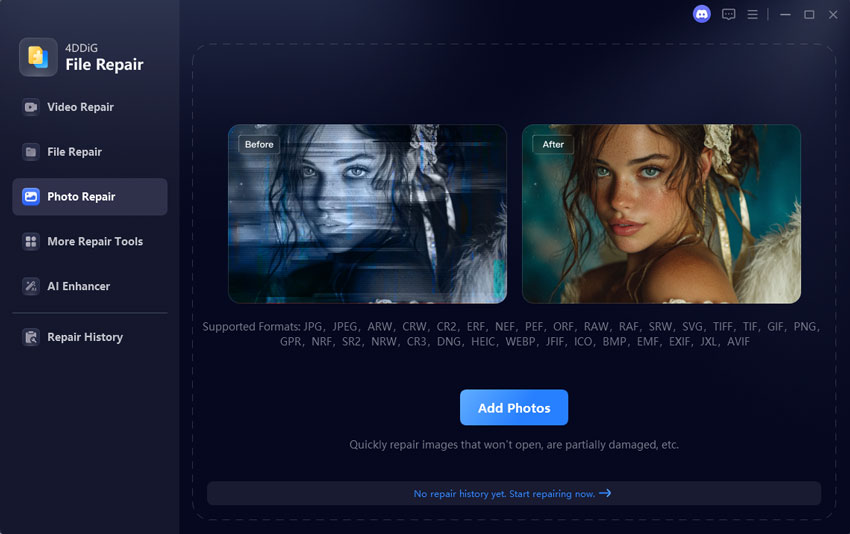
To fix photo not supported errors in Windows, check the image format, update the Photos app, or try another compatible viewer. If the image file itself is corrupted, dedicated software such as 4DDiG Photo Repair may help recover it.
Seeing an error when opening a picture can be frustrating. A photo format not supported fix depends on whether Windows lacks the required format support or the image is damaged. The following methods help you identify the cause and choose the right solution.
Why Photos Show “Not Supported”
Windows may display this error for several reasons. Identifying the cause first can save time and prevent unnecessary repairs.
- Unsupported format: Your viewer may not recognize the image format.
- Missing extensions: Some formats require additional components.
- Outdated applications: An older Photos app may have compatibility issues.
- File corruption: An interrupted transfer or storage error may damage image data.
An image file not supported fix should address the actual problem. For example, installing a suitable extension may resolve a compatibility issue, but it will not necessarily restore a damaged image.
Error-to-Fix Quick Table
Use this table to match your error with a possible cause and solution. Try the simplest option before moving to dedicated repair software when you face the JPG file not supported by Photos app.
| Error or Format | Possible Cause | Recommended Fix |
| HEIC image won’t open | Missing format support | Install the required extension or convert the image |
| RAW photo won’t open | Unsupported camera format | Use a compatible viewer |
| JPG file won’t open | App issue or file corruption | Try another viewer and check the file |
| Photo opens on phone only | Format compatibility differences | Transfer a compatible version |
| Image fails after transfer | Incomplete transfer or corruption | Transfer it again or repair the image |
These solutions address different problems. If an image opens in another application, compatibility is more likely to be the issue. If multiple viewers reject the same file, investigate possible corruption.
Fix 1: Change the File Format
Some image formats require additional support on Windows. HEIC images, for example, may need the appropriate extension before the Photos app can open them. If you encounter a JPG file not supported by Photos app error, first confirm that the file is genuinely a JPG. Changing the filename extension does not convert the image’s underlying format.
If another application can open the picture, use its export or conversion feature to save a copy as JPG or PNG. These formats work with many common image viewers. You can also use a reputable image converter. Choose a supported output format, preserve the original file, and check the converted image afterward. If no application can open the picture, conversion may not work because the source file could be damaged.
Fix 2: Update the App or Use Another Viewer
An outdated Photos app or missing format component may prevent Windows from opening an otherwise healthy image. First, open the Microsoft Store and check for updates to Microsoft Photos. Install any available update, then reopen the image.
For HEIC files, check whether the required HEIF Image Extensions are installed. Some formats may need additional components, depending on your Windows setup. If the error persists, try another compatible image viewer. If the photo opens elsewhere, the original application or its format support may be responsible.
This method is useful when the file works on another device but fails on your computer. However, if several applications reject the image, investigate the file itself before trying more viewers.
Fix 3: Repair the Image File
If the format is supported and multiple viewers cannot open the image, file corruption may be responsible. In this situation, a dedicated repair tool may help restore readable image data. 4DDiG Photo Repair is designed to repair damaged photos in supported formats and fix photo not supported issues:
- To begin, install 4DDiG Photo Repair and open the program. Select the photo repair feature and add the affected images.
- Next, start the repair process using the “Repair All” option. When it finishes, preview the repaired images to check whether they display correctly. If the results are satisfactory, save the recovered files to a separate folder.
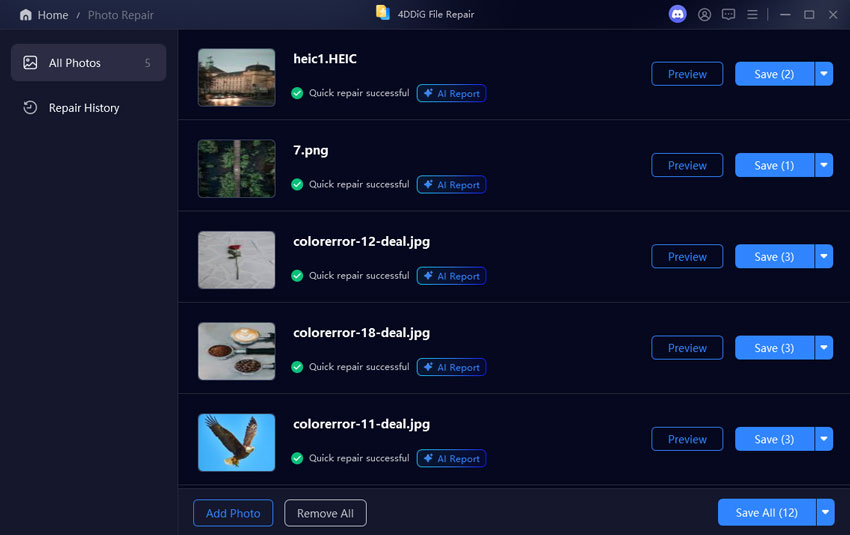
This method may help fix corrupted photo file problems that format conversion cannot resolve. However, recovery depends on the type and severity of the damage. No repair tool can guarantee that every image will be restored completely.
Frequently Asked Questions
Why Does Windows Say My Photo Is Unsupported?
Windows may not recognize the image format, may lack a required extension, or may be unable to read damaged image data. Try another compatible viewer first. If the file fails everywhere, check whether it was transferred completely.
Can I Repair an Image That Won’t Open?
Yes, some unreadable images can be recovered. Start by checking the format and transferring the file again if possible. If corruption is responsible, dedicated software may help repair unreadable image files. Recovery is not guaranteed, especially when important image data is missing.
Conclusion
The best solution depends on why Windows rejects the image. Check the format, update Photos, and try another viewer before attempting repairs. If the file is damaged, 4DDiG Photo Repair may help restore access to your pictures. Keep the original image until you have verified the repaired version when you fix photo not supported error.
