

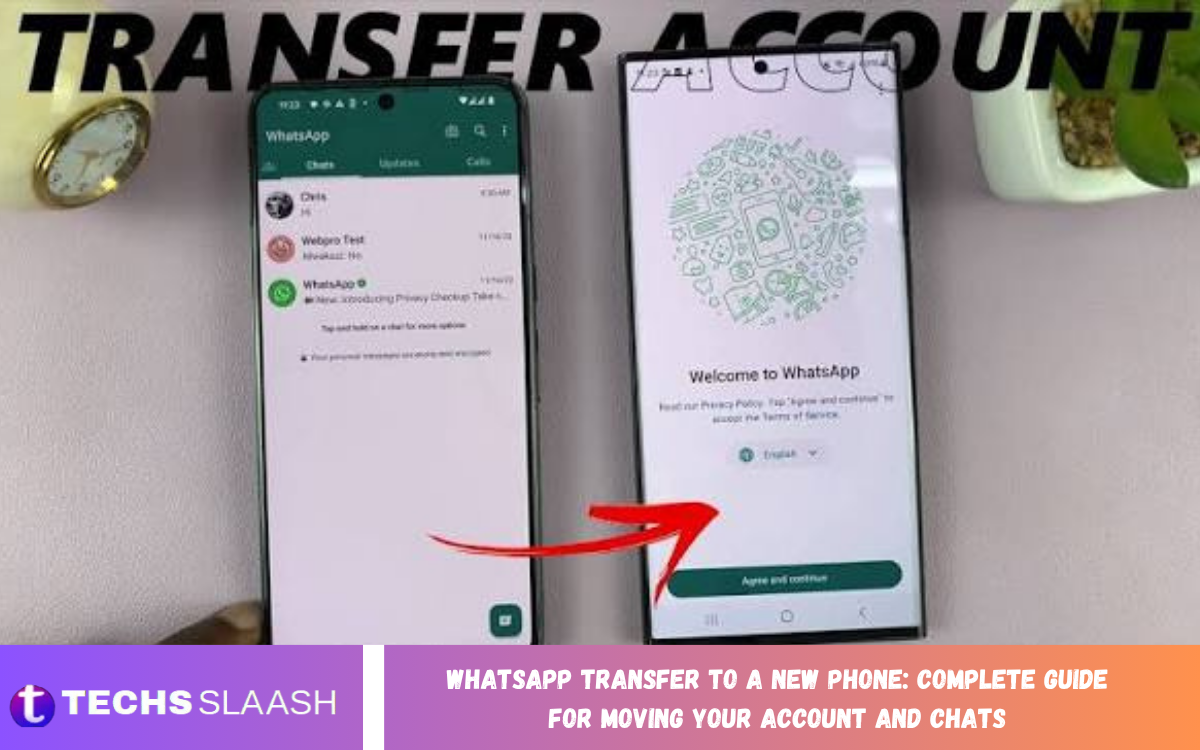
Moving WhatsApp to a new phone can seem complicated, especially when you have years of personal chats, photos, videos, documents, and important conversations. Fortunately, WhatsApp provides several methods that make transferring your account and chat history much easier.
The right transfer method depends on whether you are moving between Android phones, between iPhones, or switching from Android to iPhone or iPhone to Android. Preparing your old and new phones before you start can help prevent missing data.
Prepare Your Old and New Phone
Before transferring WhatsApp to a new phone, make sure both devices have enough battery power and a stable internet connection. Also update WhatsApp on both phones so the transfer works smoothly.
Keep your old phone available until you have successfully checked WhatsApp on the new device. Avoid deleting WhatsApp or resetting your old phone until you’ve confirmed your chats, media, and other important information on the new phone.
Back Up Your WhatsApp Chats
Creating a fresh backup is an important step before moving WhatsApp to a new phone. On your old phone, open WhatsApp settings and locate the chat backup option, then create a current backup using the available backup service.
A recent backup provides an additional recovery option if something goes wrong during the transfer. Make sure the backup has completed successfully before proceeding, especially if your account contains many photos, videos, documents, or voice messages.
Transfer WhatsApp Between Android Phones
Moving WhatsApp from one Android phone to another can usually be completed using WhatsApp’s chat transfer feature or a cloud backup. The direct transfer method can move chat history and media from the old device to the new device without depending entirely on cloud storage.
Install WhatsApp on the new Android phone and use the same phone number associated with your existing account. Follow the on-screen instructions and select the appropriate transfer option when it becomes available.
Move WhatsApp From iPhone to iPhone
iPhone users can transfer WhatsApp data between devices using the available WhatsApp transfer process or an iCloud backup. Before starting, ensure that the old iPhone has a recent backup and that both devices are properly prepared.
After installing WhatsApp on the new iPhone, verify the same phone number used on the previous device. When prompted, follow the restoration or transfer instructions and allow the process to finish before opening individual conversations.
Transfer WhatsApp From Android to iPhone
Switching from Android to iPhone requires a different process because the two platforms use different backup systems. WhatsApp supports an official migration method that can transfer supported account information and chat history during the move.
Before starting, both phones should meet the required software and setup conditions. Follow the migration instructions carefully, use the same phone number, and avoid interrupting the process while WhatsApp data is being transferred.
Transfer WhatsApp From iPhone to Android
Moving WhatsApp from an iPhone to an Android device also requires a supported migration process. Depending on the devices involved, the transfer may require a cable, device setup process, or another supported transfer method.
Start the process before completing the setup of the new Android phone when the migration instructions require it. Keep both devices connected and follow every instruction displayed on the screen to reduce the possibility of incomplete data transfer.
Keep the Same Phone Number
Using the same phone number can make moving WhatsApp to a new phone much simpler. When you install WhatsApp on the new device, enter the phone number associated with your existing WhatsApp account and complete the verification process.
If you are changing your phone number as well as your phone, use WhatsApp’s change-number feature on the old device before completing the transfer. This moves your account information to the new number while keeping supported account data.
Read Also: WhatsApp Account Recovery: Complete Guide to Regaining Access
Transfer WhatsApp Chats and Media
A successful WhatsApp transfer can include important conversations and supported media such as images, videos, voice messages, and documents. The exact information transferred depends on the operating systems and migration method used.
Large media collections can make the process take considerably longer. Keep both phones connected to power when needed, and avoid switching apps or disconnecting devices until WhatsApp confirms the transfer is complete.
Restore WhatsApp From a Backup
Restoring from a backup helps when direct phone-to-phone transfer isn’t available or when you need to recover WhatsApp data on a new device. The backup must normally match the correct account and phone number for WhatsApp to recognize it.
When WhatsApp detects an available backup during setup, select the restore option and wait for the process to complete. Depending on the backup size and your internet connection, messages may appear before some media finishes restoring.
Check Your Chats After Transfer
After completing the WhatsApp transfer to a new phone, carefully review your most important conversations. Open several chats and check whether recent messages, photos, videos, documents, and voice messages are available.
Also check group conversations, archived chats, starred messages, and important contacts. If something appears missing, don’t immediately erase WhatsApp from your old phone, as it may still offer another recovery option.
Common Problems During WhatsApp Transfer
One common problem is an incomplete backup or transfer caused by insufficient storage space. Check the available storage on the new device and make sure the old phone has enough space to complete the backup or migration process.
Another issue can occur when users enter a different phone number or use a different cloud account from the one associated with their backup. Carefully verify your account details before beginning the restoration process.
Protect Your WhatsApp Account
Keep security a priority when moving WhatsApp to a new phone. Never share your WhatsApp verification code with another person, even if someone claims to be helping you transfer your account.
After setting up the new phone, review your linked devices and remove any device you no longer recognize or use. Enabling two-step verification also adds an extra layer of protection for your WhatsApp account.
What to Do With Your Old Phone?
Don’t reset your old phone immediately after completing the transfer. Keep it available until you have confirmed that important WhatsApp conversations and media are accessible on the new device.
Once you’ve verified everything, you can sign out of accounts, remove personal information, and perform a factory reset if you plan to sell or give away the old phone. Make sure you’ve safely transferred important data before doing so.
Frequently Asked Questions
Can I transfer WhatsApp to a new phone?
Yes, you can transfer WhatsApp to a new phone using supported direct transfer or backup and restoration methods. The exact process depends on whether you are using Android, iPhone, or switching between platforms.
Will my WhatsApp chats transfer to my new phone?
You can transfer supported chat history to a new phone when you use the correct migration or backup method. Make sure the required phone number and account information are correct.
Can I transfer WhatsApp without losing photos?
Yes, supported WhatsApp media can transfer along with chats when the selected migration method supports media. Always verify your photos and videos after the process is complete.
Do I need the same phone number for WhatsApp transfer?
Using the same phone number generally makes the transfer process easier. If you are changing numbers, use WhatsApp’s change-number feature before moving your account.
Can I transfer WhatsApp from Android to iPhone?
Yes, WhatsApp supports migration between Android and iPhone under supported conditions. The required steps depend on the devices and operating-system versions involved.
Can I transfer WhatsApp from iPhone to Android?
Yes, supported WhatsApp migration methods allow users to move their account and supported chat data from iPhone to Android. Follow the instructions provided during the device setup and transfer process.
What happens if WhatsApp backup is not found?
If WhatsApp doesn’t detect a backup, confirm you are using the correct phone number and cloud account. Also check whether you successfully created a backup on the old phone.
How long does WhatsApp transfer take?
The transfer time depends on the amount of chat history and media being moved, along with device performance and connection speed. Large backups can take significantly longer than smaller ones.
Should I keep my old phone after transferring WhatsApp?
Yes, we recommend keeping your old phone until you have checked the new device and confirmed that important chats and media are available. This gives you an extra option if you run into a problem.
How can I keep my WhatsApp account secure after moving phones?
Never share verification codes, review linked devices, and consider enabling two-step verification. Also make sure your new phone is protected with a secure screen lock.
Conclusion
A WhatsApp transfer to a new phone is much easier when you prepare both devices, create a current backup, and choose the right migration method. Whether you are moving between Android phones, iPhones, or switching platforms, following the proper steps can help protect your chats and media.
Before resetting or selling your old phone, carefully verify your WhatsApp account, conversations, media, groups, and important documents on the new device.

1 Comment
Pingback: WhatsApp Online Status: Complete Guide to Managing Your Privacy - Techsslaash.com