

A software team may need to share setup instructions with customers in several countries. A supplier may send a product manual in a language the local support team does not use. In both cases, translating the PDF is only the first step: readers also need to connect each instruction with the right heading, diagram or warning.
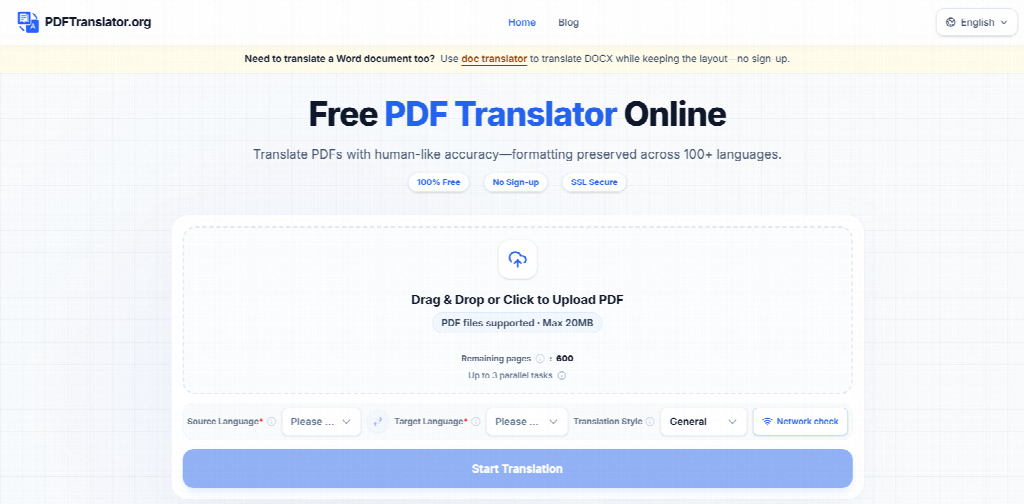
An AI PDF translator can help teams prepare a first translated version without copying the text into a separate document and rebuilding the layout manually. PDFTranslator.org supports more than 100 languages, accepts PDF files up to 20 MB and aims to retain the original document’s structure. The result still needs review, particularly when it contains technical terms or operational instructions.
A dependable workflow begins with the right source file and ends with a side-by-side content and layout check. This is especially important for technical PDFs, where a misplaced warning or altered number can make an otherwise readable translation confusing.
Start with a controlled source file
Before uploading, confirm the document’s title, revision, date and product model. A translation based on an old manual can mislead users even if every sentence is translated correctly. Save the original under a clear filename, such as Router_Setup_Guide_EN_Rev4.pdf, and give the translated copy a matching name that identifies its language.
Check whether the PDF contains selectable text by trying to highlight and copy a sentence. PDFTranslator.org currently supports text-based PDFs; it does not provide OCR or translate scanned documents. If the file consists of scanned page images, use a separate OCR tool to extract the text, then verify the extracted content against the original before translating it with a suitable workflow. Skew, low contrast, unusual typefaces and handwriting can make OCR less reliable, especially for numbers, units and table entries.
Review the document’s sensitivity as well. Technical files may include network details, credentials, customer data, unpublished vulnerabilities or internal procedures. Follow your organisation’s approved-tool and data-classification policies before uploading. Remove material that does not need to be shared using the source application or an authorised PDF editor, if policy permits.
Choose languages and terminology deliberately
Select the source language and target language yourself. Do not assume automatic source-language detection. For documents with mixed-language content, note which sections require particular attention.
Regional language choices can also affect terminology. A support guide for customers in Mexico may need different wording from one intended for Spain. Confirm the preferred variant with the local team or intended readers before processing.
For recurring documents, create a small glossary of product names, menu labels and technical terms. Words such as “gateway,” “token,” “port” and “certificate” can have specialised meanings depending on context. A glossary helps reviewers check whether the same term has been handled consistently across manuals, release notes and support materials.
Translate and compare the result
Upload the approved PDF, choose the languages and a translation style that fits the document, then process and preview or download the translated copy. PDFTranslator.org does not require account registration for this workflow. Keep the original open beside the translated document so that headings, page numbers, tables and warnings are easy to compare.
Start with the pages that carry the greatest risk: installation steps, access-control settings, safety notices, recovery procedures and compliance statements. Check names, numbers and technical strings carefully. These may include:
- IP addresses, ports and subnet masks
- URLs, file paths and command-line instructions
- Product names, firmware versions and model numbers
- Configuration keys, identifiers and code samples
- Units, decimal points, dates and quantities
Commands and configuration values generally should remain unchanged unless the product provides official localised equivalents. Explanatory text around them can be translated, while the technical string itself should be checked character by character.
Review warnings and instructions for meaning
Small differences in wording can change how a reader interprets a procedure. Terms such as “must,” “should,” “may” and “must not” express different levels of obligation. Review them carefully in safety, security and compliance material.
A subject-matter expert should check instructions that could affect equipment operation, access permissions, legal responsibilities or personal safety. Automated translation can prepare a draft, while qualified reviewers remain responsible for approving high-impact content.
PDFTranslator.org does not currently support OCR or scanned-document translation. If you use a separate OCR tool to extract text from a scan before translation, compare its output with the original image. OCR can confuse similar characters such as 0 and O, or 1 and l; one mistaken character in a command or serial number can matter. Check handwritten notes manually rather than assuming the OCR tool has captured them accurately.
Check the page, not just the sentences
Translated text may take up more or less space than the source. Review the completed PDF for clipped text, overlapping diagrams, broken headings, misaligned table columns, shifted captions and warnings split across pages. Verify that the target-language characters display correctly.
Text embedded inside screenshots or diagrams may need separate handling. Check whether labels in the image still match the translated explanation around it. A visually similar page is useful, but it does not prove that the translated content is accurate.
Keep translation within document control
Treat the translated PDF as a versioned document linked to its source. Record the source revision, source and target languages, translation date, tool used, reviewer and approval status. If the original manual changes, check whether its translation needs updating too.
Before distribution, confirm that every source page is present, the key technical strings match, warnings retain their intended force, tables are readable and the final file is approved for its audience. Store the original and translated versions together so future reviewers can trace the relationship.
Frequently Asked Questions
What should I do if my technical PDF is a scan?
PDFTranslator.org does not currently support OCR or scanned-document translation. Use a separate OCR tool to extract the text, then verify it against the page images before translating it through an appropriate workflow.
Should commands and configuration strings be translated?
Usually, keep commands, paths, configuration keys and code unchanged unless an official localised version exists. Verify them character by character.
Does layout preservation guarantee an accurate translation?
No. It helps readers follow the document structure, while terminology and meaning still require linguistic and technical review.
Translating a technical PDF is most useful when the result is easy to follow and safe for its intended purpose. Confirm the source version, select the languages deliberately and review both content and layout before sharing. That final human check turns a translated file into a practical resource for teams working across languages.
