

You insert your SD card, open it, and the folder is empty – yet the card’s storage bar shows it is nearly full. It is one of the strangest and most frustrating SD card problems: the data is obviously there, but nothing is showing up.
The good news is that “empty but full” almost always means the files are still on the card. They are hidden, orphaned, or invisible to the file system for a handful of fixable reasons – and in most cases they can be brought back.
Why Files Disappear from an SD Card
Several things can make a card look empty while it is actually full:
- Hidden file attribute. Files can be marked hidden, either accidentally or by software, and most file explorers hide them by default.
- File system corruption. If the card’s index is damaged, files exist but the computer cannot see them.
- Virus or malware. Some infections hide or rename files.
- Accidental deletion. The files were deleted – the space is “full” because the data has not been overwritten yet.
- Card reader issues. A flaky reader can make a healthy card look empty.
Whatever the cause, the data is usually recoverable. The phrase “hidden files” covers more ground than people expect: a file can be hidden by a flag, orphaned by a broken index, or simply present in a folder the card’s reader refuses to enumerate. In every case the bytes are on the card – the challenge is finding a way to see them.
Method 1 – Show Hidden Files on Windows or Mac
Before reaching for recovery software, check whether the files are simply hidden.
- On Windows: open the card in File Explorer, click View > Hidden items in the Show/hide group. You can also open Control Panel > File Explorer Options > View and enable “Show hidden files, folders, and drives.
- On Mac: open Finder, press Command + Shift + . (period) to toggle hidden files. If you see your files, copy them somewhere safe immediately. If hidden files were the problem, you are done – back everything up and move on.
A quick note on why this check matters first: this method is free, instant, and covers the most common cause of a “full but empty” card. Hidden-file flags can be set by the camera itself (some cameras hide folders it considers system data), by antivirus tools, or by a virus that wants to conceal its own files. Whatever set the flag, showing hidden items exposes everything – including, occasionally, files you did not know were there.
Method 2 – Scan for Deleted or Hidden Files with Recoverit
If the card is genuinely empty after showing hidden files, or if the files were deleted, run a proper scan. Wondershare Recoverit deep-scan support finds hidden and fragmented files that ordinary tools miss – including files whose entries were removed from the file system entirely.
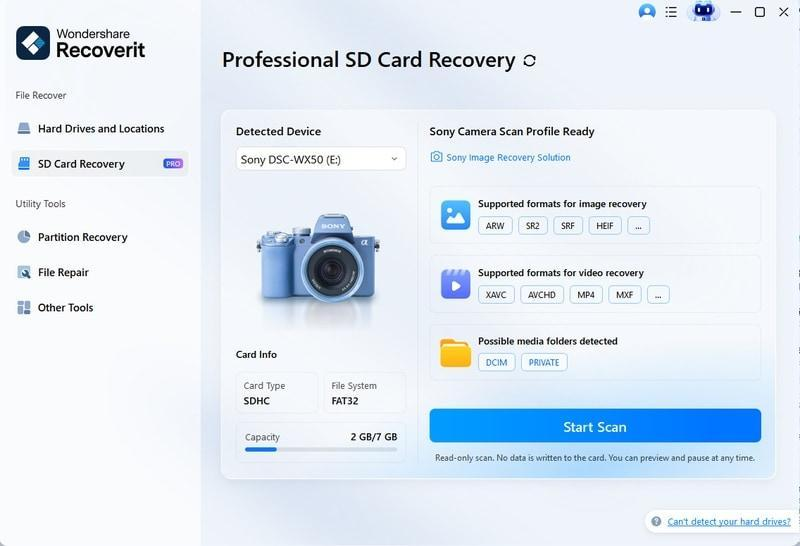
1. Launch Recoverit and click SD Card Recovery. Connect the card through a card reader.
2. Select the card and click Scan. Recoverit’s AI-accelerated scanning rebuilds device-specific file patterns, uncovering hidden, orphaned, and deleted files.

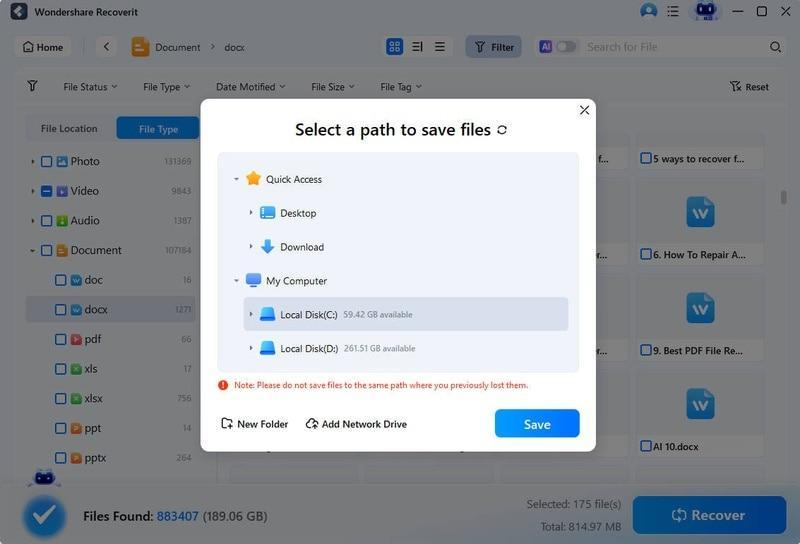
3. Use the filters and keyword search to focus on what you need – file type, date, and size filters make finding photos or videos quick, even among thousands of results.
 4.
4.
Preview the files, select what you want, and click Recover. Save to a different drive.
What a Deep Scan Actually Finds
A deep scan reads the card’s raw sectors and rebuilds file structures from the data itself, rather than trusting the (possibly broken) file system. That is what lets it surface hidden files, recover deleted photos, and restore files whose names and locations were lost. It is slower than a quick scan, but for a card that appears empty, it is the difference between finding your photos and giving up on them – so when the quick pass comes up short, the deep pass is the next step, not the end of the road.
Method 3 – Check the Card on Another Device
Sometimes the problem is not the card at all. Try these quick checks:
- Try a different card reader or a direct USB port instead of a hub.
- Try the card in the camera or drone it came from – devices sometimes read cards that computers misbehave with.
- Check the card on another computer to rule out a system-specific issue.
If the card shows files on another device, copy them off immediately and inspect the original reader.
Prevent Hidden-File Loss
- Back up after every shoot. Hidden-file problems disappear when your photos live in more than one place.
- Scan cards periodically. A quick read-only scan now and then catches problems early.
- Keep antivirus updated. Malware that hides files is preventable.
- Eject cards properly. Safe ejection prevents the corruption that makes files invisible.
- Know your file explorer’s settings. On Windows, keep “show hidden files” enabled for removable drives; on Mac, remember the Command + Shift + . toggle. A five-second check can save an hour of panic.
Conclusion
An SD card that is “full but empty” is usually a card with invisible files, not a card that lost them. Show hidden files first, then run a deep scan with a tool that looks past the file system. Wondershare Recoverit finds hidden, orphaned, and deleted photos and videos – previews them, filters them, and restores them to a safe drive. When your files go invisible, they are still there; a proper scan is all it takes to bring them back to light. The card was full for a reason – and that reason is your data. Once it is recovered, the same invisibility lesson applies to your backups: keep copies somewhere the file system cannot hide them.
